Caristix Workgroup is designed to help interface analysts and engineers to manage the entire interfacing lifecycle. Workgroup provides the following features and functionality:

You can add documents (Word, Excel, PDF documents, etc.) to the Library. You can do so using one of the following ways:
Documents will be uploaded to the library and made available from Workgroup.
Documents and folders will be uploaded to the library and made available from Workgroup.
Document(s) will not be uploaded to the server and will only be available from your computer. Other user from the same library will see the shortcut, but won’t be able to open it. This will act as a normal shortcut in Windows.
There are actions that can be performed on the library via the Main Menu’s Action section, the right-click contextual menu (right-click a node or blank space), and the Gear icon beside the search bar.
When there is no document highlighted, the available actions are:
When a document is selected, the available actions depends on the document type. Common actions are:
The foundation of Caristix software is profiles. Profiles are another word for interface specifications, specs, or conformance profiles. They are a way to capture the data formats and code sets you need for exchanging information between systems. Profiles provide a list of message types (or trigger events), segments, fields, components, sub-components, data types, and data tables that are specific to a system. The profiles you develop with Caristix software can be used to:
You can either build a spec manually by reading sample HL7 messages over the course of a few days, or you can use Caristix software to automatically build one for you, using the reverse-engineering functionality in our software. Learn about the tasks related to building, scoping, and updating specifications as follows:
In Caristix software, profiles serve as interface documentation. The Library is a repository for all interface specifications: HL7 reference specifications (which come built into Caristix Workgroup software), product specifications, and specifications for the customized mapping and configuration that must occur for working interfaces as well as any other type of documentation file.
There are several ways to create a profile or specification:
This method is useful when you have a large volume of message types and trigger events to document, based on a specific HL7 version. If your specification is more limited, consider building a profile from individual message elements.
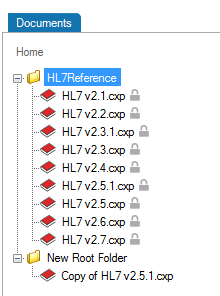
You will need to edit the profile to reflect the specification. Go to Editing a Profile to learn more.
You can also build a profile from individual message elements. This method is useful when the specification you are building is limited to a small subset of an HL7 version and when customization is extensive
You can add a trigger event or message type from one of the HL7 references or from a previously built profile.
In the Documents pane, double-click on the profile you want to build out.
In the Profile Explorer, right-click on the first node.
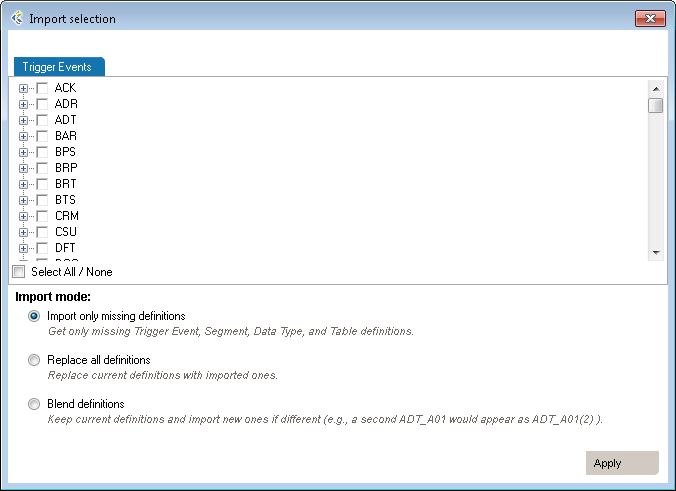
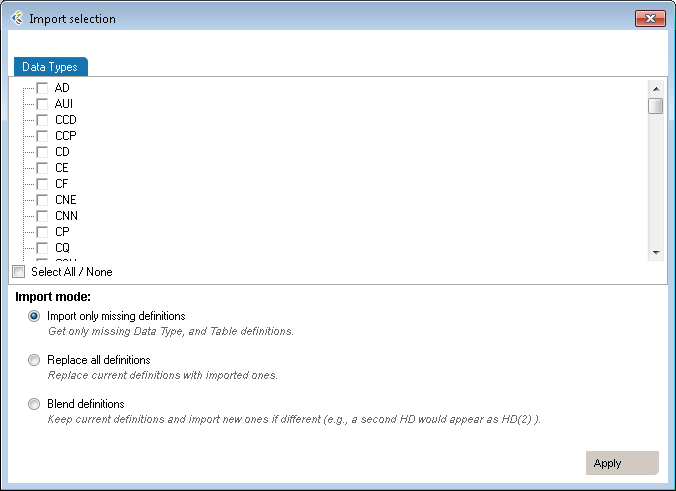
| Mode | Why Choose This Option | Action | Example |
| Import only missing definitions | Choose this if you only want to import element that don’t already exists in your profile | This will import definitions that are not present in the current profile and all referenced elements. | Your profile doesn’t have a ADT_A01 trigger event you’d like to add from HL7 v2.6. |
| Replace all definitions | Choose this if you need to replace all existing definitions with the imported definitions. | Replace existing elements by imported elements. This means that you’ll overwrite current definitions. The segment definition will change to the imported definition. | Your profile has an ADT_A08 definition that would like to replace by the one from v2.6. |
| Blend definitions | Choose this if you need to import a definition from another profile, but also need to keep all definitions from both profiles. | This will import all selected and referenced definitions and will duplicated all elements that are different. | Your profile has a custom ADT_AZZ definition from one source system. A second source system uses a different definition. You need to code an interface for both definitions. |
You can add an event or message without segments, fields, associated data types, or tables. These elements must be defined later. Use this method when the event to be specified has not been formally defined in the HL7 standard.
In the Document pane, double-click on the profile you want to edit. Right-click on the first node and select Add, Trigger Event. A new trigger event is added.
Rename the trigger event and add a description.
Once you have added trigger events, you can edit segments, fields, and data types within your profile. See Editing a Profile for more information.
The Reverse Engineering tool enables you to create a profile from an HL7 log (or HL7 message file). A profile (also known as a specification or message definition) documents the message structure and content, including the use of Z-segments and custom data types.
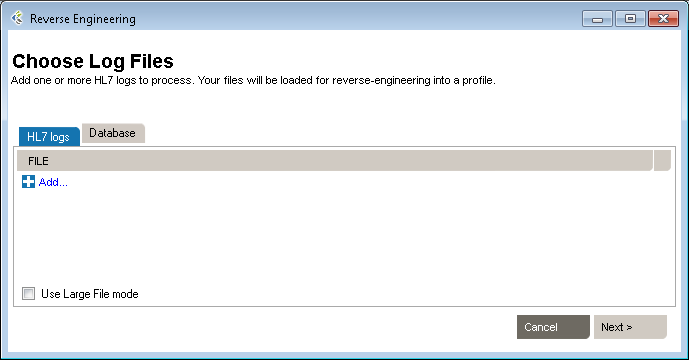
To open the Reverse-Engineering tool, click PROFILE v2, New, With Reverse-engineerer Wizard... The tool opens to Choose Log Files.
Then click Next to go to the next step. You can also load messages by querying a database.
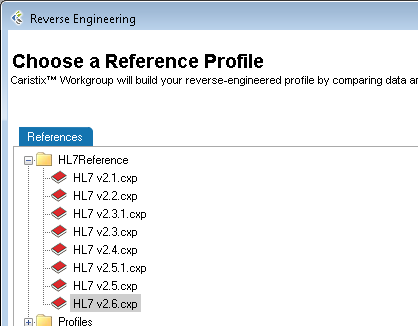
To begin building a profile based on the messages you just loaded, the software needs an established profile to compare against. Select a profile that most closely matches your messages, then click Next. (Note: the software picks up on the HL7 version specified in your messages, but you are free to choose another reference).
The messages load.
(If they load too slowly, you can click the Cancel button in the Loading dialog box and only messages that have loaded thus far will appear.)
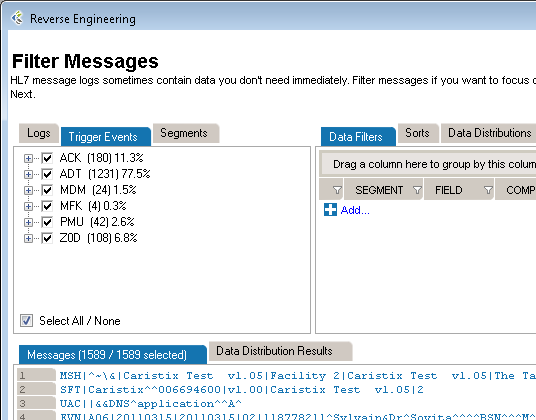
If there are files, events, segments, or other data elements you don’t require for the profile, filter them out in this step (read Filter an HL7 Log to learn more), then click Next to go to the next step. To reverse-engineer all messages without filtering, simply click Next.
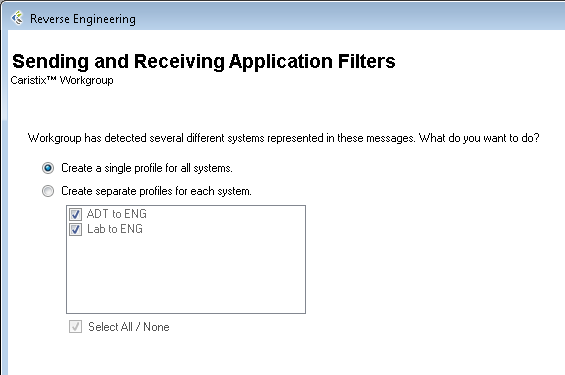
This step is optional. The software will detect all sending and receiving applications present in the messages. If only one combination is detected, this step is skipped.
You have two options here. You can either generate a single profile combining all applications represented in the message file, or you can create separate profiles for each sending and receiving application combination. The second option offers you the possibility to choose specific combinations; it will also run the next 5 steps consecutively for all selected combinations.
The software sets up the reference profile and messages you selected. Once the processing is complete, simply click Next to continue, as specified on-screen.
Choose between Basic and Advanced field analysis.
This choice lets you analyze fields and data values and assign known data types. If Conformance finds data values and fields that do not match known data types, an new data type will be assigned. You can manually edit the data types later, when the reverse-engineering profile appears in the Library.
Select Basic Field Analysis if:
you are not sure that data types are important to your analysis.
you want to speed up your analysis and focus on identifying details in other message elements such as events and segments.
This choice lets you fully analyze fields and data values. Data values and fields that do not match expected data types will be flagged. You will have the opportunity to either create custom data types to handle non-HL7-compliant data, or assign an existing data type.
Select Advanced Field Analysis if:
you need complete data type analysis for your interfacing project
you are comfortable creating new data types for further analysis
This section allows you to set more specific options for data and field analysis.
Once you make your selection in Step 2, click Next.
The software reads through the messages and segments to begin building the profile. When processing is complete, click Next to continue, as specified on-screen.
This step creates the field structure in your profile, assigns data values to user tables, and associates data types to fields and values.
If you selected Basic Field Analysis in Step 3, Basic Mode appears in Step 4. Workgroup processes the fields and data types automatically. When the processing is finished, click Next.
If you selected Advanced Field Analysis in Step 3, Advanced Mode appears in Step 4. Workgroup analyzes each segment for data values and fields that do not match expected data types. In other words, the software automatically performs a conformance check. When non-compliant elements are flagged, the software automatically suggests a data type and field structure. You can accept the suggestion, assign another data type, or create a new data type to handle the non-compliant values and fields.
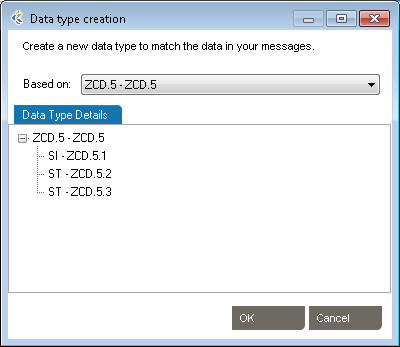
Edit as needed to reflect maximum field length
Specify usage.
This tab provides a list of the data values that were flagged as non-compliant, as well as how many times they were found in the messages.
When processing is complete, click Next to continue.
This step will collect analyze the message flows in your logs (if you select this option at step 2). These message flows will be stored into the profile and available for future uses, to generate test messages for example.
This is the final step in the Reverse-Engineering wizard. Specify a folder to save the profile to or browse your computer to save it locally. Name the profile. And provide a description if needed. Click Save to close the Reverse-Engineering wizard and go to the Documents pane. (If multiple Sending and Receiving Applications were selected, the wizard will start a new analysis on Step 1)
When the reverse engineering wizard is run, you have the option of filtering out unneeded data values, trigger events, and segments. These data elements may not be needed for the profile you are creating, despite their presence in the HL7 message log.
Data filters let you set up queries to find messages containing specific data. Queries can filter on specific message building blocks: segments, fields, components, and subcomponents.
| Operator | Action |
| is | Includes messages that contain this exact data |
| is not | Excludes messages that contain this data |
| = < > =< >= | Filters on numeric values |
| like | Covers messages that include this data somewhere in the element (ex: 42 in 4342, 3421, 4286) |
| present | Looks for presence of a message element (such as segment, field, etc.) |
| empty | Looks for unpopulated message elements (such as a segment, field, etc.) |
| in | Filter on multiple data values in a message element rather than a single value |
| regex syntax | .NET regular expression syntax, equivalent to wildcard expressions |
The data sorting functionality lets you set up sort queries on data values.
You can use an existing Search and Filter Rules file or save newly created rules throughout the Reverse Engineering filtering step. To do so, right-click anywhere in the Data Filters, Sorts or Data Distributions section.
In order to use a profile created in another installation of the application, you will need to import the file.
After creating a profile, you will need to edit it. There are three main editing tasks: editing existing message elements, adding new elements, and deleting elements you no longer need.
There are two ways to add segments, depending on your needs. You can either add a segment defined in the profile you’re working on, or add one from a different profile.
Start here:
To create a new Segment definition, click on Add Segment, New. A new Segment definition appears at the bottom of the list.
You can also create a copy of an existing Segment definition by right-clicking on the source definition, select Copy and then right-click again and select Paste. A new Segment definition appears at the bottom of the list.
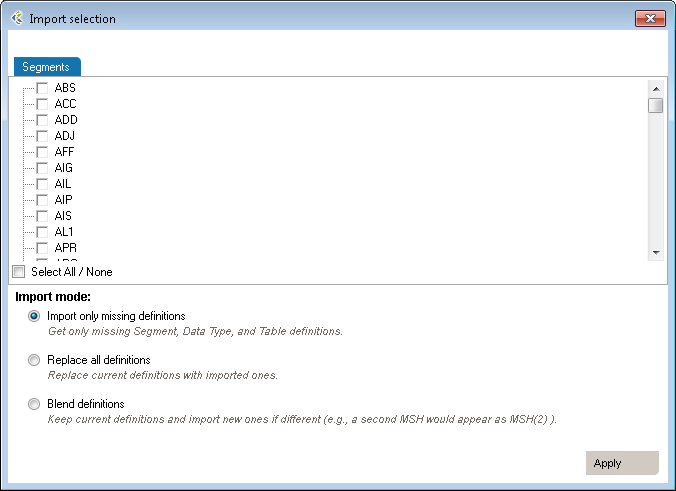
| Mode | Why Choose This Option | Action | Example |
| Import only missing definitions | Choose this if you only want to import element that don’t already exist in your profile. | This will import definitions that are not present in the current profile and all referenced elements. | Your profile doesn’t have a PID segment you’d like to add from HL7 v2.6. |
| Replace all definitions | Choose this if you need to replace all existing definitions with the imported definitions. | Replace existing elements with imported elements. This means that you’ll overwrite current definitions. The segment definition will change to the imported definition. | Your profile has an XPN definition that you would like to replace with the one from v2.6. |
| Blend definitions | Choose this if you need to import a definition from another profile, but also need to keep all definitions from both profiles. | This will import all selected and referenced definitions and will duplicate all elements that are different. | Your profile has a custom ZOD definition from one source system. A second source system uses a different definition. You need to code an interface for both definitions. |
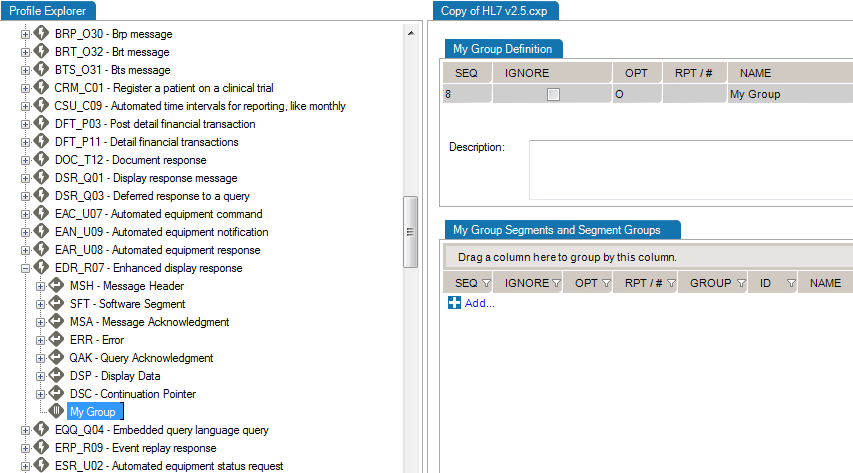
This is useful when you need to add a new data type for a Z-segment or a custom field.
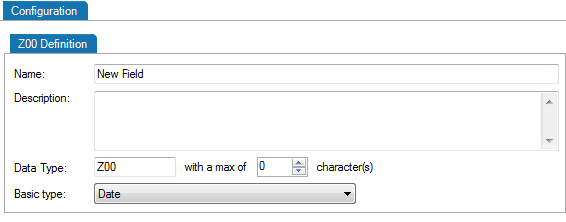
| Mode | Why Choose This Option | Action | Example |
| Import only missing definitions | Choose this if you only want to import elements that don’t already exist in your profile. | This will import definitions that are not present in the current profile and all referenced elements. | Your profile doesn’t have a TS (time-stamp) data type you’d like to add from HL7 v2.6. |
| Replace all definitions | Choose this if you need to replace all existing definitions with the imported definitions. | Replace existing elements with imported elements. This means that you’ll overwrite current definitions. The segment definition will change to the imported definition. | Your profile has an HD definition that would like to replace by the one from v2.6. |
| Blend definitions | Choose this if you need to import a definition from another profile, but also keep all definitions from both profiles. | This will import all selected and referenced definitions and will duplicated all elements that are different. | Your profile has a custom TS definition from one source system. A second source system uses a different definition. You need to code an interface for both definitions. |
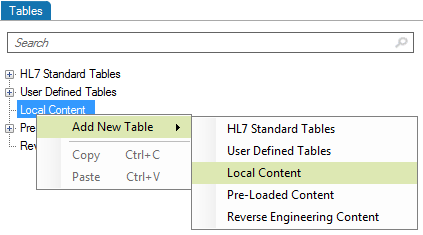
This is useful when you need to add a new table for a Z-segment.
Edit segments and fields, so you capture the data elements pertinent to your specification. Due to the nature of the HL7 standard (HL7 is object-oriented), any changes made are global changes and affect the entire profile.
There are two ways to access segments and fields:
Click the “+” sign to expand a message, then edit the segment.

Right-click a message, and select Segment... A separate window displays the Segment Library. Expand the segment you wish to edit by clicking the plus sign.
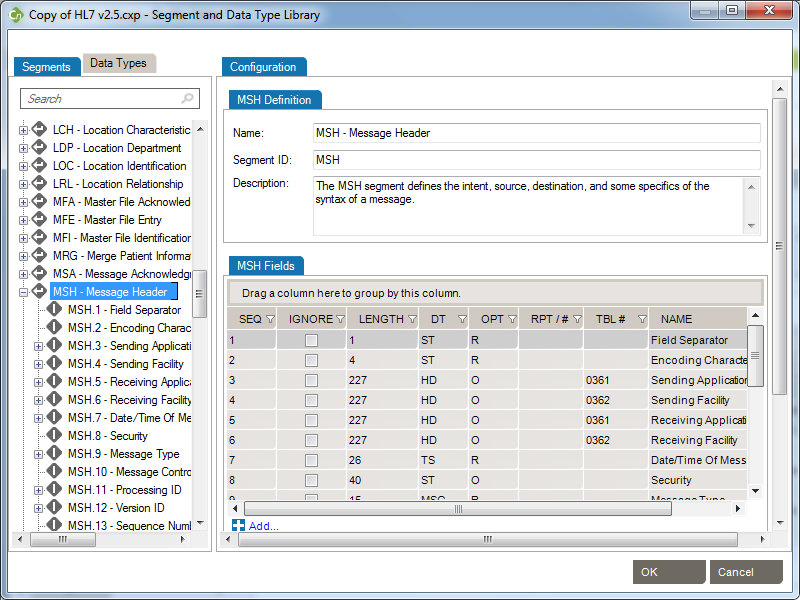
To edit each field or individual component, click on the title. Under the Configuration tab, make the changes to each field attribute.
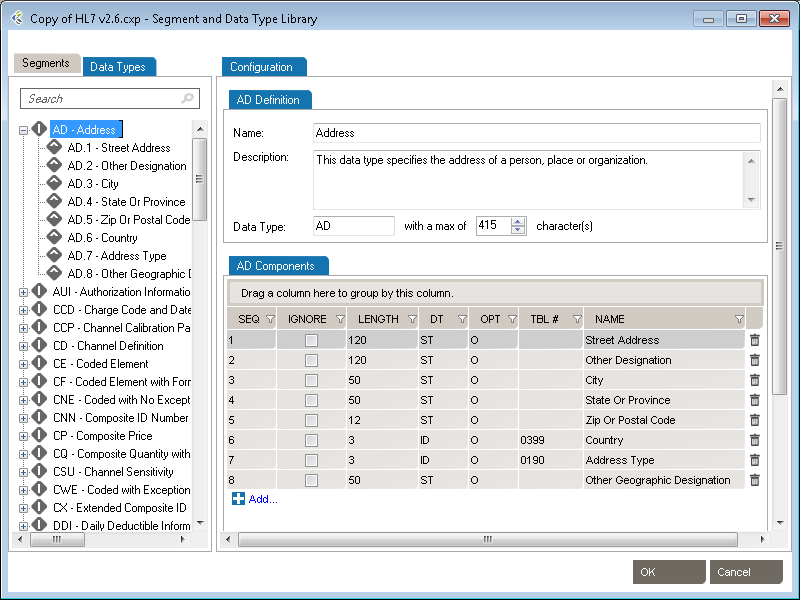
This is useful when you want to reduce the profile to relevant trigger events.
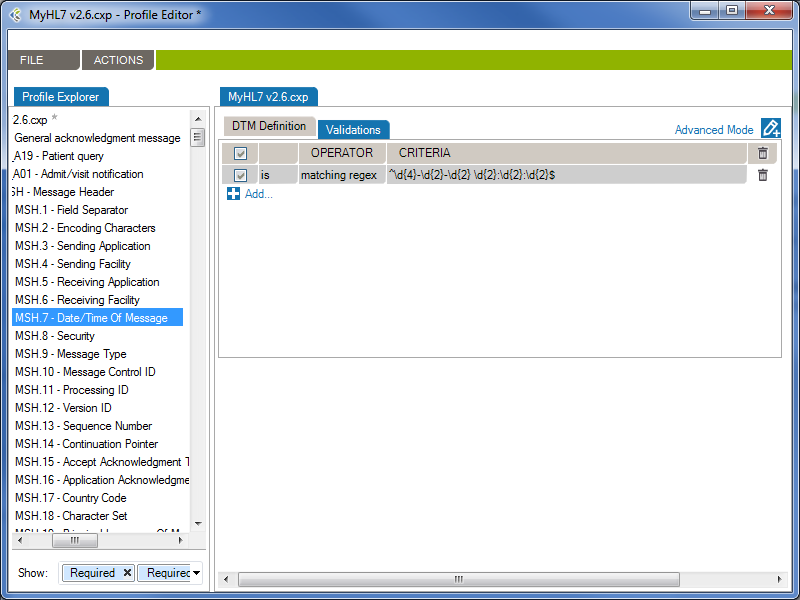
From the Validations tab, you can configure a set of rules that validate message content (data) is conform.
In the following example, the rule will validate (and raise conformance gaps) if the MSH.7 of a message does not conform to the format “yyyy-mm-dd hh:MM:ss”
Operator | Action |
| is | Valid that contain this data |
| is not | Valid that does not contain this data |
| = | Valid with an exact match to this data (this is like putting quotation marks around a search engine query) |
| < | Less than. Covers validating on numeric values. |
| <= | Less than or equal to. Covers validating on numeric values. |
| > | Greater than. Covers validating on numeric values. |
| >= | Greater than or equal to. Covers validating on numeric values. |
| like | Valid if includes this data. Covers validating on numeric values. |
| present | Looks for the presence of a particular message building block (such as a field, component, or sub-component) |
| empty | Looks for an unpopulated message building block (such as a field, component, or sub-component) |
| in | Builds a filter on multiple data values in a message element rather than just one value. |
| in table | Looks if the data is in a specific table of the Profile. |
| matching regex | Use .NET regular expression syntax to build validations. To be used by advanced users with programming backgrounds. Learn more about regular expressions here:
This is also a quite good utility to hep you create complex regular expressions: |
The JavaScript engine allows you to create custom validation rules, which will be used during the conformance validation of your HL7 messages.
You can add custom javascript validation rules at the profile, trigger-event, segment and data-type levels. The javascript rules will be evaluated during the HL7 message validation, depending on the element of the message being validated.
Profile: Validation rules added at the Profile level will be evaluated first and only once per message.
Trigger-Event: Validation rules added at the Trigger-Event level will be evaluated only once per message and will only be evaluated for matching messages. The MSH.9 – Message Type is used to match messages and trigger-events.
Segment: Validation rules added at the Segment level will be evaluated for each instances of the segment in a message.
Data-Type: Validation rules added at the Data-Type level will be evaluated for each instances of the data-type in a message.
By using the callback() method, you can notify the message validator when an error has occurred. You can provide callback() with an error message as a string, or with a ValidationError object.
During HL7 message validation, the JavaScript engine context is updated, allowing you to access the current element being validated. The context has the following properties you can refer to:
The ValidationError allows you to return a customized validation error in the callback method. The ValidationError object exposes the following properties and methods:
Returns a new, empty ValidationError.
var validationError = new ValidationError();
callback(validationError);
// Returns a new ValidationError object in the callback method.
A summary of the error.
var validationError = new ValidationError();
validationError.summary = 'Invalid Medical Number';
// The validation error's summary should be 'Invalid Medical Number'
A detailed description of the error.
var validationError = new ValidationError();
validationError.description = 'PID.3 does not contain a valid MR - Medical Number for the patient';
// The validation error's description should be 'PID.3 does not contain a valid MR - Medical Number for
// the patient'
Returns the JSON string value of the ValidationError.
var validationError = new ValidationError();
validationError.description = 'PID.3 does not contain a valid MR - Medical Number for the patient';
var validationErrorString = validationError.toString();
// validationErrorString should be '{ "description":"PID.3 does not contain a valid MR - Medical Number for the patient"}'
When you publish a profile report to Word, you may need to edit descriptions in Word then save those edits to the corresponding profile. This is done using the Synchronize function.
The synchronization feature uses internal Word document markups so it can relate any change to the right profile section. When updating the document, make sure the document structure is preserved. It is suggested that you experiment with this functionality before starting document updates on a large scale. For instance:
Extra Content enables you build profiles that include more than the official HL7 content.
Basic profiles, without Extra Content, enable you to define message-related structure and content through trigger events, segments, fields, tables, etc. In turn, each of those elements are described through attributes such as Sequence, Name, Optionality, etc. software include set of attributes describing profiles and profile entities. Extra Content lets you add new elements and new attributes.
For instance, you may want to add a change history table to a profile, in order to track changes over time. Or you might want to add an extra column to store source descriptions for code set values. Both of these can be added using Extra Content. This content will be displayed as part of the profile, exactly the same way standard HL7-related elements and attributes are displayed.
An Extra Content Template is a set of extra elements and attributes that you bundle together.
The Extra Content template itself doesn’t contain any data. Instead it defines the containers (or placeholders) for your data. An Extra Content Template represents the structure of the content you add to a profile. You can set up a Template and use it across one or more profiles. Once a profile is associated with an Extra Content Template, you can enrich the profile definition by populating the Extra Content areas.
Please refer to the following sections for more information:
Manage Extra Content Templates through the Extra Content Library. To access the Extra Content Library:
From the Extra Content Library (Manage Extra Content Templates window), you can:
To create a new Extra Content Template, open the “Manage Extra Content Template” window.
Build your templates by adding Extra Content to profile sections as follows:
Add text, images, and grids to the Profile description area.
Once you go back to the profile, you can enter text in the Profile description area.
Once you go back to the profile, you can add an image. To do so, click the Browse… button and select the image you want to include.
Once you go back to the profile, you can add data to your new grid. To do so, click the Add… button to create new grid rows.
You can add Extra Content embedded next to the HL7-defined profile elements. This is a quick way to display needed profile data such additional descriptions, items to validate, business and mapping rules, etc.
You are now ready to populate the new column with text:
List columns are useful when you’re able to define valid values for the column — in other words, a picklist.
Next, populate the profile:
The new column is now added to the table content. You can pick values from the picklist to assign values to the cell.
To delete an Extra Content Template, open the “Manage Extra Content Template” window.
Note: Extra Content Templates are linked to the data within profiles. If you delete an Extra Content Template, all associated data within your profiles will be deleted as well.
You can modify templates at any time so you can continue to enrich your profiles, as follows:
Note: If you delete an Extra Content Template element, this component will be deleted in every profile associated with this template. Learn more about deleting Extra Content Templates.
To rename an Extra Content Template, open the “Manage Extra Content Template” window.
To copy/duplicate an Extra Content Template, open the “Manage Extra Content Template” window.
Copying an Extra Content Template can be quite useful when you want to modify an existing template without impacting all associated profiles. Create a new but similar template, and then migrate profiles to the new template one by one.
Copying is also a way to “backup” a template before modifying it.
Link an Extra Content Template to a profile as follows :
You can now add Extra Content to your profile based on the newly assigned template.
Unlink an Extra Content Template from a profile as follows:
Workgroup automatically manages Extra Content Templates when you import profiles. If the template is not already available, it will be imported along with the profile.
Extra Content can be included in the Gap Analysis process.
Ensure that both profiles are using the same Extra Content Template. Extra content will automatically appear in the list of attributes available for Gap Analysis. Learn about Gap Analysis attributes.
Generate profile reports of an interface specification:
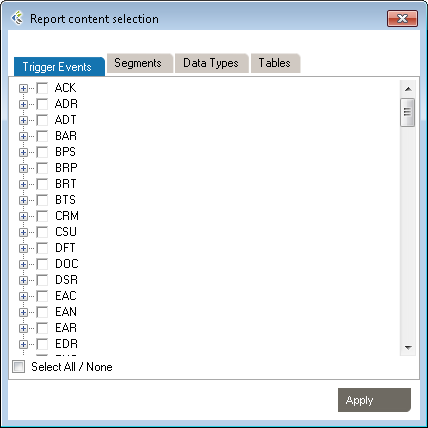
Note: You can also synch your profile. This feature allows a user to update the Word document directly and synchronize the profile library with the upload document content.
The Attributes tab describes an element’s attributes.
| RESTRICTED VALUES: | Optional. Restrictions are used to define acceptable values for XML attributes. |
From the Actions menu, you’ll have access to:
Complex types describe the permitted content of an element, including its element and text children and its attributes. A complex type definition consists of a set of attribute uses and a content model. The types of content model include element-only content, in which no text may appear (other than whitespace, or text enclosed by a child element); simple content, in which text is allowed but child elements are not; empty content, in which neither text nor child elements are allowed; and mixed content, which permits both elements and text to appear. A complex type can be derived from another complex type by restriction (disallowing some elements, attributes, or values that the base type permits) or by extension (allowing additional attributes and elements to appear).
XML Type Editor in Workgroup works as follows:
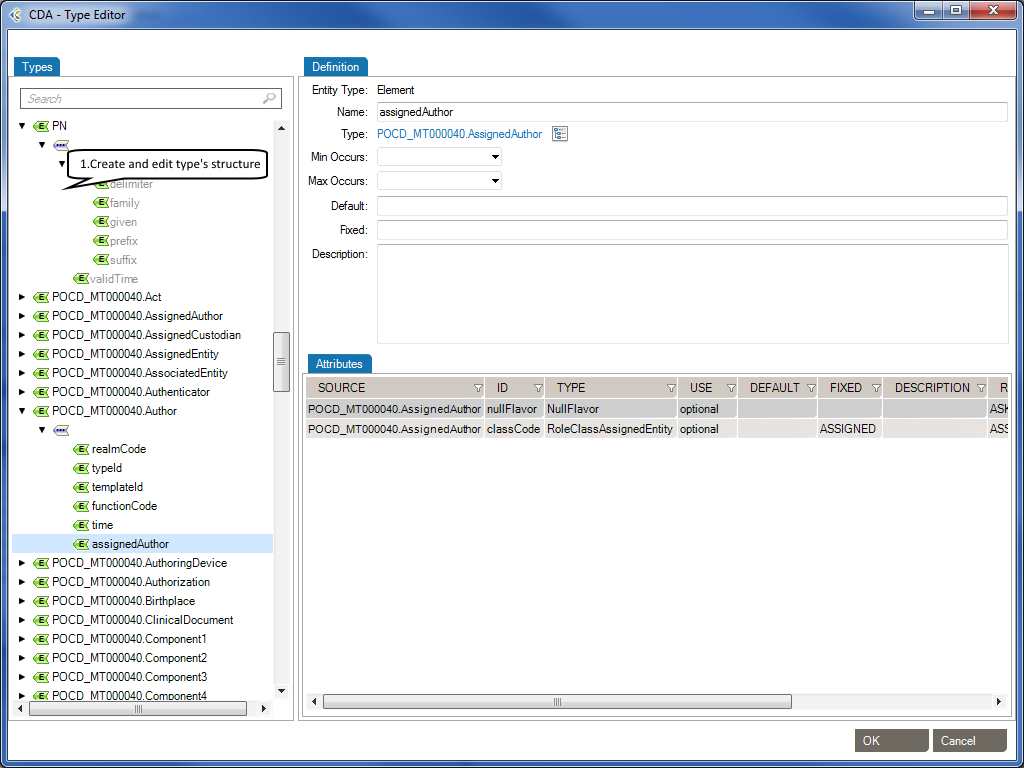
The Types tab describes the structure of a type. You can add the following elements to the structure of a type.
| Element: | A complex element is an XML element that contains other elements and/or attributes. |
| Element Group: | The group element is used to define a group of elements to be used in complex type definitions. |
| Sequence: | The sequence element specifies that the child elements must appear in a sequence. Each child element can occur from 0 to any number of times. |
| Choice: | XML Schema choice element allows only one of the elements contained in the declaration to be present within the containing element. |
The Definition tab describes an element’s properties.
| Name: | Specifies a name for the element. This attribute is required if the parent element is the schema element. |
| Type: | Optional. Specifies either the name of a built-in data type, or the name of a simpleType or complexType element. |
| Min Occurs: | Optional. Specifies the minimum number of times this element can occur in the parent element. |
| Min Occurs: | The value can be any number >= 0. Default value is 1. This attribute cannot be used if the parent element . |
| Default: | Optional. Specifies a default value for the element (can only be used if the element’s content is a simple type or text only). |
| Fixed: | Optional. Specifies a fixed value for the element (can only be used if the element’s content is a simple type or text only). |
| Description: | Optional. Describes the element in natural language. |
The Attributes tab describes an element’s attributes.
| SOURCE: | Specifies the attribute’s owner. |
| ID: | Specifies a unique ID for the attribute. |
| TYPE: | Optional. Specifies a built-in data type or a simple type. The type attribute can only be present when the content does not contain a simpleType element. |
| USE: | Optional. Specifies how the attribute is used. Can be one of the following values:
|
| DEFAULT: | Optional. Specifies a default value for the attribute. Default and fixed attributes cannot both be present. |
| FIXED: | Optional. Specifies a fixed value for the attribute. Default and fixed attributes cannot both be present. |
| DESCRIPTION: | Optional. Describes the attribute in a natural language. |
| RESTRICTED VALUES: | Optional. Restrictions are used to define acceptable values for XML attributes. |
Schematron is a rule-based validation language for making assertions about the presence or absence of patterns in XML trees. It is a structural schema language expressed in XML using a small number of elements and XPath.
Schematron is capable of expressing constraints in ways that other XML schema languages like XML Schema and DTD cannot. For example, it can require that the content of an element be controlled by one of its siblings. Or it can request or require that the root element, regardless of what element that is, must have specific attributes. Schematron can also specify required relationships between multiple XML files.
Constraints and content rules may be associated with “plain-English” validation error messages, allowing translation of numeric Schematron error codes into meaningful user error messages.
XML Schematron Editor in Workgroup works as follows:
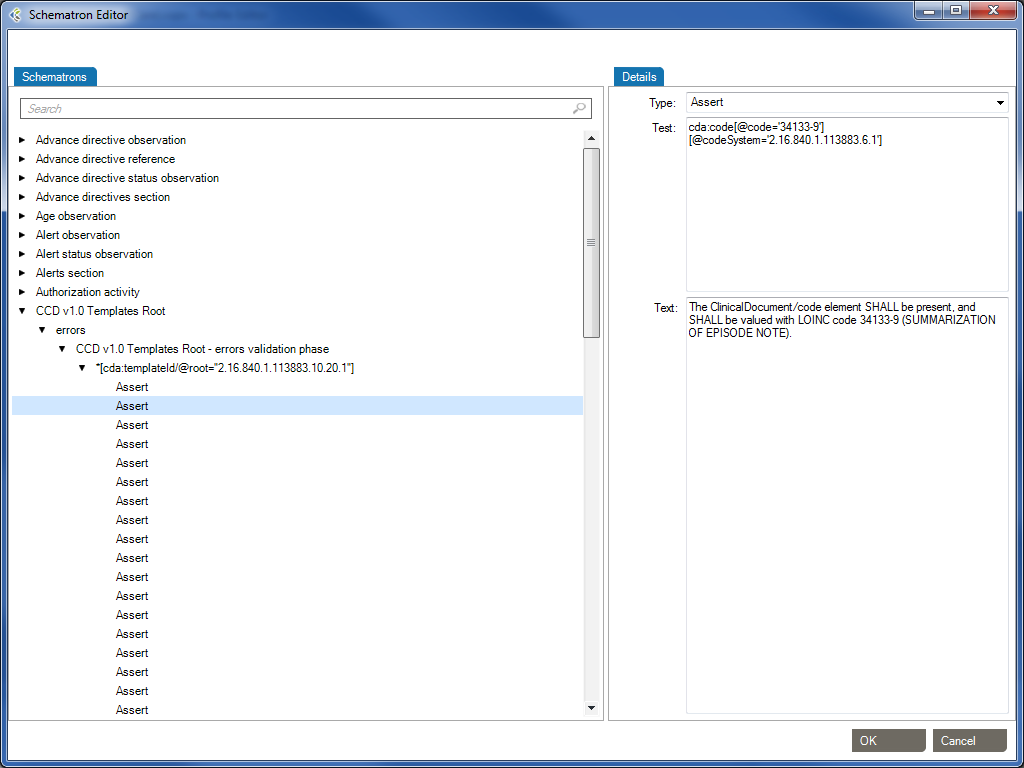
The Schematron schema language differs from most other XML schema languages in that it is a rule-based language that uses path expressions instead of grammars. This means that instead of creating a grammar for an XML document, a Schematron schema makes assertions that are applied to a specific context within the document. If the assertion fails, a diagnostic message that is supplied by the author of the schema can be displayed.
One advantages of a rule-based approach is that in many cases modifying the wanted constraint written in plain English can easily create the Schematron rules. For example, a simple content model can be written like this: “The Person element should in the XML instance document have an attribute Title and contain the elements Name and Gender in that order. If the value of the Title attribute is ‘Mr’ the value of the Gender element must be ‘Male’.”
In this sentence the context in which the assertions should be applied is clearly stated as the Person element while there are four different assertions:
Person) should have an attribute TitleName and GenderName should appear before the child element GenderTitle has the value ‘Mr’, the element Gender must have the value ‘Male’In order to implement the path expressions used in the rules in Schematron, XPath is used with various extensions provided by XSLT.
It has already been mentioned that Schematron makes various assertions based on a specific context in a document. Both the assertions and the context make up two of the four layers in Schematron’s fixed four-layer hierarchy:
The bottom layer in the hierarchy is the assertions, which are used to specify the constraints that should be checked within a specific context of the XML instance document. In a Schematron schema, the typical element used to define assertions is assert. The assert element has a test attribute, which is an XSLT pattern. In the preceding example, there was four assertions made on the document in order to specify the content model, namely:
Person) should have an attribute TitleName and GenderName should appear before the child element GenderTitle has the value ‘Mr’, the element Gender must have the value ‘Male’Written using Schematron assertions this would be expressed as
| Type | Test | Text |
|---|---|---|
| Assert | @Title | The element Person must have a Title attribute. |
| Assert | count(*) = 2 and count(Name) = 1 and count(Gender)= 1 | The element Person should have the child elements Name and Gender. |
| Assert | *[1] = Name | The element Name must appear before element Gender. |
| Assert | (@Title = 'Mr' and Gender = 'Male') or @Title != 'Mr' | If the Title is “Mr” then the gender of the person must be “Male”. |
If you are familiar with XPath, these assertions are easy to understand, but even for people with limited experience using XPath they are rather straightforward. The first assertion simply tests for the occurrence of an attribute Title. The second assertion tests that the total number of children is equal to 2 and that there is one Name element and one Gender element. The third assertion tests that the first child element is Name, and the last assertion tests that if the person’s title is ‘Mr’, the gender of the person must be ‘Male’.
If the condition in the test attribute is not fulfilled, the content of the assertion element is displayed to the user.
Each of these assertions has a condition that is evaluated, but the assertion does not define where in the XML instance document this condition should be checked. For example, the first assertion tests for the occurrence of the attribute Title, but it is not specified on which element in the XML instance document this assertion is applied. The next layer in the hierarchy, the rules, specifies the location of the contexts of assertions.
The Assert type element is used to tag positive assertions about a document.
The Report type is used to tag negative assertions about a document.
The rules in Schematron are declared by using the rule element, which has a context attribute. The value of the context attribute must match an XPath Expression that is used to select one or more nodes in the document. Like the name suggests, the context attribute is used to specify the context in the XML instance document where the assertions should be applied. In the previous example the context was specified to be the Person element, and a Schematron rule with the Person element as context would simply be
| Id | Abstract | Context |
|---|---|---|
| False | Person |
Since the rules are used to group all assertions together that share the same context, the rules are designed so that the assertions are declared as children of the rule element. For the previous example, this means that the complete Schematron rule would be
The element Person must have a Title attribute.
The element Person should have the child elements Name and Gender.
The element Name must appear before element Age.
If the Title is "Mr" then the gender of the person must be "Male".
This means that all the assertions in the rule will be tested on every Person element in the XML instance document. If the context is not all the Person elements, it is easy to change the XPath location path to define a more restricted context. The value Database/Person, for example, sets the context to be all the Person elements that have the element Database as its parent.
The third layer in the Schematron hierarchy is the pattern, declared using the pattern element, which is used to group together different rules. The pattern element also has a name attribute that will be displayed in the output when the pattern is checked. For the preceding assertions, you could have two patterns: one for checking the structure and another for checking the co-occurrence constraint. Since patterns group different rules together, Schematron is designed so that rules are declared as children of the pattern element. This means that the previous example, using the two patterns, would look like
The element Person must have a Title attribute.
The element Person should have the child elements Name and Gender.
The element Name must appear before element Age.If the Title is "Mr" then the gender of the person must be "Male".
The name of the pattern will always be displayed in the output, regardless of whether the assertions fail or succeed. If the assertion fails, the output will also contain the content of the assertion element. However, there is also additional information displayed together with the assertion text to help you locate the source of the failed assertion. For example, if the co-occurrence constraint above was violated by having Title=’Mr’ and Gender=’Female’ then the following diagnostic would be generated by Schematron:
From pattern "Check structure":From pattern "Check co-occurrence constraints":
Assertion fails: "If the Title is "Mr" then the gender of the person must be "Male"."
at /Person[1] ...</>
The pattern names are always displayed, while the assertion text is only displayed when the assertion fails. The additional information starts with an XPath expression that shows the location of the context element in the instance document (in this case the first Person element) and then on a new line the start tag of the context element is displayed.
The assertion to test the co-occurrence constraint is not trivial, and in fact this rule could be written in a simpler way by using an XPath predicate when selecting the context. Instead of having the context set to all Person elements, the co-occurrence constraint can be simplified by only specifying the context to be all the Person elements that have the attribute Title=’Mr’. If the rule was specified using this technique, the co-occurrence constraint could be described like this
If the Title is "Mr" then the gender of the person must be "Male".
By moving some of the logic from the assertion to the specification of the context, the complexity of the rule has been decreased. This technique is often very useful when writing Schematron schemas.
*[Reference: www.xml.com/pub/a/2003/11/12/schematron.html]
Gap analysis is an HL7 interface scoping activity. When you build an HL7 interface, before jumping into the code, you need to understand what data you are going to play with. Most importantly, you need to understand the differences between source and destination systems at the messaging level. Before jumping into integration engine configuration, you need to know what to configure. Some of your questions are likely to include the following:
These are often challenging questions to answer.
The Gap Analysis functionality in Workgroup helps you identify these differences in a matter of a few seconds. Gap Analysis enables the following:
Determine gaps between 2 profiles or between a profile and a set of messages.
To list the differences (including differences in data structure and data content) between two profiles, follow this procedure:
Both profiles are loaded and you are taken to the Gap Analysis Workbench. You can now refine your comparison criteria. By default, data elements are not selected. Select the data elements (data structure and/or code sets) you want to compare. See Refine Gap Analysis Criteria for more information.
To list the differences (including differences in data structure and data content) between a profile and a set of HL7 messages (probably a few thousand), follow this procedure:
The profile and the HL7 messages are loaded and messages are analyzed. Depending on the number of messages you provided, the message analysis might take several minutes. A progress window tracks the process.
Once the loading process is complete, you are taken to the Gap Analysis Workbench. You can now refine your comparison criteria. By default, no data element is selected.
Gap Analysis Filters are used to remove irrelevant gaps. Each filter contains a set of preset options which will optimize the Gap Analysis detection process in order to show you only the “dangerous” gaps. A Gap Analysis Filter contains:
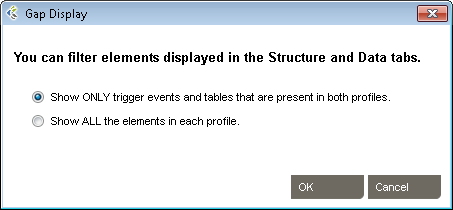
When you’ll start a new Gap Analysis, after selecting the profiles to compare, you will be asked to select a Gap Analysis Filter.
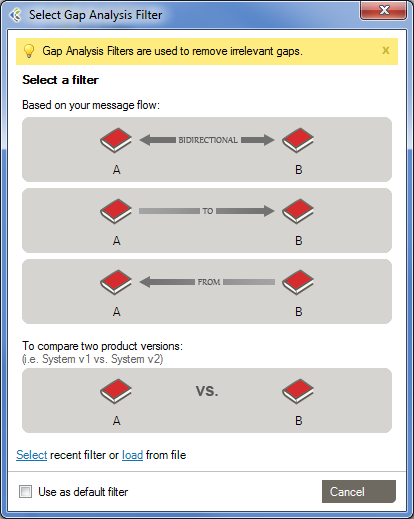
There are 4 pre-defined Filters that can be used.
This filter should be used when both systems exchange messages between each other.
This filter should be used when the first system sends messages to the second system.
This Filter should be used when the first system receives messages coming from the second system.
This filter should be used when you want to compare profiles representing the same system. Ex: Comparing reverse-engineered profiles coming from sample messages of your development and production environments.
While working with the Gap Analysis Workbench, you can edit computed attributes, options and difference filters. These can then be saved as a Custom Filter, which can be re-used for other Gap Analysis.
In the Gap Analysis Filter Selection window, you’ll be able to Select a “recent Gap Analysis Filter”, or Load a previously saved filter from your Library.
You’ll be able to set your choice of the default filter for your subsequent Gap Analysis and will not be asked to select a Gap Analysis filter again. Whenever you want, you may apply another Gap Analysis Filter in the Gap Analysis Workbench with “File > Gap Analysis Filter > Change Filter…“
Here is a quick look of the Gap Analysis Workbench.
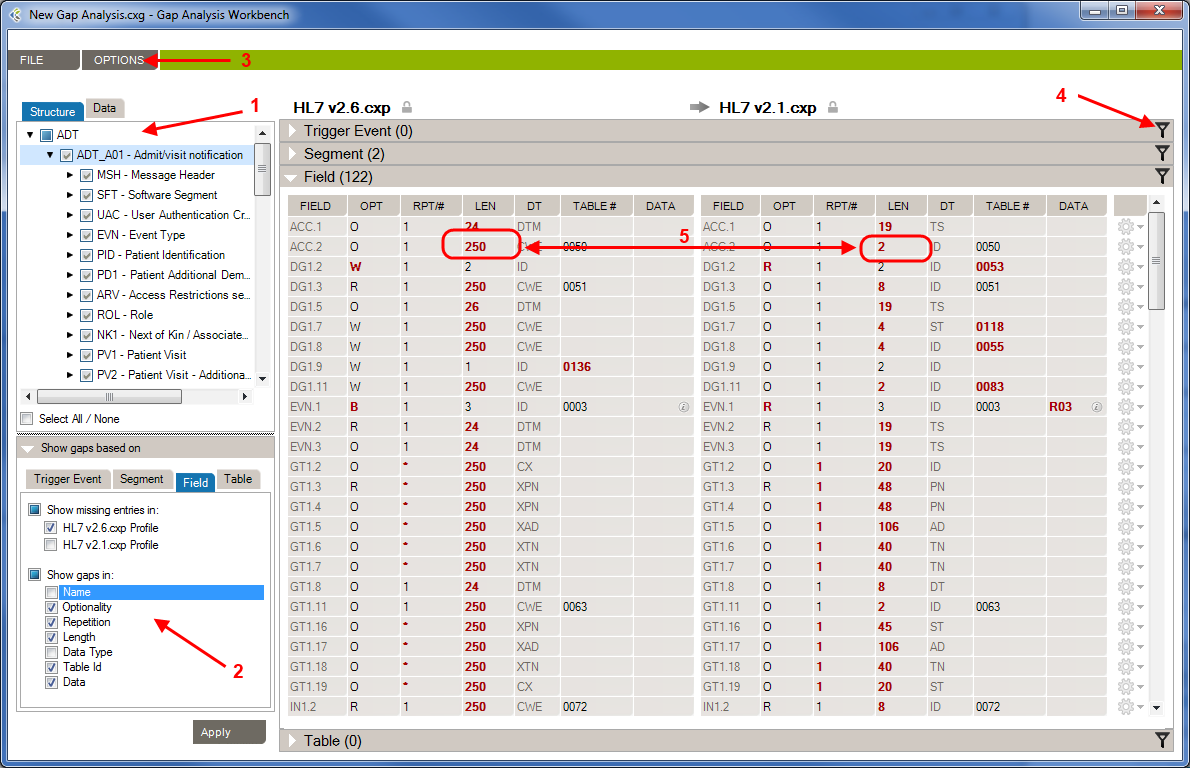
1- Structure/Data Element: In this section, you’ll choose which element from your profiles will be compared.
2- Attributes: In this section, you’ll choose which attributes, from the previously selected elements, will be compared.
3 – Options: In this menu, you’ll be able to set options to improve the accuracy of the Gap Analysis comparison process.
4- Differences Filters: Differences Filters are used to show differences that match some specific criteria. In other words, discard the differences that aren’t relevant to your analysis.
5 – Gap Analysis Results: In this section, you will see all differences between the selected elements of your profiles, based on your Gap Analysis filter (Attribute, Options, Differences Filters).
Gap Analysis in Workgroup helps you focus on identifying and scoping differences upfront, instead spending time downstream on the validation of an overly generic interface. The gaps you find are actually a to-do list of items you need to handle when configuring the interface. Each to-do list item will need to be handled in one of several ways:
The to-do list aspect of Gap Analysis serves as starting point for your project task list documentation. Create a document automatically using the Export as Excel document functionality.
If a profile is created through reverse-engineering, you can view where the gaps in Optionality (for Segments and Fields) or Length (for Fields) come from by right-clicking on the cell and selecting View Examples… This will display all the messages where the gap occurred for these profiles.
By default, when you first see the Gap Analysis Workbench, nothing is selected. When you run a Gap Analysis, you select the data elements that matter to your interface.
The Gap Analysis Workbench is split in 2 sections:
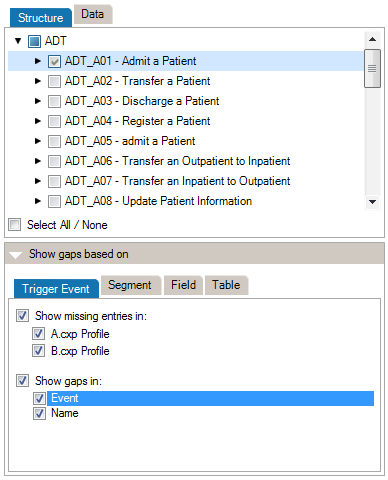
At the top of the Criteria Section, you’ll see the list of the messages, segments, fields, and data tables that are contained in the 2 profiles (or profile and messages) you are comparing. Select an element to include it in the Gap Analysis.
*(Steps prior to these examples)
**Choose HL7 v2.6 as the Reference and HL7 v2.1 as the Compared Profile.
By default, comparisons within Gap Analysis are on all attributes. Depending on your project and/or your context, you might need to focus on a subset of attributes and remove others. You can refine the comparison algorithm to narrow your comparison as follows.
The comparison is updated using the active attributes. Once in the Gap Analysis Workbench, you can refine the criteria used to evaluate gaps.
Each HL7 message element is described by a set of attributes. This list maps attributes per each message element.
| Trigger Event | Segment | Field | Table | |
| Event | ||||
| Name | ![]() | |||
| Sequence | ||||
| Optionality | ||||
| Repetition | ||||
| Length | ||||
| Data Type | ||||
| Table Id | ||||
| Label | ||||
| Comments |
Refer to the Extra Content and Gap Analysis section for details around extra content and gap analysis.
Several options are available in the Gap Analysis window.
Here is a list of basic options:
| Hide Unused Columns: | If enabled, this option will hide columns referring to non-computed attributes. Example: If you don’t want to compare the length of fields, the column LENGTH in the Field section will be hidden from your gap analysis results |
| Ignore Case: | If enabled, this option will compare strings using a non-sensitive case algorithm. |
| Use Fuzzy Matching: | If enabled, this option will match names, which are similar to each other. Ex: “Admit a patient” and “Admit Patient” will be considered as equivalent. |
| Use Strict Usage Comparison: | If enabled, this option will consider each segment’s/field’s optionality as different. Otherwise, segments/fields that are not “Required” will be considered as “Optional”. |
Here is a list of more complex options that allow you to maximize usage of Gap Analysis:
You can include Extra Content in the Gap Analysis process under the following conditions:
Once these two conditions are met, the Extra Content elements are managed the exact same way as the other elements. Gaps in the Extra Content elements will also be displayed.
You may want to save the current state of the gap analysis workbench to continue work later. To do so:
An .cxg file describing the current state of the gap analysis workbench is created. You can then reopen it:
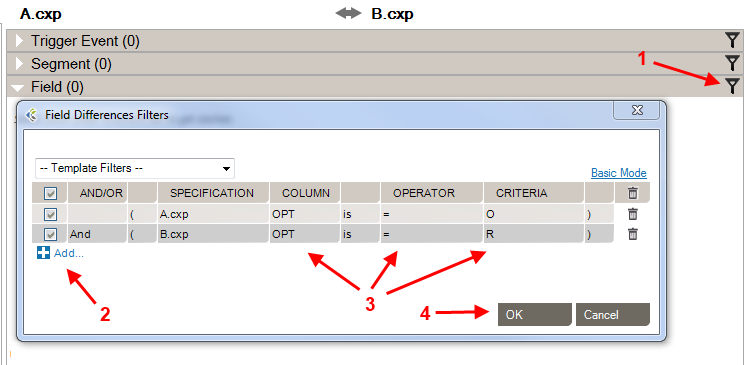
Differences Filters are used to show differences that match some specific criteria. In other words, to discard the differences which doesn’t match these criteria.
This can be used, for instance, to show only differences where the Field is Required in the Receiving Application but Optional (or Missing) in the Sending Application.
If a section contains active filters, the filter button will be shown as a full filter
.
| Source: | Select the side from which you want to perform a filter. |
| Column: | Select the column from which you want to get the value to be compared. |
| Is/Is Not: | Include/Exclude differences that match the filter. |
| Operator: | Select the operator that you want the criteria and the column’s value to match. |
| Criteria: | Enter the criteria that you want to compare with the column’s value. |
| Checkbox: | Activate or deactivate filter (toggle on or off). |
| And/Or: | AND: applies both these filters. OR: applies either of these filters. |
| Parentheses: | Used for nested filters. |
| = | Covers values with an exact match to this data (this is like putting quotation marks around a search engine query) |
| > | Greater than. Covers filtering on numeric values. |
| >= | Greater than or equal to. Covers filtering on numeric values. |
| < | Less than. Covers filtering on numeric values. |
| <= | Less than or equal to. Covers filtering on numeric values. |
| containing | Covers messages that include this value. |
| present | Looks for the presence of a particular column. |
| empty | Looks for an unpopulated column. |
| matching regex | Use .NET regular expression syntax to build filters. For advanced users with programming backgrounds. Learn more about regular expressions here:
|
| in | Builds a filter on multiple data values rather than just one value. |
| = Other Specification Value | Exact match to the other profile’s column value. |
| > Other Specification Value | Greater than the other profile’s column value. Covers filtering on numeric values. |
| >= Other Specification Value | Greater than or equal to the other profile’s column value. Covers filtering on numeric values. |
| < Other Specification Value | Less than the other profile’s column value. Covers filtering on numeric values. |
| <= Other Specification Value | Less than or equal to the other profile’s column value. Covers filtering on numeric values. |
While editing your filters, you can switch between Basic and Advanced Mode. Advanced Mode shows advanced settings for your filters. These settings help in the construction of more complex filters using AND/OR operators and parentheses for nesting. Otherwise, each filter will be applied one after the other.
If your filters contain advanced settings and you switch back to the Basic Mode, these settings will be lost.
Differences Filters Template are re-usable filters that can be applied to many Gap Analysis. A built-in template can be selected from the drop-down list at the top-left of the filters dialog.
You can hide a difference (Gap Analysis Result row) automatically. To do so, right-click the row you want to hide, then click “Hide [row key] difference”. This adds a new difference filter entry and hide the selected row.
Gaps serve as a to-do list of items you need to handle when configuring the interface. The list of gaps serves as a starting point for project task list documentation. To export gaps as a Excel document:
Microsoft Excel (or the program associated with .xlsx documents) will automatically start.
Message comparison helps you compare 2 sets of messages at the data level. This is useful in several cases, such as:
To compare a set of HL7 messages:
- Go to GAP ANALYSIS, Message Comparison…
- Click the Select messages to compare… zone
- Add the messages you want to compare. Messages can come from:
File: Click Add… to add one or several files containing messages
Database: Select a database to query and from which to retrieve messages.
Integration Engine: Select an integration engine data depot (Ensemble, Rhapsody, Iguana, Mirth and others) to retrieve messages directly from the integration engine (connector required).- Do the same for the other message set, clicking the other Select messages to compare… zone on the right.
Once the comparison is complete, differences are highlighted in red and the total number of differences between messages is displayed.
For a more detailed view of a message pair or message differences, double-click the message pair you want to compare. Navigate through the tree view, field by field, to see the differences.
Click on the gray zone at the bottom of the screen to view more details about each difference. Double-clicking on a grid row helps you navigate through the differences.
By default, messages will be compared based on their position. The first message on the left is compared with the first message on the right, the second with the second and so on.
Since message files don’t always contain the same amount of messages and/or messages are not necessarily always sorted in the same order, you can configure the application to match messages based on field values. To configure the message matching criteria:
Alternatively, you can:
You may want to exclude fields from the comparison so they are simply not considered in the comparison. This allows you to ignore differences in fields you don’t need to consider.
To exclude fields from comparison:
Alternatively, you can:
It can be easier to provide a list of fields to include instead of excluding a large number of fields. The procedure is similar. In the Filter tab, be sure Include (instead of Exclude) is selected.
To set a large number of fields in one operation, use the 1-on-1 message comparison screen. For example, if you want to compare fields PID.2 to PID.13:
The comparison will refresh using the new field set.
After the comparison is completed, message pairs can have one of the following statuses:
On the bottom left of the screen, the message pair count for each status is listed.
Message pairs can be shown/hidden based on their status. For instance, to hide identical messages:
Identical messages are filtered so only changed and unmatched messages are listed.
An Excel or PDF report can be generated to document the status of all messages. This report can be used, for instance, to document that the transformation code met all requirements at some point in time.
To generate this report:
The report contains:
| Automatically apply changes | If checked, the differences will be calculated each time a significant setting has changed. |
| Treat missing and empty fields as equivalent | If checked, the algorithm will consider missing and empty fields as equivalent. Ex: ‘OBX||AD|||||’ and ‘OBX||AD’ will not be flagged as different. ‘PID|||||Smith^John^’ and ‘PID|||||Smith^John’ will not be flagged as different. |
Caristix Workgroup comes with several features that help you with HL7 messaging:
Caristix Workgroup helps interface analysts and engineers to accurately de-identify HL7 data, covering all 18 HIPAA identifiers. Data can then be safely shared for such purposes as porting realistic data to a test system or staging area, providing realistic sample HL7 messsages for interface scoping, and providing data for clinical and financial analytics.
The following features and functionality are included:
One of the most important issues in healthcare IT is the protection of patient data. Regulation addresses patient privacy and the use of health information in many countries. In the US, HIPAA regulates the use of PHI (protected health information).
While protecting patient data, HL7 analysts need to share or redistribute HL7 production data for such purposes as porting realistic data to a test system or staging area, providing realistic sample HL7 messsages for interface scoping, and providing data for clinical and financial analytics.
The Department of Health and Human Services (HHS) provides a HIPAA Privacy Rule booklet (PDF) that highlights the 18 criteria that can be used to identify patients. All 18 identifiers are categories of data that must be protected. Besides easily recognized personal information, care must be given to protect device identifiers and even IP addresses. De-identification techniques must cover all 18 identifiers.
This term refers to removing or masking protected information. The de-identification removes identifiers from a data set so that information can no longer be linked to a specific individual. In terms of health care information, all identifiers are removed from the information set including both personally identifiable information (PII) and protected health information (PHI).
As a subset of de-identification, pseudonymization replaces data elements with new identifiers. After that substitution, the initial subject cannot be associated with the data set. In terms of health care information, patient information can be pseudonymized by replacing patient-identifying data with completely unrelated data resulting in a new patient profile. The data appears complete and the data context is preserved while patient information is completely protected
A pseudonymized data set can be restored to its original state through re-identification. In re-identifying data, a reverse mapping structure (constructed as the data was pseudonymized) is applied. As an example, a pseudonmymized data set could be sent for processing to an external system. Once that processed information is returned, the data could be re-identified and pushed to the correct patient file.
Identifiers are data elements that can directly identify individuals.This includes name, email address, telephone address, home address, social security number, medical card number, among others. Two identifiers may be needed to identify a unique individual.
Data elements of this type do not directly identify an individual but may provide enough information to narrow the potential of identifying a specific individual. Genders, date of birth and zip/postal code have been studied extensively in this context. There is a dependent relationship between quasi-identifiers and the type of data set of which they are a part. As an example, if all members of a data set are male, gender cannot be a meaningful quasi-identifier. In addition, quasi-identifiers are categorical in nature with a finite set of discrete values. It’s relatively easy to search for individuals using quasi-identifiers.
Non-identifiers may contain an individual’s personal information but aren’t helpful in reconstructing the initial information. For example, an indicator of an allergy to pollen would be a non-identifying data element. The incidence of such an allergy is extremely high in the general population. Therefore this factor is not a good discriminator among individuals. Again, non-identifiers are dependent on data sets. In the right context, they may be used to identify an individual.
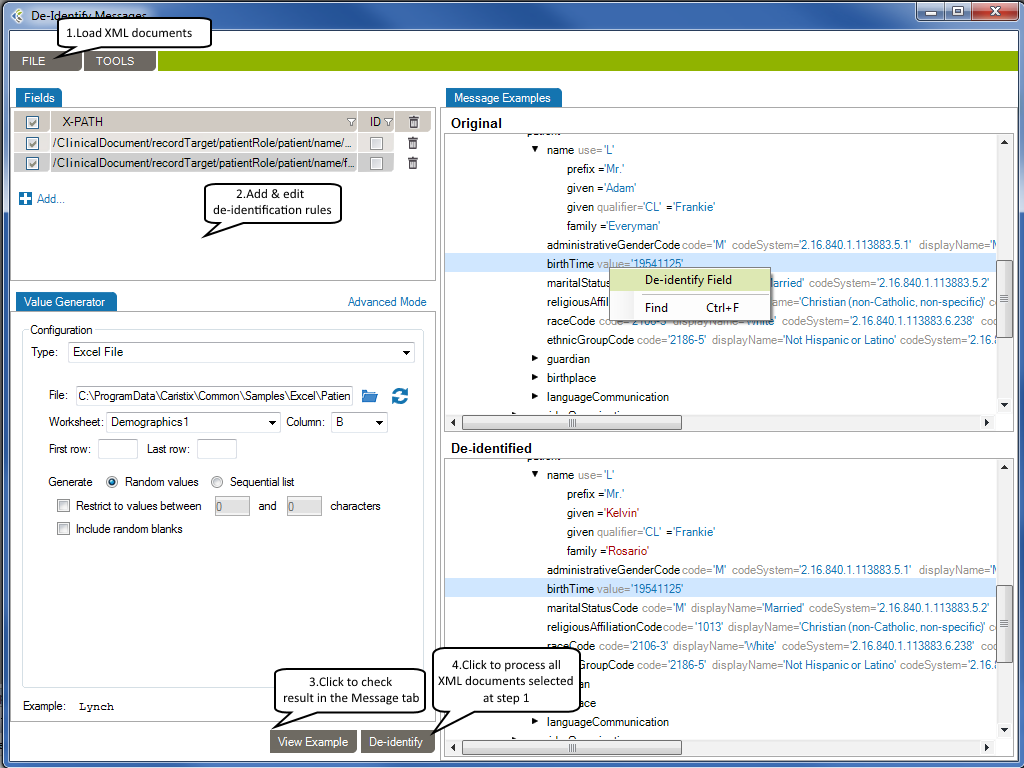
De-identification in Workgroup works as follows:
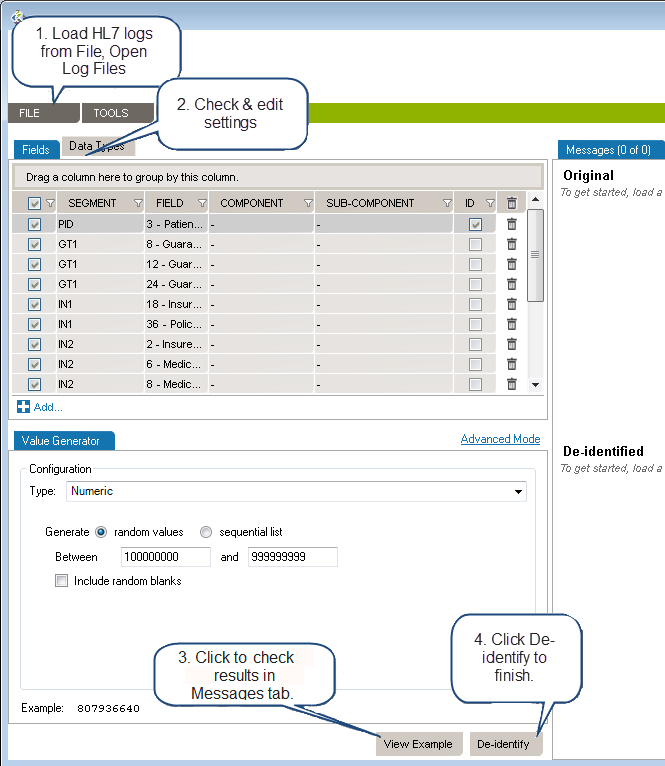
Load the HL7 message that requires de-identification:
The log is loaded in the Messages tab. The tab also indicates the number of messages in the viewing pane and the total number of messages in the file you loaded. The Original pane displays the log you loaded while the De-identified pane displays the de-identified log. The split screens scroll synchronously so that the data displayed is mirrored in the original and de-identified logs.
Resize vertically to change the quantity of data displayed in the viewing pane. Place the pointer on the line dividing the two panes and drag the window to increase or decrease its size. Click the Hide and Show buttons to hide or view panes as needed.
The fields and data types set for de-identification are highlighted in red for easy visibility.
On the left side of the screen are the de-identification settings listed under the Fields and Data Types tabs. Workgroup loads settings to cover the 18 HIPAA identifiers by default.
To add a de-identification rule under Fields or Data Types:
To remove a setting, click the trashcan at the end of the line.
Once you have created and configured all the selectors applicable to the HL7 log to be de-identified, click View Example at the bottom of the left hand panes. A preview of the de-identified log file will appear. Scroll through the log in the viewing pane to verify the potential results of the de-identification process.
Once reviewed and after applying any changes:
Once saved, a De-identification Process Report dialogue box will open asking if you wish to create a de-identification process report. Click Yes or No. If Yes is clicked, you will be prompted to choose a location to save the generated PDF and to give a name to the file. Click Save and the file will be saved to the specified location. The PDF of the De-identification Process Summary will open on your desktop for review. You can also save the file on your local computer by using Browse My Computer.
Once a set of selectors have been chosen for the de-identification of a log file, that set can be saved for reuse.
Once a log file has been opened, the saved de-identification rules can be applied by clicking Open, De-Id Rules from the drop down menu bar under File in the the top menu bar.
Generators refer to the data sources used to set de-identification values in Workgroup.
| Generator | Recommended Use |
| String | Insert a randomly generated string or static value. You can set the length and other parameters. |
| Boolean | Insert a Boolean value (true or false). |
| Numeric | Insert a randomly generated number. You can set the length, decimals and other parameters. |
| Date Time | Insert a randomly generated date-time value. You can set the range, time unit, format, and other parameters. |
| Table | Pull data from HL7-related tables stored in one of your profiles, useful for coded fields. |
| SQL Query | Pull data from a database based on an SQL query. You’ll be able to configure a database connection. |
| Text | Pull random de-identification data from a text file — for instance, a list of names. Several file formats can be used: txt, csv, etc |
| Excel | Pull random de-identification data from an Excel 2007 or later spreadsheet — for instance, a list of names, addresses, and cities. |
| Use Original Value | Keep the field as-is. No de-identification rules will be applied. |
| Copy Another Field | Copy the contents of another field. |
| Unstructured Data | Find and replace sensitive data in free text fields — for instance, find and replace a patient’s last name in physician notes. |
Each generator has its own settings, which you can edit from the Value Generator tab. Click on the generator name to navigate to the setting details.
Allows you to use more than one generator for a single field, edit the output format or preformat values. You can also set preconditions to conditionally apply the de-identification rule.
(Only available in Advanced Mode)
Use this to format the original value before it is processed.
This is useful for generators that include the original value or ID fields. Here are two usage examples:
a) In an unstructured data field, you may wish to remove a value that is not contained elsewhere (not already cloaked in another field):
If you know the field may contain a reference to an ID defined as ‘ID-999999’, you would:
1. Cloak the field using an Unstructured Data generator.
2. Set the following preformat for the unstructured data:
Find what: | ID-\d+ | (Search for a text, anywhere in the field value, starting with ‘ID-‘ and followed by one or more numbers.) |
Replace by: | ID-XXXX | (We set a static text to hide the ID but still keep the context of the text.) |
b) If you have the same patient ID number in two systems, but formatted differently, you could format them so that both systems change to the same ID format and can both be recognized as the same patient. Having the same ID will provide continuity of the message flow for a patient (messages will be cloaked using the same fake data):
If, for example, PID.2 is defined like this for the two systems:
First system: ID:123456
Second system: 123-456
You would need to:
a) Set the field PID.2 as an ID (by checking the ID column).
b) Define two preformats like this:
Find what: | ^ID-(?<ID_Number>\d+)$ | (We find an exact match for the format and set the numbers only in a group variable named ‘ID_Number’) |
Replace by: | ${ID_Number} | (We set only the number, removing the superfluous text) |
Find what: | ^(?<ID_Number_Part_1>\d+)-(?<ID_Number_Part_2>\d+)$ | (Find an exact match for the format and set the numbers only in a group variable named ‘ID_Number’) |
Replace by: | ${ID_Number_Part_1}${ID_Number_Part_2} | (Only the number, remove the superfluous text) |
Now both systems will treat PID.2 as being ‘123456’ and match and cloak the messages properly as being the same patient.
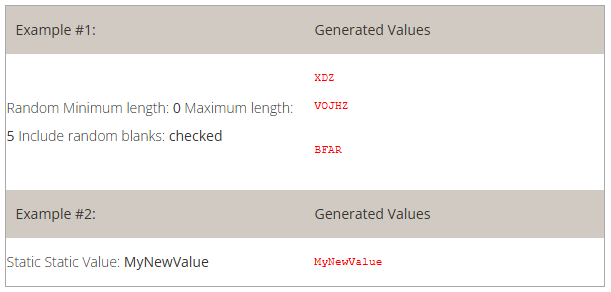
This generator creates a uppercase character string to be used to set a static value.
How to use the “String” generator to create random value:
How to use the “String” generator to set a static value:
How to use the “String” generator to set a Lorem Ipsum text:
| Example #1: | Generated Values | ||||
|
| ||||
| Example #2: | Generated Values | ||||
|
|
This generator creates a Boolean (True or False) value.
How to use the Boolean generator:
| Example #1: | Generated Values | |||||
|
|
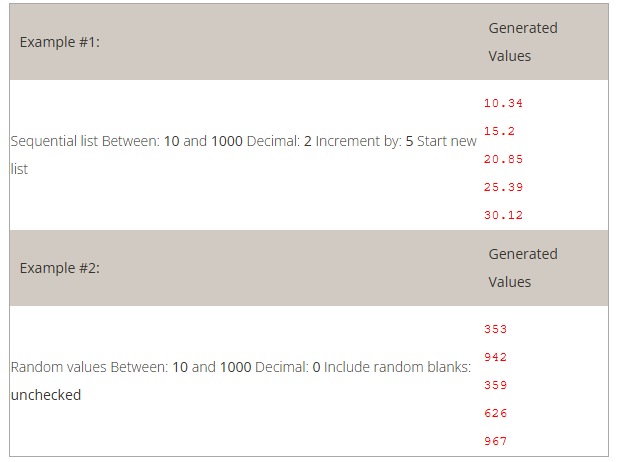
This generator creates a number.
How to use the “Numeric” generator:
| Example #1: | Generated Values | |||||
|
| |||||
| Example #2: | Generated Values | |||||
|
|
This generator creates date and time values.
How to use the “Date time” generator:
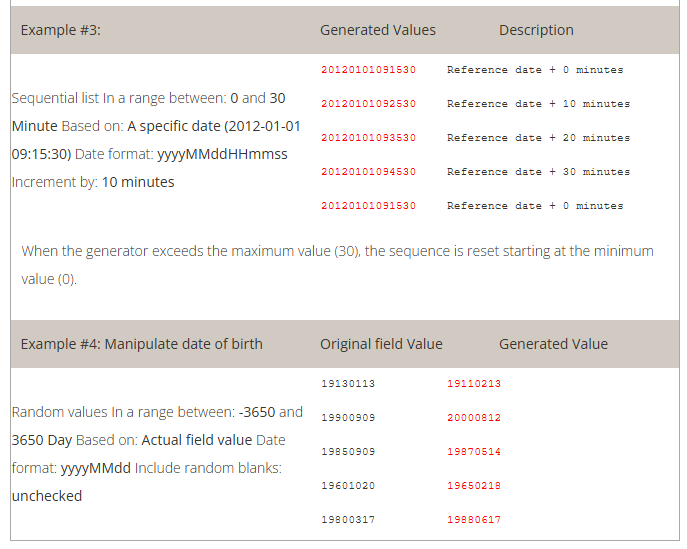
| Example #1: | Generated Values | Description | ||||||||||
|
| |||||||||||
| Example #2: | Generated Values | Description | ||||||||||
|
| |||||||||||
| Example #3: | Generated Values | Description | ||||||||||
|
| |||||||||||
When the generator exceeds the maximum value (30), the sequence is reset starting at the minimum value (0). | ||||||||||||
| Example #4: Manipulate date of birth | Original field Value | Generated Value | ||||||||||
|
| |||||||||||
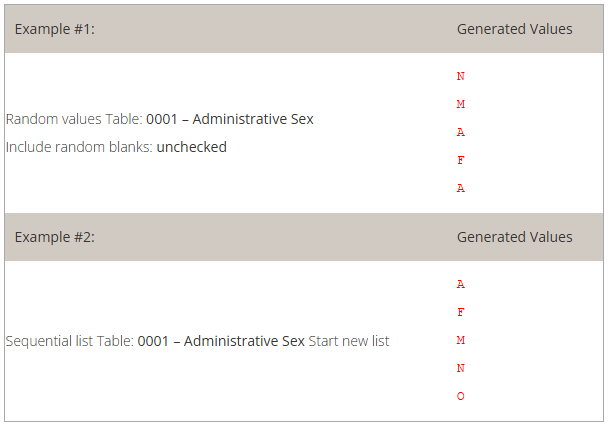
This generator pulls data from HL7-related tables stored in a profile. Read how to set the profile.
How to configure the generator to use the appropriate HL7 table:
| Example #1: | Generated Values | |||||
|
| |||||
| Example #2: | Generated Values | |||||
|
|
This generator pulls data from an SQL-accessible database.
How to configure this generator to use SQL query results as de-identified values:
| Example #1: | Generated Values | |||||
|
|
This generator pulls data from a text file (*.txt, *.csv, etc).
How to configure this generator to use text file content:
Note: If more than one field is configured using the same text file, the same line will be used within the same message. In other words, you can use a text file to ensure several values will be used together. This can be useful when linking a a city with a zip code or a first name with a gender.
The examples below use the following content in a file C:MyDocumentsmyFile.txt
| Example #1: | Generated Values | ||||||
|
| ||||||
| Example #2: | Generated Values | ||||||
|
|
This generator pulls data from an Excel 2007+ file (*.xlsx).
How to configure the generator to use Excel file content:
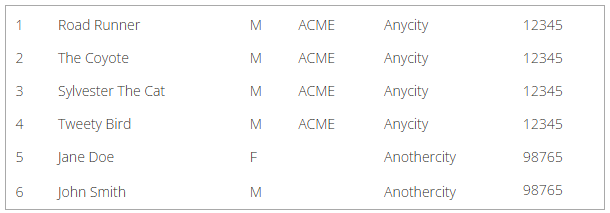
Note: If more than one field is configured using the same worksheet, the same row will be applied across a message. In other words, you can use an Excel file to ensure that several values will be used together. This can be useful when link a city with a zip code or a first name with a gender.
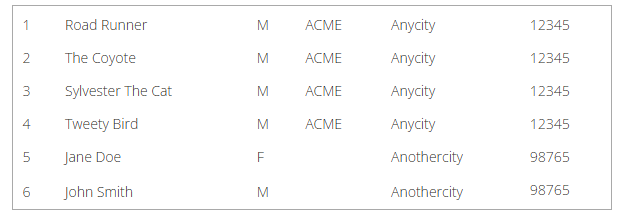
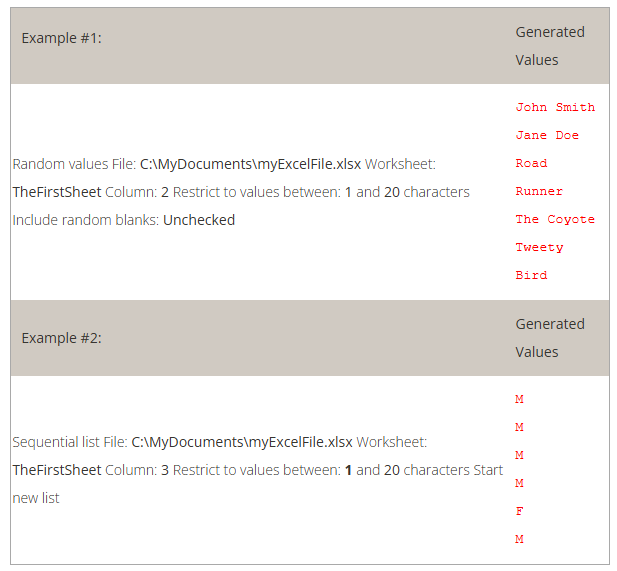
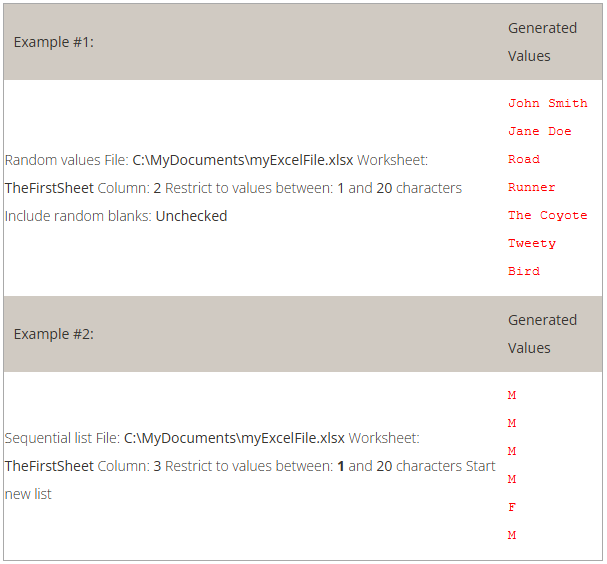
The examples below use the following content from a file named C:MyDocumentsmyExcelFile.xlsx
| 1 | Road Runner | M | ACME | Anycity | 12345 |
| 2 | The Coyote | M | ACME | Anycity | 12345 |
| 3 | Sylvester The Cat | M | ACME | Anycity | 12345 |
| 4 | Tweety Bird | M | ACME | Anycity | 12345 |
| 5 | Jane Doe | F | Anothercity | 98765 | |
| 6 | John Smith | M | Anothercity | 98765 |
| Example #1: | Generated Values | ||||||
|
| ||||||
| Example #2: | Generated Values | ||||||
|
|
This generator is to be used when you don’t want a data element to be changed. Here
are two use case examples.
If the data type Extended Person Name (XPN) is part of the list of data
types to de-identify, you might need to preserve some of the fields using this data
type.
| Data Type | Component | Generator |
| XPN | 2 – Given Name | Excel File |
| FN | 1 – Surname | Excel File |
| Segment | Field | Component | Subcomponent | ID | Generator |
| PV1 | 7 – Attending Doctor | Use Original Value |
Using this configuration, you would make sure all names are de-identified except
the attending doctor’s name.
Prevent de-identifying a field that is defined as a ID |
| Field IDs must have a generator associated with them but, if for some reason you prefer having the original value, you can set this to avoid any changes in that value. |
Re-use the original data and combine it with other generators |
| In Advanced Mode, you can de-identify the original value by specifying several generators, but you could also include the original value to combine it with other generated values. |
This generator replicates the value from another de-identified field.
How to use the “Copy Another Field” generator:
Example 1: copy the replacement MRN value from PID. 2 to ZCA.3
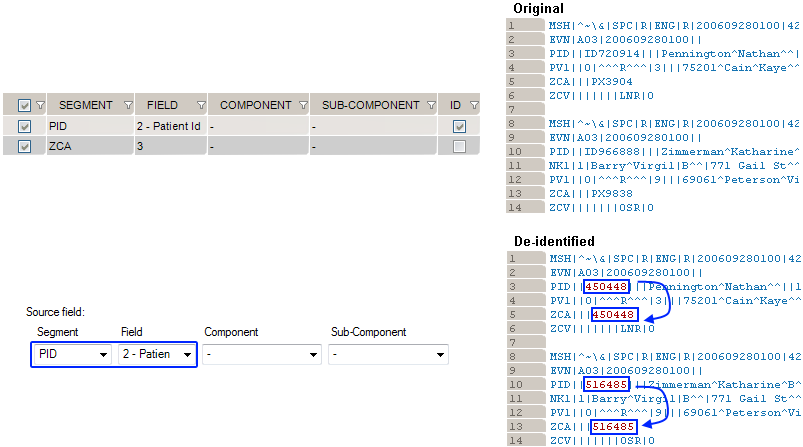
Sensitive data can be found in unstructured data (free text) such as clinician notes or other narrative text. Most of the data within an unstructured field is not sensitive, but there are times when it might contain data elements you want to protect.
This generator will replace any piece of information found in another message field that is set for de-identification.
In the following message, the name of the patient is mentioned in the patient update note (NTE.3).
If the patient name (PID.5.1 field) is listed among the de-identification rules, you can configure a new field to detect the patient name within NTE.3
| Segment | Field | Component | Subcomponent | ID | Generator |
| PID | 5 – Patient Name | 1 – Family Name | Excel File | ||
| NTE | 3 – Comment | Unstructured Data |
Using these settings, the de-identified message will look like this:
If the patient name (PID.2 field) is listed among the de-identification rules, you can configure a new field to detect the patient ID within NTE.3
| Segment | Field | Component | Subcomponent | ID | Generator |
| PID | 2 – Patient ID | Numeric | |||
| PID | 5 – Patient Name | 1 – Family Name | Excel File | ||
| NTE | 3 – Comment | Unstructured Data |
Using these settings, the de-identified message will look like this:
At the end of the de-identification process, Workgroup offers the option of generating a De-identification Process Report that summarizes the de-identification process. This report can be viewed and shared. The PDF opens automatically upon completion. For later review, navigate to the specified folder when the PDF was stored and click on the file to open it.
The De-identification Process Report has two parts:
This section of the report lists the following:
Files sub-section:
This section identifies the de-identification file name and location and presents tables of three summaries of the de-identification process:
De-Identification has a number of options that can be set. From the main menu bar, click Tools, then Options. In the Options dialog box that opens, there are three categories: Reference Profile, Windows Service Settings, Delimiters and Settings.
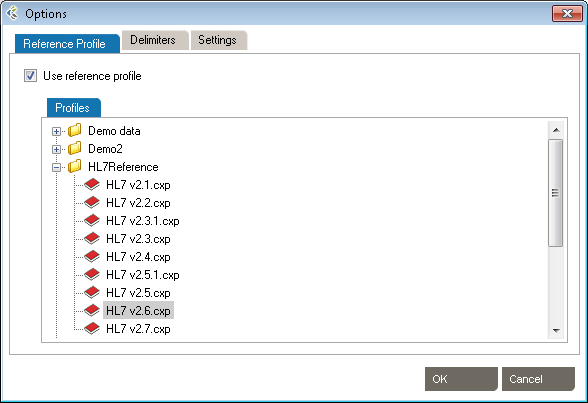
These setting allow the use of HL7 reference profiles to parse logs. Open the Reference Profile tab.
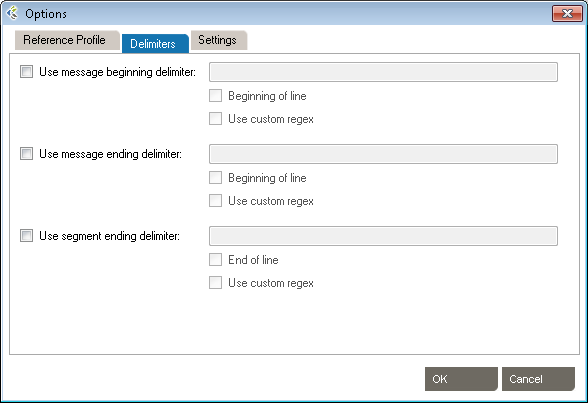
These settings allow the addition of specific delimiters to the log file to assist with manageability and readability. They include:
Click OK to save the delimiters.
Click OK to save the settings.
Use the Message Maker tool to create test messages to PLACE INTO a scenario or to copy to another application. The messages you generate will be based on a specific profile (an HL7 version based on the reference standard, or a profile created earlier).
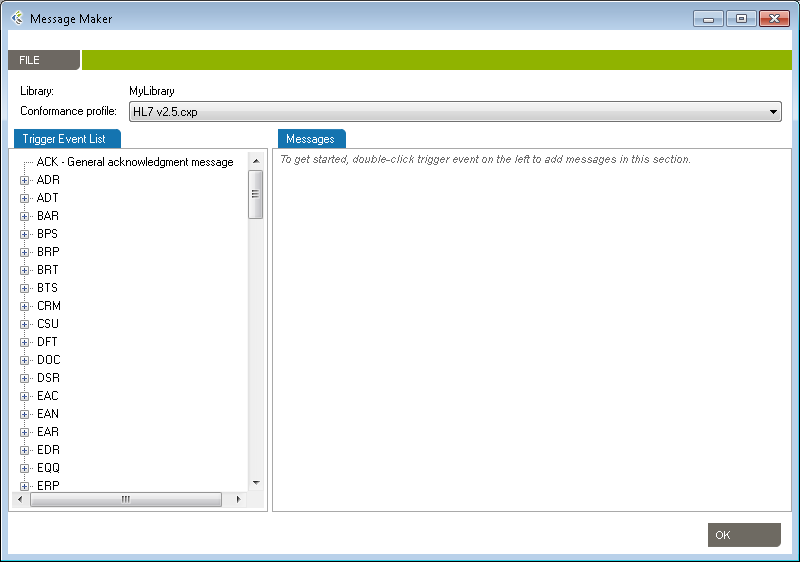
The Message Editor tool lets you edit content and compare HL7 messages against a profile in order to flag conformance gaps. This is useful when you need to troubleshoot data flow in a live interface that has been documented in Caristix Workgroup.
Message Editor in Workgroup works as follow:
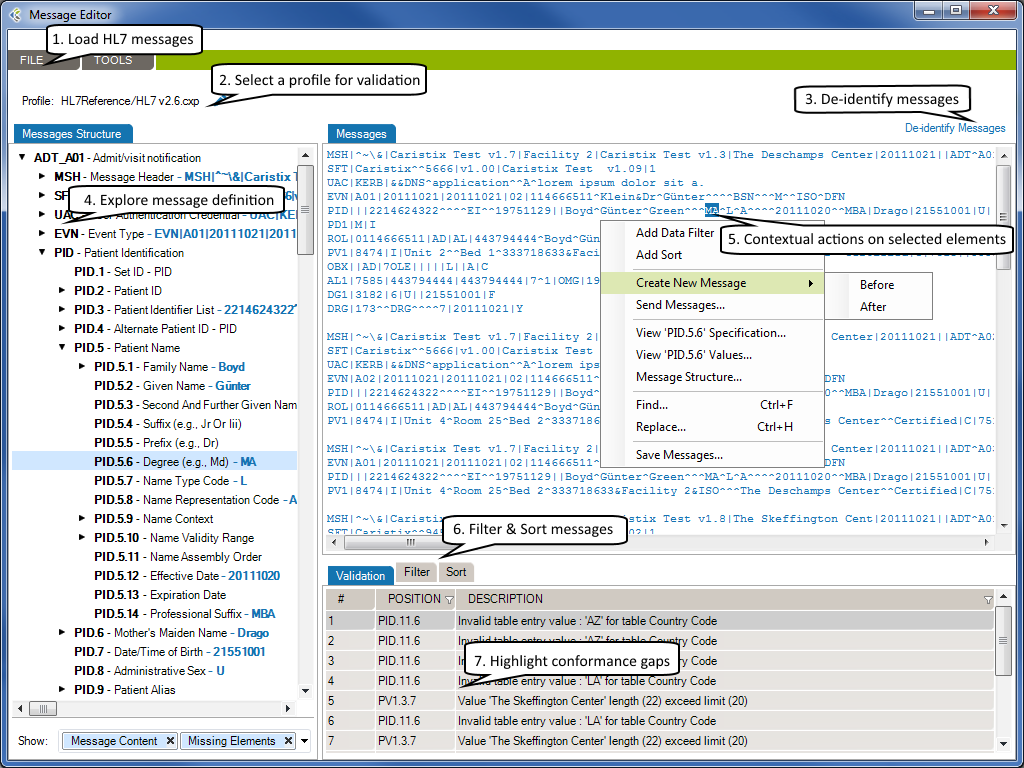
The selected HL7 messages will be loaded in the Messages tab.
Using a profile in the message editor will enable the message validation feature. The message validation will compare the HL7 messages against the profile in order to flag conformance gaps. Such gaps could come from:
Click to de-identify current messages. After the de-identification process is complete, the de-identified messages will replace your current loaded messages. Take a look at the De-identification Concepts to understand this process.
When you are analyzing a message log, you sometimes need to quickly capture an overview of a message or segment.
From there you can show/hide:
If you right-click an element in the Messsages Structure/Messages or Validation tab, a contextual menu will open. It contains the available actions for the selected element.
Please refer to the Search and Filter Messages documentation to work with Data Filters and Sort Queries.
The Message Editor tool lets you compare an HL7 message against a profile in order to flag conformance gaps. This is useful when you need to troubleshoot data flow in a live interface that has been documented in Caristix Workgroup. Validation tab displays conformance gaps flagged by the application.
Caristix Workgroup helps interface analysts, engineers, and technical support team members to quickly find HL7 data needed for interfacing tasks and customer service. It provides the following features and functionality:
You can save your searches and filters as a file. A Search and Filter Rules File is used to persist Data Filters, Sorts Queries and Data Distribution entries for reuse.
* You can also open a Search and Filter Rules file by right-clicking anywhere in the Data Filters, Sorts or Data Distributions section and click the “Open Search and Filter Rules…” menu.
* You can also save a Search and Filter Rules file by right-clicking anywhere in the Data Filters, Sorts or Data Distributions section and click the “Save Search and Filter Rules…” menu.
If you’ve already opened a Search and Filter Rules file, it will be added to the recent files in order to be quickly accessible. To open a recently opened file…

Check “Use Large File mode” when loading files above 10MB in size. (This option will deactivate the Sort, Replace and Edit Message features.)
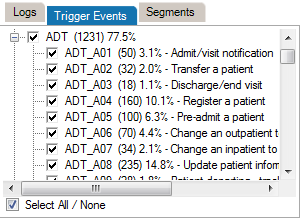
Data filters let you set up queries to find messages containing specific data such as patient IDs, names, and order types codes. Queries can filtered on specific message elements: segments, fields, components, and sub-components.

This is the recommended method for building data filters. Once you’ve built a query, you can then modify the Filter Operators to change your filter criteria.
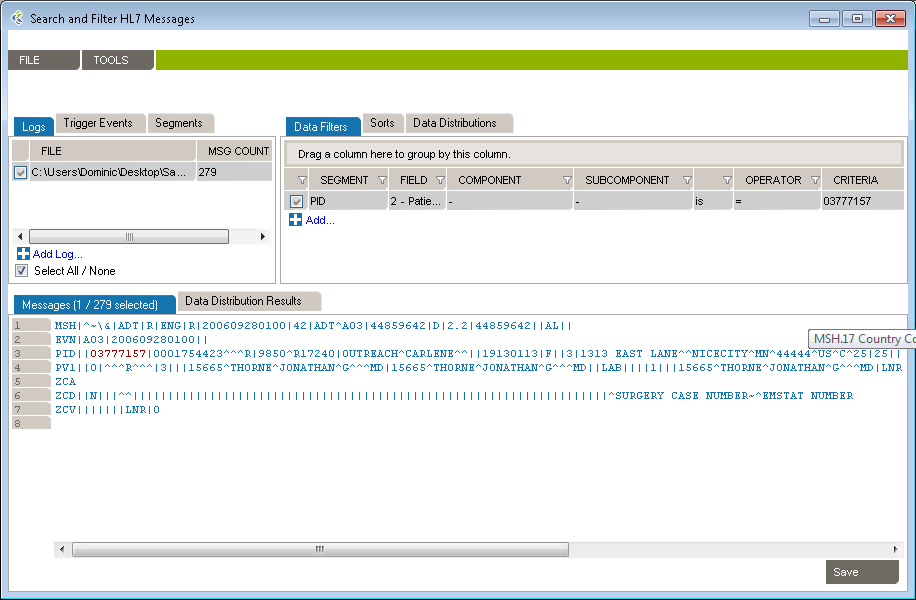
This is an alternate method for building data filters and is helpful when applying complex filter operators.

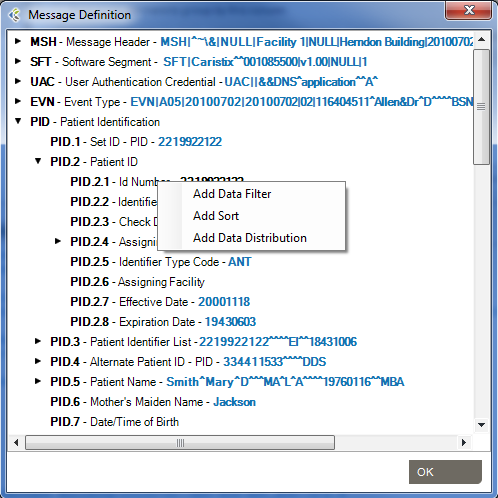
You can also add filters from the Message Definition tree:
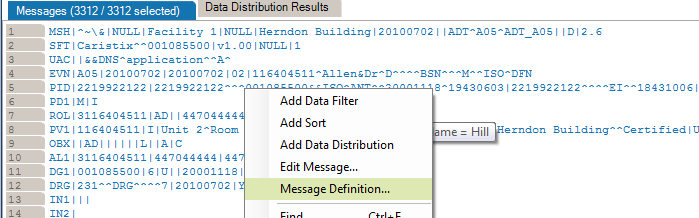
From the messages area, you can also view and edit the segment/field definition and legal values (if the field is linked to a table).
Data filter queries can be made case-sensitive. This is helpful when you need to identify data that might have been entered in all caps (JOHN SMITH) instead of title case (John Smith).
You can create filters that query the entire log, instead of a single segment or field. Simply omit the segment and field from the filter. The results in the Messages area cover all occurrences of the value you specified in the filter.
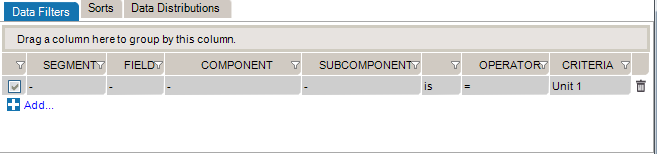
While editing your filters, you can switch between Basic and Advanced Mode. Advanced Mode shows you advanced settings for your filters. These settings help you to construct more complex filters using AND/OR operators and parentheses for nesting. Otherwise, each filter will be applied one after the other.
If your filters contains advanced settings and you switch back to the Basic Mode, these settings will be lost.

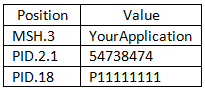
In this example, we want to create filters to get messages where (MSH.3 = MyApplication) and (PID.2.1 = 54738474) or (PID.18 = P5847373).
These filters will include the following messages:
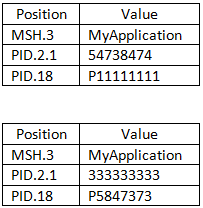
Data filters let you select a subset of messages from the logs you load in Workgroup. The operators let you build filter queries, ranging from simple to complex. The most basic operator set consists of the us of “is” and “=”.
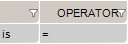
These are the default operators in the Add Data Filter command, available on the right-click dropdown menu in the Messages area.
The other data filter operators let you build sophisticated filters for analyzing the HL7 data in your log. (Learn how data filters work in the section on Working with Data Filters.)
Sort queries sort a log on a message element (segment, field, component, or subcomponent).
Sorting data is useful when you want to group messages by criteria such as patient name, date, or location.

This sort on MSH 6 reorders messages by the name of the receiving facility, in this case, a patient care location.
This is the recommended method for building sorts. Once you’ve built a query this way, you can modify the Filter Operators to change your filter criteria.
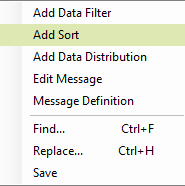
This is an alternate method for building sort queries.

You can also add sort queries from the Message Definition tree. To do so:
The Data Distribution feature displays the data values in a field. For instance, it helps you quickly figure out what codes are used in a specific field or how often a specific code is used.
Data Distribution can also help you analyze how one field can impact other fields in terms of data and content. With Data Distribution, for example, it’s possible to get the list of lab result codes for each lab request codes within a set of sample messages.
All charts and tables can be copied and pasted to Word and Excel.
The pie chart displays the values that populate the field, as well as how often those values occur in the field.
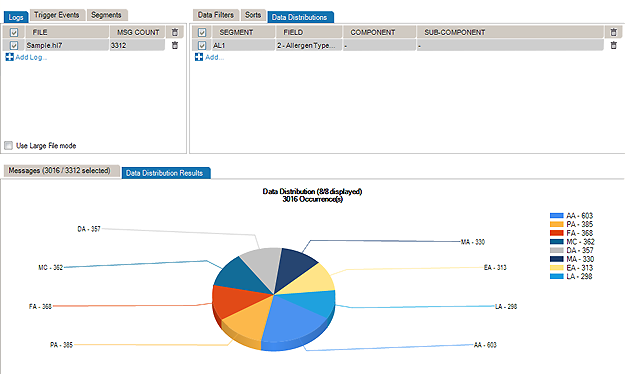
The report displays which Allergen Type Code is sent, grouped by Sending Facilities.
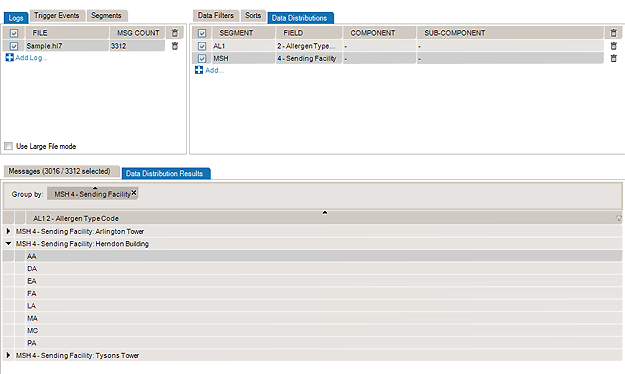
You can also add data distribution fields from the Message Definition tree:
From the Data Distribution table view, you can add a Data Filter in order to find messages containing specific data:
Some interfacing technologies output non-standard message logs. In a raw state, they may be impossible to parse against an HL7-compliant standard. By adding a message prefix representing the extraneous data, you can load these logs in Pinpoint.
To add a message prefix:
You can also use message and segment ending delimiters.
Learn more about regular expressions here:
Workgroup works by parsing messages against a reference profile (or specification). The default setting is to parse against the HL7 version specified in the Version ID field of the MSH segment. However, you can also set the reference profile manually, as follows:
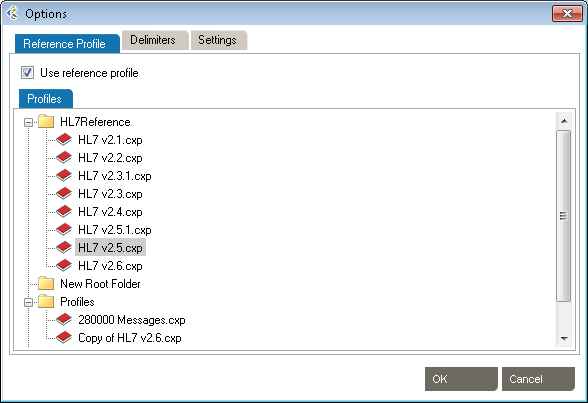
The default profile library is in %AllUsersProfile%\Application Data\Caristix\Common\Library\library.cxl. If you want to load an alternate profile library, click the Browse button.
You can make your data filter queries case-sensitive. This is helpful when you need to identify data that might have been entered in all caps (JOHN SMITH) instead of title case (John Smith).
This option will generate extra metadata information when you save the resulting messages. This metadata contains the filters, sort and file sources information.
By default, Search and Filter Messages will automatically apply changes that you make on filters. If you uncheck this option, changes to filters will only be applied when clicking on the Apply Changes button.
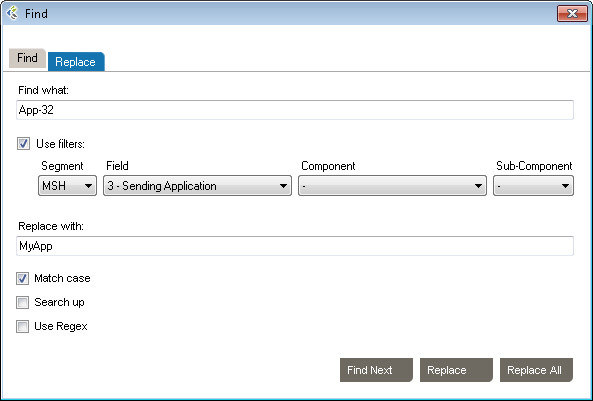
You can find and replace values in your messages. The Use filters option lets you find and replace within a field.
You can also use the Replace tab and specify a replacement value
The Message Validation tool lets you compare an HL7 log against a profile in order to flag conformance gaps. This is useful when you need to troubleshoot data flow in a live interface that has been documented in Caristix Workgroup.
From the Message Validation tool, you can right-click any messages and open the Message Editor tool, or view the Message Definition.
Workgroup includes Message Player, a utility you can use to send and receive HL7 messages. A few uses for Message Player:
The main features are:
You can send HL7 messages stored in flat files to another system. To send messages:
The router will send HL7 messages contained in playlist file(s). Messages will be sent one at a time, with a wait for acknowledgment (ACK/NACK) between messages.
Unless deactivated, the Play configuration panel should be triggered each time you hit the Play button.
You can also access the panel by clicking the gear icon on the upper-right corner of the main window, then selecting the Play tab.
The configuration panel contains 2 items:
You can receive HL7 messages from a system and store them in flat files. To record messages:
The recording starts. Click Stop at any time to interrupt recording.
The router will listen to HL7 messages and store them in files based on the split mode you select. For each message received, an acknowledgment (ACK/NACK) will be sent as a response.
Unless deactivated, the Record configuration panel should be triggered each time you hit the Record button.
You can also access the panel by clicking the gear icon on the upper-right corner of the main window, then selecting the Record tab.
The configuration panel contains 3 items:
Caristix Workgroup comes with several features that help you with XML documents (ex: CDA, CCD documents).
To understand the de-identification concept, please read the following chapters:
De-identification in Workgroup works as follows:
The selected XML documents will be loaded in the Message Example tab. The Original pane displays the XML documents you loaded while the De-identified pane displays the de-identified XML documents. The split screens scroll synchronously so that the data displayed is mirrored in the original and de-identified panes.
The fields set for de-identification are highlighted in red for easy visibility.
On the left side of the screen are the de-identification rules listed under the Fields tab.
To add a new de-identification rule
-Or-
To remove a rule, click the trashcan at the end of the line.
To re-use existing de-identification rules
-Or-
To save your de-identification rules
-Or-
Once you have created and configured all the rules applicable to the XML documents to be de-identified, click View Example at the bottom of the left hand pane. A preview of the de-identified documents will appear. Scroll through the documents in the viewing pane to verify the potential results of the de-identification process.
Once reviewed and after applying any changes:
Caristix Workgroup helps interface analysts, engineers, and technical support team members quickly find data needed for interfacing tasks and customer service.
Search and Filter in Workgroup works as follows: 
The selected XML documents will be loaded in the Messages tab.
The fields that match your search and filter rules are highlighted in red for easy visibility.
On the right side of the screen are the search and filter rules listed under the Data Filters tab.
While editing your filters, you can switch between Basic and Advanced Mode. Advanced Mode shows you advanced settings for your filters. These settings help you to construct more complex filters using AND/OR operators and parentheses for nesting. Otherwise, each filter will be applied one after the other.
If your filters contains advanced settings and you switch back to the Basic Mode, these settings will be lost.
To add a new search and filter rule
-Or-
To remove a rule, click the trashcan at the end of the line.
To re-use existing search and filter rules
-Or-
To save your search and filter rules
-Or-
The Message Editor tool lets you edit content and compare an XML document against a profile in order to flag conformance gaps. This is useful when you need to troubleshoot data flow in a live interface that has been documented in Caristix Workgroup.
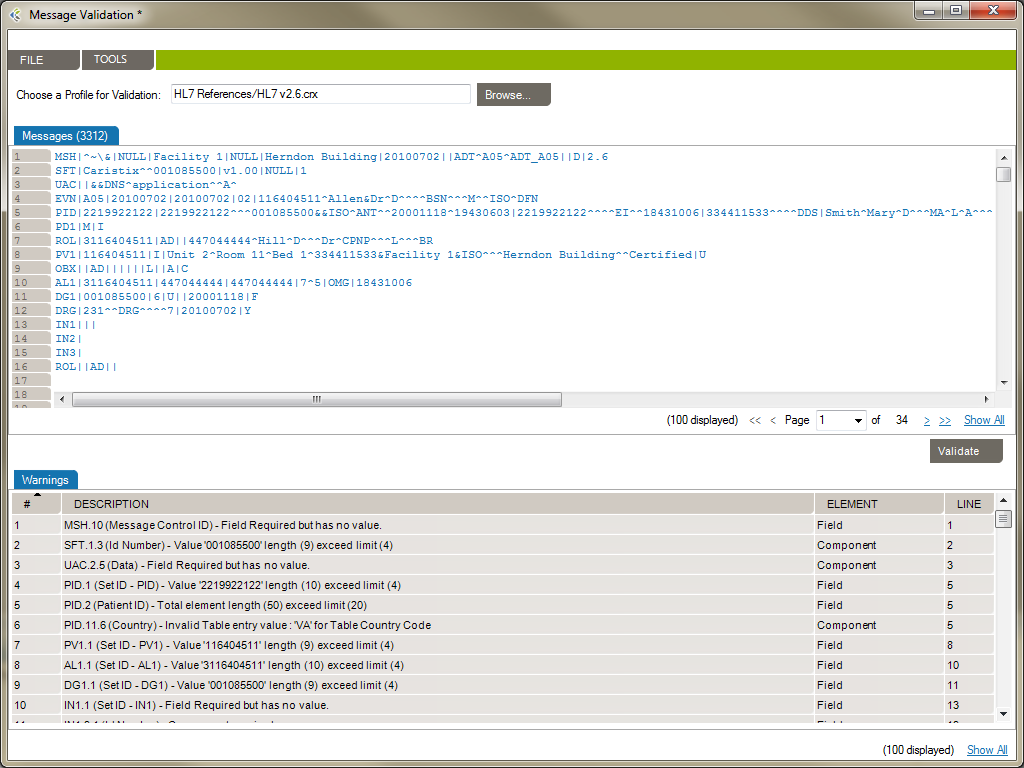
Message Editor in Workgroup works as follow:
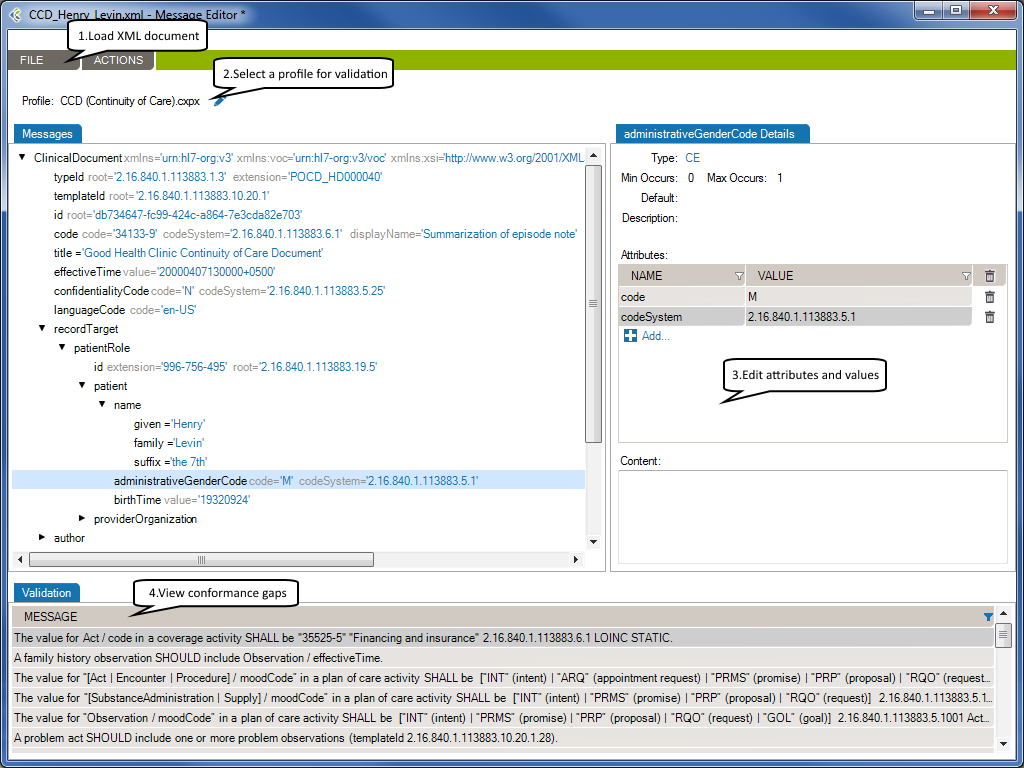
The selected XML document will be loaded in the Message tab.
Using a profile in the message editor will enable the message validation feature. The message validation will compare the XML document against the profile in order to flag conformance gaps. Such gaps could come from:
At the right side of the message tab, you will be able to edit the selected node’s attributes or content.
Using a profile will allow the message editor to provide the list of allowed attribute names and values.
If enabled, the validation tab displays conformance gaps. The tool-tip will provide you detailed information about the error.
Double-click a line to navigate through the error in your XML document.
X-Path is a language that describes a way to locate and process items in XML documents by using an addressing syntax based on a path through the document’s logical structure or hierarchy. X-Path uses path expressions to select nodes or node-sets in an XML document.
Using the following XML document:
<item>
<book>
<title>Cheaper by the Dozen</title>
<number type=”isbn”>1568491379</number>
<author>
<name>John Doe</name>
</author>
</book>
<note>
<p>This is a funny book!</p>
<author>
<name>Jake McEvoy</name>
</author>
</note>
</item>You can use the X-Path expression “/item/book/author/name” to select the element
<item>
<book>
…
<author>
<name>John Doe</name>
…
</item>And the expression “/item/book/number/@type” to select the attribute type=”isbn”
<item>
<book>
…
<number type=”isbn”>1568491379</number>
…
</item>An absolute X-Path uses the complete path from the root element to the desired element (item>book>author>name). But, if you’d like to select both book’s author and note’s author, using a single X-Path query, you’ll have to use the relative X-Path syntax “//author/name”
<item>
…
<author>
<name>John Doe</name>
</author>
…
<author>
<name>Jake McEvoy</name>
</author>
…
</item>A relative X-Path is a way to select an element no matter its location in the XML document.
XML namespaces are used for providing uniquely named elements and attributes in an XML document. An XML instance may contain element or attribute names from more than one XML vocabulary. If each vocabulary is given a namespace, the ambiguity between identically named elements or attributes can be resolved. In the following example, the prefix “lib” is used for the “library” vocabulary, and the “rev” prefix is used for the “review” vocabulary.
<item>
<book xmlns:lib=”urn:vocabulary.library”>
<title>Cheaper by the Dozen</title>
<number type=”isbn”>1568491379</number>
<lib:author>
<lib:name>John Doe</lib:name>
</lib:author>
</book>
<note xmlns:rev=”urn:vocabulary.review”>
<p>This is a funny book!</p>
<rev:author>
<rev:name>Jake McEvoy</rev:name>
</rev:author>
</note>
</item>When a namespace is used in an XML document, you will have to consider the qualified name in an X-Path query to get the desired element. A qualified name contains the namespace-prefix and the name of the element or attribute.
Using the X-Path “//lib:author/lib:name”, you will only select the name element corresponding to the “library vocabulary”. It won’t select the “review’s author”.
<item>
<book xmlns:lib=”urn:vocabulary.library”>
<title>Cheaper by the Dozen</title>
<number type=”isbn”>1568491379</number>
<lib:author>
<lib:name>John Doe</lib:name>
</lib:author>
</book>
<note xmlns:rev=”urn:vocabulary.review”>
<p>This is a funny book!</p>
<rev:author>
<rev:name>Jake McEvoy</rev:name>
</rev:author>
</note>
</item>And, you can’t just ignore the prefix and use “//author/name”, because it would not match an existing element. There is a workaround explained later.
Sometimes, documents contain a declaration of one or more “default namespace”. A default namespace is declared without any prefix (xmlns=”…”, instead of xmlns:pfx=”…”). The scope of a default namespace declaration extends from the beginning of the start-tag in which it appears to the end of the corresponding end-tag, excluding the scope of any inner default namespace declarations. A default namespace declaration applies to all unprefixed element names within its scope.
<item>
<book xmlns=”urn:vocabulary.library”>
<title>Cheaper by the Dozen</title>
<number type=”isbn”>1568491379</number>
<author>
<name>John Doe</name>
</author>
</book>
<note xmlns=”urn:vocabulary.review”>
<p>This is a funny book!</p>
<author>
<name>Jake McEvoy</name>
</author>
</note>
</item>In this particular case, no prefix is used to explicitly distinguish identically named elements or attributes. But only prefixes mapped to namespaces can be used in X-Path queries. This means that if you want to query against a namespace in an XML document, even if it is the default namespace, you need to define a prefix for it. ref: https://docs.microsoft.com/en-us/dotnet/standard/data/xml/xpath-queries-and-namespaces
That’s why the X-Path “//author/name” would not return any value. A prefix must be bound to prevent ambiguity when querying documents with some nodes, not in a namespace, and some in a default namespace.
The software will add “temporary” namespace automatically for each declared default namespace in your documents. Those temporary namespaces will be “ns1, ns2, ns3,…”. So, after loading the XML document in Caristix software, you will see something like:
<item>
<ns1:book xmlns=”urn:vocabulary.library”>
<ns1:title>Cheaper by the Dozen</ns1:title>
<ns1:number type=”isbn”>1568491379</ns1:number>
<ns1:author>
<ns1:name>John Doe</ns1:name>
</ns1:author>
</book>
<ns2:note xmlns=”urn:vocabulary.review”>
<ns2:p>This is a funny book!</ns2:p>
<ns2:author>
<ns2:name>Jake McEvoy</ns2:name>
</ns2:author>
</ns2:note>
</item>The “ns1” is the temporary namespace prefix for the “urn:vocabulary.library” namespace and “ns2” is the temporary namespace prefix for the “urn:vocabulary.review” namespace. That way, you can select “//ns1:author/ns1:name” and “//ns2:author/ns2:name” without ambiguity.
But, what if I want to select both in a single request?
Take a look at the X-Path syntax reference so see what can be done
https://www.w3schools.com/xml/xpath_intro.asp
https://devhints.io/xpath
Using those references, you can use the existing functions to build an X-Path that will match both elements “//*[local-name()=’author’]/*[local-name()=’name’]”. In this particular case, the local-name() function returns the element name, without the prefix.
<item>
<ns1:book xmlns=”urn:vocabulary.library”>
<ns1:title>Cheaper by the Dozen</ns1:title>
<ns1:number type=”isbn”>1568491379</ns1:number>
<ns1:author>
<ns1:name>John Doe</ns1:name>
</ns1:author>
</ns1:book>
<ns2:note xmlns =”urn:vocabulary.review”>
<ns2:p>This is a <ns2:i>funny</ns2:i> book!</ns2:p>
<ns2:author>
<ns2:name>Jake McEvoy</ns2:name>
</ns2:author>
</ns2:note>
</item> It is now possible to de-identify PHI with both HL7 and XML consistently. Three simple steps are required to begin.
Testing is conducted at at different phases in the interface lifecycle: during configuration and development; during the formal validation phase; and during maintenance.
You run tests to avoid introducing new problems – you check and test your code to make sure not injecting errors. This is true both during interface development or configuration and while in maintenance mode. This testing helps you determine whether or not the interface makes sense and meets your requirements.
Workgroup is designed to help interface analysts and engineers validate HL7 interfaces. The software provides the following features and functionality:
Workgroup facilitates testing in a number of ways including:
Suites are analogous to a test plan. A suite contains all of the test scenarios and workflows that you will run in order to validate that an interface works. A suite manages a collection of test scenarios (test cases).
Suites are files with the .cxs extension and are represented in the document library by the
icon.
On the Configuration tab, you set timing and execution parameters for your suite.
These settings let you run scenarios contained in a suite several times, in a loop. For instance, you can set a scenario to execute 100 times with 100 different patient names.
After the scenario suite has been executed once, a new tab will be displayed (Results). The Results tab contains the detailed information about what was executed for any specific execution. If variables were used in configuration or validation, you will see their instantiated values.
Select a result to see the detailed information. You can also perform action (right-click) with a result, such as:
On the Configuration tab, set timing and execution parameters at the Scenario level.
These settings let you run tests several times, in a loop.
After the scenario has been executed once, a new tab will be displayed (Results). The Results tab contains the detailed information about what was executed for any specific execution. If variables were used in configuration or validation, you will see their instantiated values.
Select a result to see the detailed information. You can also perform action (right-click) with a result, such as:
A scenario consists of a series of actions. An action represents a single step in a specific workflow — for instance, the arrival of a patient.
On the Configuration tab, set timing and execution parameters at the Action level.
These settings let you run tests several times in a loop.
After the action has been executed once, a new tab will be displayed (Results). The Results tab contains the detailed information about what was executed for any specific execution. If variables were used in configuration or validation, you will see their instantiated values.
Select a result to see the detailed information. You can also perform action (right-click) with a result, such as:
Actions are made up of tasks. A task represents the smallest unit of work contained in a scenario. It could be an HL7 message exchange (an admit/visit notification), a database interaction (a query to the patient table), or a manual step requiring the user to interact with a 3rd party application.
Your test cases are based on a sequence of tasks.
There are several types of tasks. Each task type has its own behavior.
After the task has been executed once, a new tab will be displayed (Results). The Results tab contains the detailed information about what was executed for any specific execution. If variables were used in configuration or validation, you will see their instantiated values.
Select a result to see the detailed information. You can also perform action (right-click) with a result, such as:
The Javascript engine allows you to inject custom Javascript at different steps of a Task execution.
You can toggle the “Fake Execution” mode on each task, which executes your custom Javascript code instead of performing the task as configured. That way, you can mock, for instance, a web service result to quickly develop your test cases, even if the real web service that would be used in tests is not ready to be used yet.
To use Fake Execution, call the “callback(result)” method, providing a string containing the fake result you want your task to have.
For each task type, a default fake execution script is provided. The default scripts are as follows.
This script fakes the task’s execution as if the messages were successfully sent, and the configured connection endpoint returned an HL7-ACK.
callback(`MSH|^~\&|GHH LAB, INC.|GOOD HEALTH HOSPITAL|ADT1|GOOD HEALTH HOSPITAL|20210305104622||ACK^A01^ACK|ACK-MSG00001|T|2.5.1
MSA|AA|MSG00001
`);
This script fakes the task’s execution as if it received/read the HL7v2 messages provided in the callback method.
callback(`MSH|^~\&|ADT1|GOOD HEALTH HOSPITAL|GHH LAB, INC.|GOOD HEALTH HOSPITAL|198808181126|SECURITY|ADT^A01^ADT_A01|MSG00001|T|2.5.1
EVN||200708181123||
PID|1||PATID1234^5^M11^ADT1^MR^GOOD HEALTH HOSPITAL~123456789^^^USSSA^SS||EVERYMAN^ADAM^A^III||19610615|M||2106-3|2222 HOME STREET^^GREENSBORO^NC^27401-1020
NK1|1|JONES^BARBARA^K|SPO^Spouse^HL70063||||NK^NEXT OF KIN
PV1|1|I|2000^2012^01||||004777^ATTEND^AARON^A|||SUR||||7|A0|
`);
This script fakes a database query result. A JSON Array with 2 entries is provided as a result. This mocks the following dataset
callback(`[
{
"column1": "value 1",
"column2": "value 2"
},
{
"column1": "value 3",
"column2": "value 4"
}
]`);
| Column 1 | Column 2 |
| Value 1 | Value 2 |
| Value 3 | Value 3 |
This script fakes the execution of the task as if an HTTP result is returned. A JSON object is provided, allowing you to mock the HTTP Response Status Code (200, 404, 500) and the response Body. The above script would return an OK – 200 status code with a JSON value in the response body.
callback(`{
"responseStatusCode": "200",
"responseBody": {
"resourceType": "operationOutcome"
},
}`);
HTTP Response Status: 200 (OK)
HTTP Body: { "resourceType": "operationOutcome" }
A JavasScript task executes JavaScript code using our JavaScript API.
Right-click the name of the parent Action the new task will be created in, and select Add New Task –> Execute JavaScript Task.

A new Task appears under the parent Action. Edit the task name as needed. Drag and drop to change the task order.
Any valid JavaScript can be executed in this task. Simply add the code you wish to execute to the code textbox in the configuration tab. You can also use our JavaScript API to manipulate Caristix-related resources.
To return a result for validation, use the callback() method. The callback() method takes a string as an argument and sets the value returned by the task when called.
The following is an example of a JavaScript task’s code. In the example, a GET request is sent to a public FHIR server, and the resulting bundle is returned for validation.
//Create an HTTP request using the provided HTTP GET method and full resource url,
// https://daas.caristix.com/fhir/Patient.
var request = HTTP.create('GET', 'https://daas.caristix.com/fhir_r4/Patient/');
//Add the Accept header with the value application/fhir+json to the request.
request.setHeader(‘Accept’, ‘application/fhir+json’);
//Send the HTTP request.
var result = request.send();
//Obtain the HTTP result’s body – a Bundle of Patient Resources.
var body = result.body;
//Return the body.
callback(body);
A Send HL7 Message task simulates a system sending HL7 messages to a host on a specific TCP port. The HL7 messages are defined directly in the task. Validation can be done on the acknowledgment (ACK) messages that are sent back.
A new task is added at the end of the current action. Drag and drop to change the task order.
There are several options to control message format and destinations.
Note: If you’re using the XML format, you will need to open the XML Editor (click the Edit.. button) to be able to insert variables or edit the document.
If the receiving system is configured to return message acknowledgement, each sent message would be responded to with an ACK or a NACK message. Validations can be added to the task to confirm the ACK/NACK response is as expected. Several validation types can be added:
A Send HL7 File task simulates a system sending HL7 messages from a file to a host on a specific TCP port. Validation can be done on the acknowledgment messages that are sent back.
A new task is added at the end of the current action. Drag and drop to change the task order.
There are several options to control where the messages in the file are sent.
If the receiving system is configured to send back message acknowledgement, each message sent would be responded to with an ACK or a NACK message. Validations can be added to the task to confirm the ACK/NACK response is as expected. Several validation types can be added.
A Receive HL7 Message task simulates a receiving system listening for HL7 messages on a specific TCP port. Validation can be done on the messages received.
There are several options to control message listening.
In both cases, validation rules will apply to all received messages.
Note: During test execution, Receive HL7 Message tasks will start to listen at the beginning of the parent Action so there can only be one task that listens to a specific port per Action.
Validations rules can be added to confirm the received messages are as expected. Several validation types can be added.
An Execute Web Service task allows you to interact with a Web Service during a test.
Validations rules can be added to confirm that the query result is as expected.
A Query Database task is for querying a database and validating the result. Examples of databases to query include a clinical application database or the internal integration engine database.
There are several options available.
You can retrieve HL7 or XML messages from a database and perform HL7 v2.x or XML validations. To do so, your SQL Query must return only one column (the HL7 or XML message). Then, in the Validation tab, select the appropriate Validation type.
Validations rules can be added to confirm the query result is as expected. Several validation types can be added:
A Read HL7 File task simulates a receiving system listening for HL7 messages in specific files. Validation can be done on the messages received.
A new task is added at the end of the current action. Drag and drop to change the task order.
There are several options to configure:
Validations rules can be added to confirm the received messages are as expected. Several validation types can be added.
An Execute Command task allows you to interact with other applications during a test using command-line commands. For instance, call a cmd script to delete files or prepare content for subsequent tasks.
Validations rules can be added to confirm that the execution result is as expected.
Manual tasks pause the execution of the scenario and wait for a manual intervention from the user. A manual task can be an interaction with a 3rd party application or just a way to pause the execution so extra manual validation can be done. It’s up to the user to confirm whether the task succeeds.
Manual tasks are very easy to configure. Just enter instructions to the user explaining what to do. The instructions will be displayed on the screen when the scenario executes this task. Once displayed, the execution will pause and wait for feedback from the user, based on whether the task succeeds or fails. This feedback is integrated in the test execution report.
Each time the Manual Task is executed, a popup will be shown. From there, you can mark the task as succeeded, skipped or failed. If you set the task as failed, you can use the comment area to type what went wrong. The text will be added to the task validation errors.
Validation is the fundamental test activity. Without validation, you can’t prove that an interface works unless you bring it into production and wait for defects to emerge. Validation ensures that the interface meets requirements and behaves as expected without defects.
As a testing activity, validation is a set of rules applied to a message or a task response to verify the message or the response behaves as expected.
After a task is executed, you can validate the task result with different validation types. One of them is Javascript Validation, which allows you to code multiple validation rules using Javascript.
By using the callback() method, you can notify the task when an error has occurred during one of the validations. You can provide callback() with an error message as a string.
All your Validation Rules are executed independently.
The Javascript validation context object allows you to access the task result, as well as a map that is shared between different validations in the same task.
The context object contains the following properties.
The result returned by the task. Using the task result, you can use the HL7, XML, or JSON parser to parse the text result as a queryable object and build sophisticated validations with it.
var result = context.taskResult;
A Map that is shared between different validations in the same task.
context.map.set("PID.5.1", "Smith");
callback("PID.5.1: " + context.map.get("PID.5.1"));
// PID.5.1: Smith
The Map object is a collection of key-value (string-object) pairs that can be added and updated.
The Map object exposes the following methods.
Updates the key’s value to the provided value. If the key does not exist in the map, adds the key-value pair to the map.
Returns the value associated with the key in the map. If the key does not exist in the map, returns null.
map.set("PID.5", { family: "Smith", given: "John" });
callback("PID.5 Given: " + context.map.get("PID.5").given);
// PID.5 Given: John
Returns whether or not the key exists in the map.
map.set("PID.5", { family: "Smith", given: "John" });
callback("Contains PID.5: " + map.has("PID.5"));
// Contains PID.5: true
Some tasks return content using a string representation. In those cases, basic string-comparison validations can be applied.
This area contain the string representation of an execution result. The default value displayed is the latest task’s result. You can display a previous result, if available, using the Right-Click menu item “Previous Results”. You can also use this text area to add validation rules. Highlight the text you want as the VALUE for your validation, then Right-Click and select “Add Validation”.
Configure a set of rules to be validated manually by the user.
At run-time, a dialog listing validations will be shown. Users will have to set the status for each rules, and a reason if needed.
Configure a set of rules to ensure SQL Query results conforms to expected values.
This area contain the grid representation of an execution result. The default value displayed is the latest task’s result. You can display a previous result, if available, using the Right-Click menu item “Previous Results”. You can also use this area to add validation rules. Right-Click a value you want as the VALUE for your validation, then select “Add Validation”.
HL7 v2.x Validation configures a set of rules that validate message content is as expected. Rules are associated to messages fields or components.
You can create your validation from an existing message, which simplifies the process, or manually.
To create from a message:
To create manually:
You can edit the criteria by clicking on the cell to set a basic text value. In addition, you have access to the Variable Editor and the Criteria Editor which are opened by right-clicking on the criteria cell. From there you can insert a Variable or a Field Value criteria by specifying its location.
It may be necessary to temporarily disable a validation rule so it is no longer evaluated during test execution. To disable a rule, uncheck the check box in the very first column of the Segment-Field Validation table. To re-enable it, recheck the check box to the initial state.
In Advanced Mode, you can also select a specific field repetition to which the validation will apply.
You can use And, Or and Parentheses to perform more advanced conditions for your validations.
Validation rules can be exported to file so they can be reused for validation in some other tasks. They are exported in files with .csf extension.
To export every validation rules for a task:
The same way, validation rules can be imported from file so validation rules can be reused. By default, validation rule files have .csf extension.
To import validation rules from a file and add them to the already existing rules:
Data filters and operators let you define validation rules. The operators let you build filter queries, ranging from simple to complex. The most basic operator set consists of the use of “is” and “=”.
These are the default operators in the Add Data Filter command, available on the right-click dropdown menu in the Last Result area.
The other data filter operators let you build sophisticated filters for analyzing HL7 data.
| Operator | Action |
| is | Includes messages that contain this data |
| is not | Excludes messages that contain this data |
| = | Covers messages with an exact match to this data (this is like putting quotation marks around a search engine query) |
| < | Less than. Covers filtering on numeric values. |
| <= | Less than or equal to. Covers filtering on numeric values. |
| > | Greater than. Covers filtering on numeric values. |
| >= | Greater than or equal to. Covers filtering on numeric values. |
| like | Covers messages that include this data. Covers filtering on numeric values. |
| present | Looks for the presence of a particular message building block (such as a segment, field, component, or sub-component) |
| empty | Looks for an unpopulated message building block (such as a segment, field, component, or sub-component) |
| in | Builds a filter on multiple data values in a message element rather than just one value. |
| in table | Looks if the data is in a specific table of the referenced Profile. |
| matching regex | Use .NET regular expression syntax to build filters. For advanced users with programming backgrounds. Learn more about regular expressions here:
This is also a quite good utility to hep you create complex regular expressions: |
During the validation phase, you compare transformed messages with another set of messages you already know are valid (expected message set). The highlighted differences will indicate any issues in your code or any missing transformations. This is a quick and easy way to validate that your code fulfills the requirements.
For a more detailed view of a message pair or message differences, double-click the message pair you want to compare. Navigate through the tree view, field by field, to see the differences.
Click on the gray zone at the bottom of the screen to view more details about each difference. Double-clicking on a grid row helps you navigate through the differences.
You may want to exclude fields from the comparison so they are simply not considered in the comparison. This allows you to ignore differences in fields you don’t need to consider.
To exclude fields from comparison:
Alternatively, you can:
It can be easier to provide a list of fields to include instead of excluding a large number of fields. The procedure is similar. In the Filter tab, be sure Include (instead of Exclude) is selected.
To set a large number of fields in one operation, use the 1-on-1 message comparison screen. For example, if you want to compare fields PID.2 to PID.13:
The comparison will refresh using the new field set.
After the comparison is completed, message pairs can have one of the following statuses:
On the bottom left of the screen, the message pair count for each status is listed.
Message pairs can be shown/hidden based on their status. For instance, to hide identical messages:
Identical messages are filtered so only changed and unmatched messages are listed.
The Message Conformance validation lets you compare a received HL7 message against a profile in order to flag conformance gaps. This is useful when you need to troubleshoot data flow in a live interface where the conformance profile has been documented.
Validations are done on:
A list of warnings is produced. Each row is a broken profile conformance rule.
XML Validation configures a set of rules that validate that message content is as expected. Rules are associated to X-Path values.
You can create your validation from an existing message, which can simplify the process, or manually.
To create from a message:
To create manually:
You can edit the criteria by clicking on the cell to set a basic text value. In addition, you have access to the Variable Editor and the Criteria Editor, which are opened by right-clicking on the criteria cell. From there, you can insert a Variable or a Field Value criteria by specifying its location.
It may be necessary to temporarily disable a validation rule so it is no longer evaluated during test execution. To disable a rule, uncheck the check box in the very first column of the X-Path Validation table. To re-enable it, recheck the check box to the initial state.
You can use And, Or and Parentheses to perform more advanced conditions for your validations.
The Message Conformance validation lets you compare a received XML message against a profile in order to flag conformance gaps. This is useful when you need to troubleshoot data flow in a live interface where the conformance profile has been documented.
Validations are done on:
A list of warnings is produced. Each row is a broken profile conformance rule.
This is the most popular representation of an HL7 message using message, segment, field, component and sub-component delimiters. This encoding is usually referred to as a “pipe delimited” message.
Example:
MSH|^~\&|MegaReg|XYZHospC|SuperOE|XYZImgCtr|20060529090131-0500||ADT^A01^ADT_A01|01052901|P|2.5
EVN||200605290901||||200605290900 PID|||56782445^^^UAReg^PI||KLEINSAMPLE^BARRY^Q^JR||19620910|M||
2028-9^^HL70005^RA99113^^XYZ|260 GOODWIN CREST DRIVE^^BIRMINGHAM^AL^35 209^^M~NICKELL’S PICKLES^
10000 W 100TH AVE^BIRMINGHAM^AL^35200^^O |||||||0105I30001^^^99DEF^AN
PV1||I|W^389^1^UABH^^^^3||||12345^MORGAN^REX^J^^^MD^0010^UAMC^L||678 90^GRAINGER^LUCY^X^^^MD^0010^UAMC^L|
MED|||||A0||13579^POTTER^SHER MAN^T^^^MD^0010^UAMC^L|||||||||||||||||||||||||||200605290900
OBX|1|NM|^Body Height||1.80|m^Meter^ISO+|||||F
OBX|2|NM|^Body Weight||79|kg^Kilogram^ISO+|||||F AL1|1||^ASPIRIN DG1|1||786.50^CHEST PAIN, UNSPECIFIED^I9|||AThe other allowed encoding uses HL7-XML.
This is a basic XML representation of an HL7 message where XML elements represent HL7 messages constructs like segments, fields and components.
Example:
<ADT_A01>
<MSH>
<MSH.1>|</MSH.1>
<MSH.2>^~\&</MSH.2>
<MSH.3>
<MSH.3.1>MegaReg</MSH.3.1>
</MSH.3>
<MSH.4>
<MSH.4.1>XYZHospC</MSH.4.1>
</MSH.4>
<MSH.5>
<MSH.5.1>SuperOE</MSH.5.1>
</MSH.5>
<MSH.6>
<MSH.6.1>XYZImgCtr</MSH.6.1>
</MSH.6>
<MSH.7>
<MSH.7.1>20060529090131-0500</MSH.7.1>
</MSH.7>
<MSH.9>
<MSH.9.1>ADT</MSH.9.1>
<MSH.9.2>A01</MSH.9.2>
<MSH.9.3>ADT_A01</MSH.9.3>
</MSH.9>
<MSH.10>
<MSH.10.1>01052901</MSH.10.1>
</MSH.10>
<MSH.11>
<MSH.11.1>P</MSH.11.1>
</MSH.11>
<MSH.12>
<MSH.12.1>2.5 </MSH.12.1>
</MSH.12>
</MSH>
<EVN>
<EVN.2>
<EVN.2.1>200605290901</EVN.2.1>
</EVN.2>
<EVN.6>
<EVN.6.1>200605290900 PID</EVN.6.1>
</EVN.6>
<EVN.9>
<EVN.9.1>56782445</EVN.9.1>
<EVN.9.4>UAReg</EVN.9.4>
<EVN.9.5>PI</EVN.9.5>
</EVN.9>
<EVN.11>
<EVN.11.1>KLEINSAMPLE</EVN.11.1>
<EVN.11.2>BARRY</EVN.11.2>
<EVN.11.3>Q</EVN.11.3>
<EVN.11.4>JR</EVN.11.4>
</EVN.11>
<EVN.13>
<EVN.13.1>19620910</EVN.13.1>
</EVN.13>
<EVN.14>
<EVN.14.1>M</EVN.14.1>
</EVN.14>
<EVN.16>
<EVN.16.1>2028-9</EVN.16.1>
<EVN.16.3>HL70005</EVN.16.3>
<EVN.16.4>RA99113</EVN.16.4>
<EVN.16.6>XYZ</EVN.16.6>
</EVN.16>
<EVN.17>
<EVN.17.1>260 GOODWIN CREST DRIVE</EVN.17.1>
<EVN.17.3>BIRMINGHAM</EVN.17.3>
<EVN.17.4>AL</EVN.17.4>
<EVN.17.5>35 209</EVN.17.5>
<EVN.17.7>M~NICKELL’S PICKLES</EVN.17.7>
<EVN.17.8>10000 W 100TH AVE</EVN.17.8>
<EVN.17.9>BIRMINGHAM</EVN.17.9>
<EVN.17.10>AL</EVN.17.10>
<EVN.17.11>35200</EVN.17.11>
<EVN.17.13>O </EVN.17.13>
</EVN.17>
<EVN.24>
<EVN.24.1>0105I30001</EVN.24.1>
<EVN.24.2/>
<EVN.24.3/>
<EVN.24.4>99DEF</EVN.24.4>
<EVN.24.5>AN </EVN.24.5>
</EVN.24>
</EVN>
<PV1>
<PV1.2>
<PV1.2.1>I</PV1.2.1>
</PV1.2>
<PV1.3>
<PV1.3.1>W</PV1.3.1>
<PV1.3.2>389</PV1.3.2>
<PV1.3.3>1</PV1.3.3>
<PV1.3.4>UABH</PV1.3.4>
<PV1.3.8>3</PV1.3.8>
</PV1.3>
<PV1.7>
<PV1.7.1>12345</PV1.7.1>
<PV1.7.2>MORGAN</PV1.7.2>
<PV1.7.3>REX</PV1.7.3>
<PV1.7.4>J</PV1.7.4>
<PV1.7.7>MD</PV1.7.7>
<PV1.7.8>0010</PV1.7.8>
<PV1.7.9>UAMC</PV1.7.9>
<PV1.7.10>L</PV1.7.10>
</PV1.7>
<PV1.9>
<PV1.9.1>678 90</PV1.9.1>
<PV1.9.2>GRAINGER</PV1.9.2>
<PV1.9.3>LUCY</PV1.9.3>
<PV1.9.4>X</PV1.9.4>
<PV1.9.7>MD</PV1.9.7>
<PV1.9.8>0010</PV1.9.8>
<PV1.9.9>UAMC</PV1.9.9>
<PV1.9.10>L</PV1.9.10>
</PV1.9>
<PV1.10>
<PV1.10.1>MED</PV1.10.1>
</PV1.10>
<PV1.15>
<PV1.15.1>A0</PV1.15.1>
</PV1.15>
<PV1.17>
<PV1.17.1>13579</PV1.17.1>
<PV1.17.2>POTTER</PV1.17.2>
<PV1.17.3>SHER MAN</PV1.17.3>
<PV1.17.4>T</PV1.17.4>
<PV1.17.7>MD</PV1.17.7>
<PV1.17.8>0010</PV1.17.8>
<PV1.17.9>UAMC</PV1.17.9>
<PV1.17.10>L</PV1.17.10>
</PV1.17>
<PV1.44>
<PV1.44.1>200605290900 </PV1.44.1>
</PV1.44>
</PV1>
<OBX>
<OBX.1>
<OBX.1.1>1</OBX.1.1>
</OBX.1>
<OBX.2>
<OBX.2.1>NM</OBX.2.1>
</OBX.2>
<OBX.3>
<OBX.3.2>Body Height</OBX.3.2>
</OBX.3>
<OBX.5>
<OBX.5.1>1.80</OBX.5.1>
</OBX.5>
<OBX.6>
<OBX.6.1>m</OBX.6.1>
<OBX.6.2>Meter</OBX.6.2>
<OBX.6.3>ISO+</OBX.6.3>
</OBX.6>
<OBX.11>
<OBX.11.1>F </OBX.11.1>
</OBX.11>
</OBX>
<OBX>
<OBX.1>
<OBX.1.1>2</OBX.1.1>
</OBX.1>
<OBX.2>
<OBX.2.1>NM</OBX.2.1>
</OBX.2>
<OBX.3>
<OBX.3.2>Body Weight</OBX.3.2>
</OBX.3>
<OBX.5>
<OBX.5.1>79</OBX.5.1>
</OBX.5>
<OBX.6>
<OBX.6.1>kg</OBX.6.1>
<OBX.6.2>Kilogram</OBX.6.2>
<OBX.6.3>ISO+</OBX.6.3>
</OBX.6>
<OBX.11>
<OBX.11.1>F AL1</OBX.11.1>
</OBX.11>
<OBX.12>
<OBX.12.1>1</OBX.12.1>
</OBX.12>
<OBX.13/>
<OBX.14>
<OBX.14.2>ASPIRIN DG1</OBX.14.2>
</OBX.14>
<OBX.15>
<OBX.15.1>1</OBX.15.1>
</OBX.15>
<OBX.17>
<OBX.17.1>786.50</OBX.17.1>
<OBX.17.2>CHEST PAIN, UNSPECIFIED</OBX.17.2>
<OBX.17.3>I9</OBX.17.3>
</OBX.17>
<OBX.20>
<OBX.20.1>A</OBX.20.1>
</OBX.20>
</OBX>
</ADT_A01>
Variables are symbolic names to which a value can be assigned. Variables can be used to:
Variable are in the ${variable_name} format
There are 2 variable types:
System variables are quite useful to get contextual information regarding the suite execution. This variables can be used to improve tasks reusability and speed up test definition. Use them to build:
Here is the list of system variables:
| Variable Name | Description |
| ${CxScenarioSuiteName} | Name of the Scenario Suite |
| ${CxScenarioName} | Name of the task’s parent Scenario |
| ${CxScenarioIteration} | Current running iteration number for the Scenario |
| ${CxActionName} | Name of the task’s parent Action |
| ${CxActionIteration} | Current running iteration number for the Action |
| ${CxTaskName} | Name of the Task |
| ${CxToday} | The current Date |
| ${CxNow} | The current Date and Time |
Using system variables, the last inbound and outbound messages are also accessible: [Deprecated] – Use Criteria Editor
| Variable (including example) | Description |
| ${CxLastOutboundMessage[%FIELD%]} |
|
| ${CxLastOutboundMessage[%MSH.3%]} | Returns content of MSH.3 from the last outbound message (last message sent) |
| ${CxLastOutboundMessage[%OBX[2].5[3]%]} | OBX segment and OBX.5 being both repeatable, it returns content of 3rd repetition of OBX.5 in the 2nd OBX segment of the last outbound message |
| ${CxLastInboundMessage[%FIELD%]} | |
| ${CxLastInboundMessage[%PID.3%]} | Returns content of PID.3 from the last inbound message (last message received) |
| ${CxLastInboundMessage[%PID.3[3].4%]} | PID.3 being repeatable, this expression returns content of the 4th component of the 3rd repetition of PID.3. |
User-defined variables are variables managed by the test scenario builder. Variables allow the application to create message content and field values at run time, so that you can perform tests without having to create multiple messages yourself. Values assigned to user-defined variables are managed by generators.
| Variable Type Name | Description |
| String | A set of characters |
| Char | A single character |
| Boolean | True or False |
| Int | Number between -2,147,483,648 and 2,147,483,647 |
| Long | Number between –9,223,372,036,854,775,808 and 9,223,372,036,854,775,807 |
| Double | A 15 digit number between ±5.0 × 10−324 and ±1.7 × 10308 |
| Date Time | Calendar date between January 1, 0001 and December 31, 9999 |
| Mapping Table | A 2-column table where each row contains an initial value and its equivalent mapping value |
| Environment Variable | A set of values for which the used value is determined by the active environment. |
| Generator | Recommended Use |
| Boolean | Insert a Boolean value (true or false). |
| Date Time | Insert a randomly generated date-time value. You can set the range, time unit, format, and other parameters. |
| Directory Listing | Iterate through files in a specified directory. |
| Excel File | Pull random data from an Excel 2007+ spreadsheet — for instance, a list of names, addresses, and cities. |
| Numeric | Insert a randomly generated number. You can set the length, decimals and other parameters. |
| SQL Query | Pull data from a database based on an SQL query. You’ll be able to configure a database connection. |
| String | Insert a randomly generated string or static value. You can set the length and other parameters. |
| Substring | Insert a part of another variable. |
| Table | Pull data from HL7-related tables stored in one of your profiles, useful for coded fields. |
| Text File | Pull random data from a text file — for instance, a list of names. Several file formats can be used: txt, csv, etc |
| Environment Variable | Map a given value to specific, user-defined environments, such as Development, Production or Local. |
Note: Advanced Mode allows you to combine several generators to generate complex value formats. For instance, a patient ID with the format XXX-9999-M can be generated by combining Excel, numeric and string generators.
Generators are algorithms or data sources used to assign variables with values. Several generators are available:
In Advanced Mode, you can generate data with complex data formats by combining generators for a single variable. For instance, a patient ID with the format XXX9999M (3 random characters, a number between 0000 and 9999 plus a static character at the end) can be generated by combining Excel, numeric, and string generators.
To combine generators:
Change the generator order by dragging and dropping them in the generator chain.
Use the Generator formatting field to add more formatting. You can create sophisticated values that mimic unstructured data using this functionality. Formatting can be quite powerful.
| Generator | Formatting | Generated Value | Description |
| Numeric 0-99 | He is {0} years old | He is 34 years old He is 17 years old He is 88 years old | {0} is replaced with the generated value |
| Numeric 0-99 | {0} + {0} = 2*{0} | 34 + 34 = 2*34 17 + 17 = 2*17 88 + 88 = 2*88 | A generator can be used several times |
| Numeric 0-99 | {0:D5} | 00042 93277 03007 15432 | Adding leading zeros so the values has 5 digits |
| String (length=1) Numeric 0-99999 | {0} – {1} | P – 22 C – 42 I – 1 L – 82 | Generators are combined and formatting is added |
| Excel (first name) Excel (last name) | {1}^{0} | Doe^John Smith^Suzan | Generators are combined to create a field value having 2 components (subfields) |
This generator creates a Boolean (True or False) value.
| Example #1: | Generated Values |
| True True False True False |
This generator uses user-defined environments and allows you to map values specific to those environments for a given variable. This allows for efficient re-use of tests that are based on different development environments (Development, Production, etc.)
To use this generator, you first need to define environments to which you will map the variables. To do so, open the environment editor.
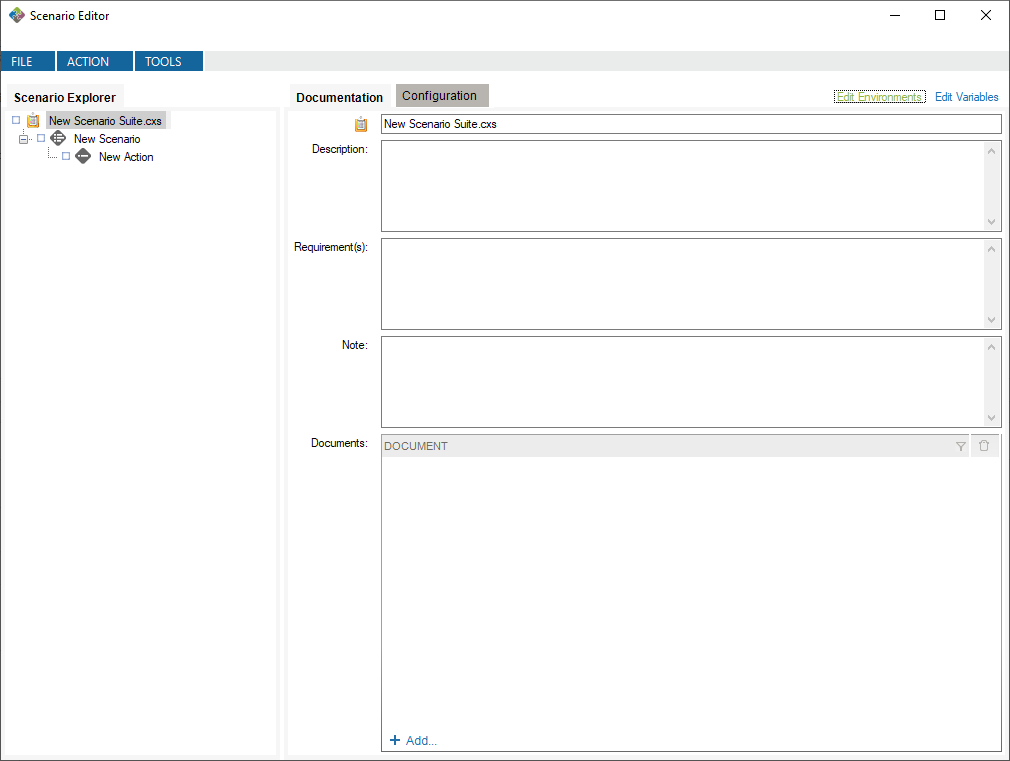
This will create default environments to work in. You can modify or delete these environments, and you can define your own environments if you want.
Now, you can create a variable of type Environment Variable and define it with the Environment Variable value generator.
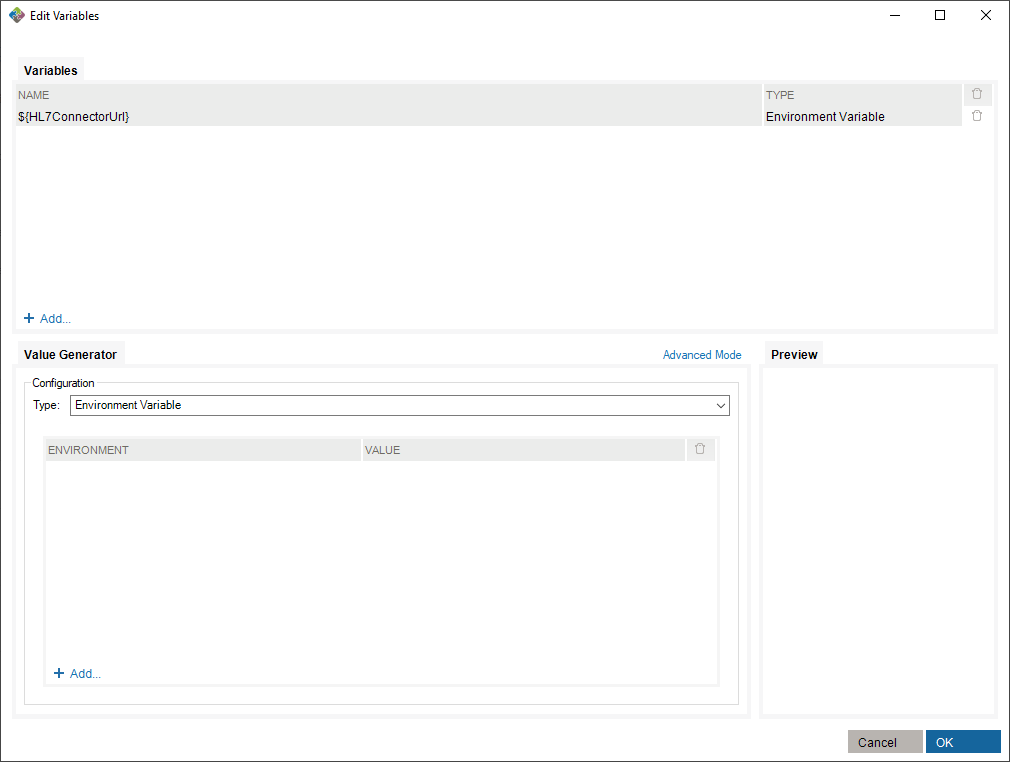
To make use of this variable, you need to assign values to existing environments in the value generator.
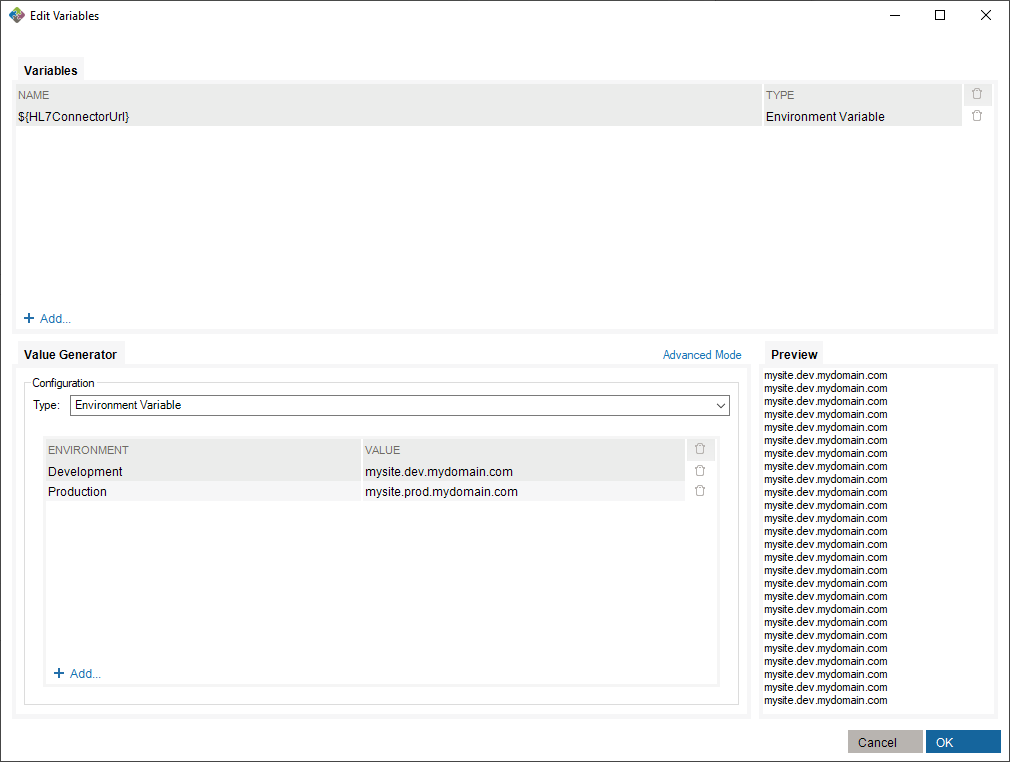
Finally, select an environment in which you run the scenario suite.
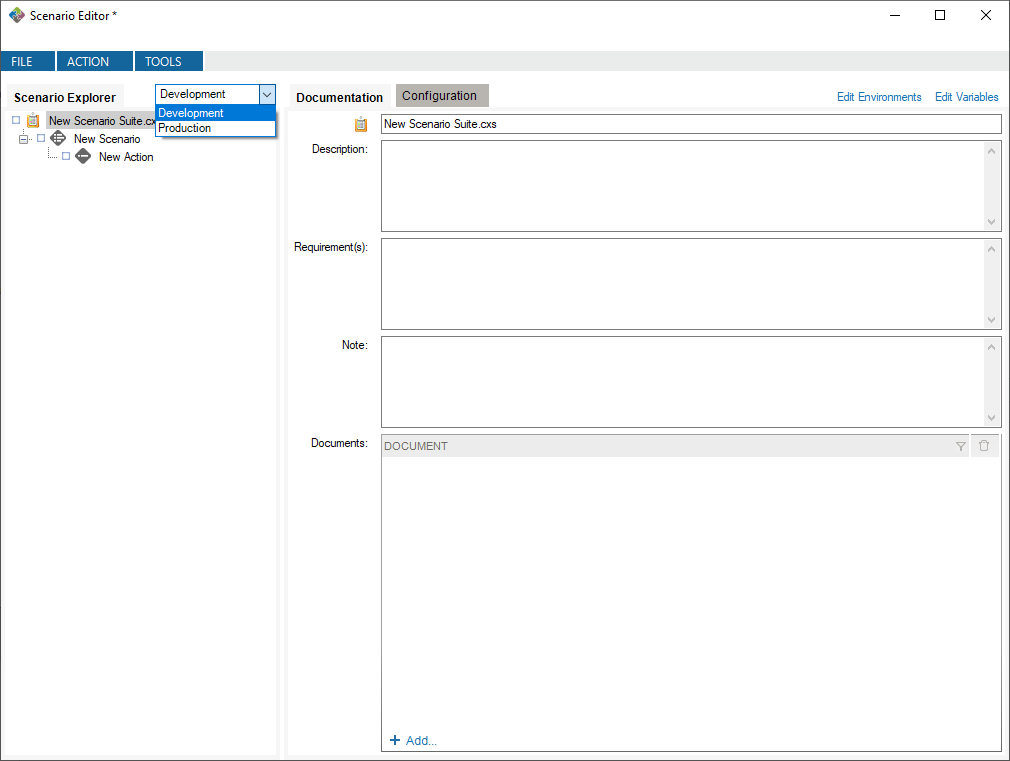
In this case, running with the Development environment will assign the value mysite.dev.mydomain.com to the ${HL7ConnectorUrl} variable.
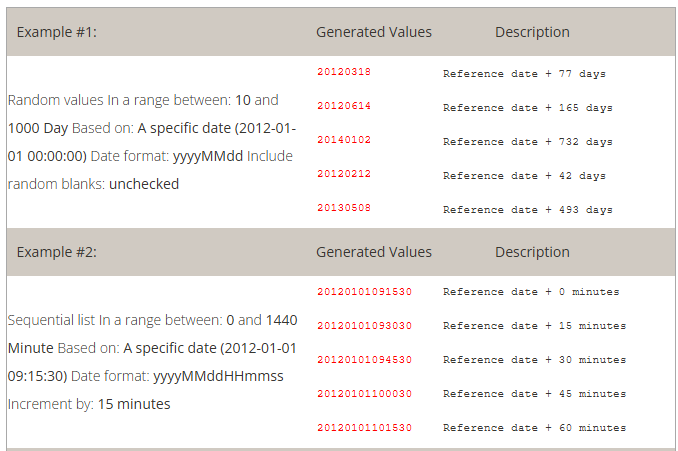
This generator creates date and time values.
This generator pulls data from an Excel 2007+ file (*.xlsx).
Note: If more than one field is configured using the same worksheet, the same row will be applied across a message. In other words, you can use an Excel file to ensure that several values will be used together. This is useful when you need to link a city with a zip code or a first name with a gender.
The examples below use the following content from a file named C:\MyDocuments\myExcelFile.xlsx
This generator creates a number.
This generator pulls data from an SQL-accessible database.
This generator creates a uppercase character string to be used to set a static value.
How to use the “String” generator to set a static value:
This generator creates a uppercase character string to be used to set a static value.
How to use the “String” generator to set a static value:
This generator retrieves a part of another variable value.
The following examples use a pre-defined variable:
This generator lists files in a directory, where the name of the files match a specified pattern.
This generator pulls data from HL7-related tables stored in a profile. Read how to set the profile.
This generator pulls data from a text file (*.txt, *.csv, etc).
Note: If more than one field is configured using the same text file, the same line will be used within the same message. In other words, you can use a text file to ensure several values will be used together. This can be useful when linking a a city with a zip code or a first name with a gender.
The examples below use the following content in a file C:\MyDocuments\myFile.txt
The Criteria Editor is used to construct string-value using Carlang expressions.
Carlang is an excel-like function language. With Carlang, you are able to retrieve HL7/XML/JSON/DataSet values from a specified task/field. Currently, there are some functions available:
This function is used to convert a date value from any executed task in the scenario suite. The function has 3 parameters.
EX: @ConvertDateTime(“20200428011122-0500”, “HL7”, “FHIR”) 🠖 2020-04-28T01:11:22-05:00
@ConvertDateTime(“2021-04-20”, “yyyy-MM-dd”, “MM-dd-yyyy”) 🠖 04-20-2021
This function is used to retrieve a value from an SQL Query result-set. The function has 4 parameters:
This function is used to encode a raw value to a base64 value from any executed task in the scenario suite. The function has 1 parameter.
This function is used to retrieve an HL7 field value from any executed task in the scenario suite. The function has 2 parameters.
Hl7 Field syntax is SEGMENT_NAME[SEGMENT_REPETITION].FIELD_POSITION[FIELD_REPETITION].COMPONENT_POSITION.SUB_COMPONENT_POSITION
This function is used to retrieve a JSON-Path value from any executed task in the scenario suite. The function has 2 parameters.
This function is used to retrieve an X-Path value from any executed task in the scenario suite. The function has 2 parameters.
This function is used to retrieve a string value from any executed task in the scenario suite. The function has 1 parameter.
When finished, click on insert to add it to the criteria. You can then insert another Field Value or text. When you are done editing, click on Apply to close the editor and apply the changes.
To check that PID.2 and PID.4 of a sending task named “Send Task 1”, have been properly merged and separated by a dash in the Z01.1 field of the current task:
So, if PID.2 is “ABC” and PID.4 is “123”, then the runtime validation would be: Z01.1 is = ABC-123
Right-click the name of the Scenario suite, the Scenario, the Action or the Task you wish to execute. Click Run.
You can stop a test mid-way or at any time. Simply right-click on a node and select Stop.
After a test is executed, you can generate an execution report:
The generated report is an Excel document containing descriptions of the test and all results.
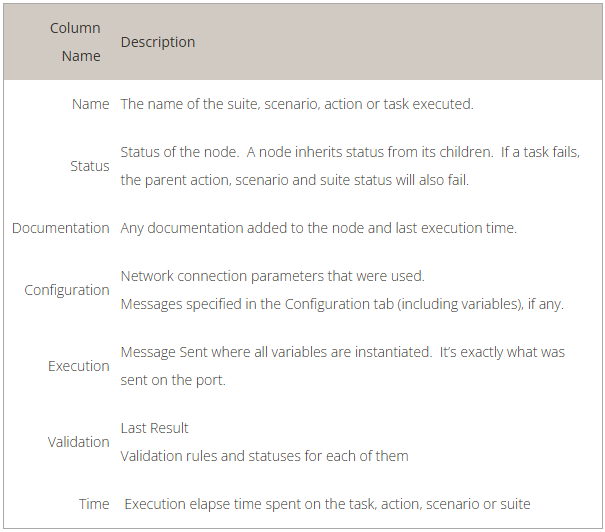
You can also run your Scenario Suite using the command line application (TestConsole.exe) located in the Test installation folder (%PROGRAMFILES(X86)%\Caristix\Caristix Test or %PROGRAMFILES%\Caristix\Caristix Test). Simply call the application by providing the Scenario Suite to run in argument:
TestConsole.exe “C:\MyScenarioSuite.cxs”
Use TestConsole.exe -h for more information.
Use the Message Maker tool to create test messages to PLACE INTO a scenario or to copy to another application. The messages you generate will be based on a specific profile (an HL7 version based on the reference standard, or a profile created in Caristix Conformance or Caristix Workgroup software).
In most of your test automation work, you will want to use variables to populate test workflow with data. But if you need to generate HL7 messages to copy to another application, use Message Maker. Also use Message Maker if you want to use the same test data over and over again in a test scenario created with Caristix software.
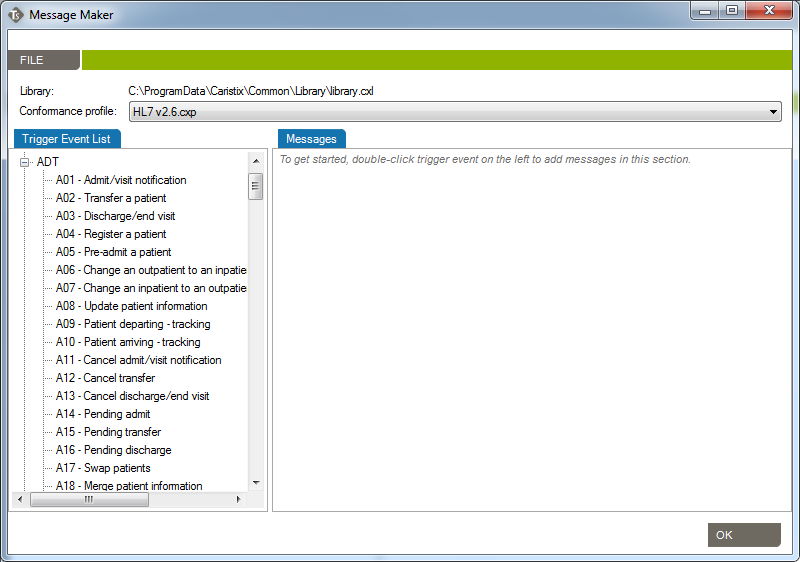
Before starting to use Caristix Test, review Options to ensure your setup is appropriate for your testing and validation.
From the Main Menu, click Tools, then Options in the drop-down menu that appears.
A new Options window opens. 4 tabs are available: Logging, Reference Profile, Default Connections and Preferences.
Enabling this configuration activates internal execution log storage. Internal execution logs are actually xml files and can be open as a test suite so the test can be run again using the exact same configuration, meaning that variables are replaced with the actual values generated at run time.
This is the default profile used to validate and create new messages. Reference conformance profiles based on the HL7 standard are located here. Also, any other profile the organization may have created would be listed here too.
To know more about how to create new customized profiles (including Z-segments and customized fields), refer to the Caristix Conformance or Caristix Workgroup products.
This is where connections to integration engines (or other HL7 systems) and databases are configured. Configuring a default connection for each category has a few advantages:
Caristix Test can perform tasks against a database. For instance, you can execute a SQL query to validate against expected results; or you can instantiate a variable from a data set. These settings enable you to set up database connection library and select a default database.
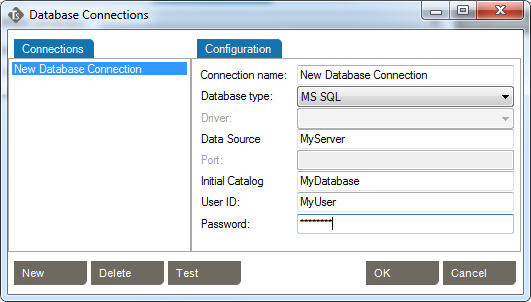
Caristix Test can interact with an integration engine or a system sending HL7 messages. These settings enable you to set up inbound network connection library and select one as the default.
Choose the default inbound network connection from the list of network connections. To configure a new network connection:
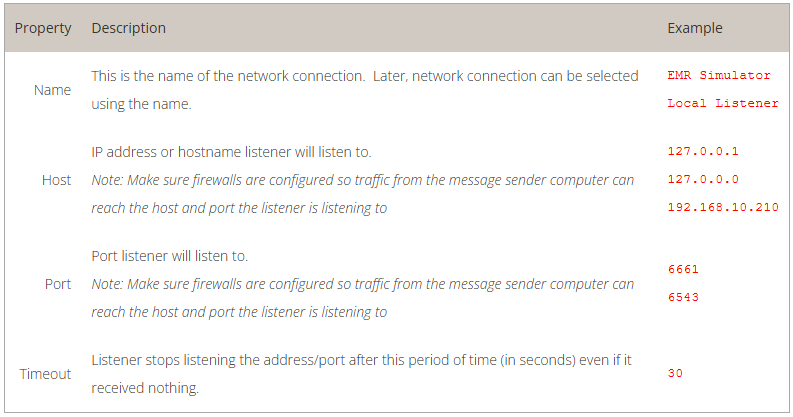
Caristix Test can interact with an integration engine or a system receiving HL7 messages. These settings enable you to set up outbound network connection library and select one as the default.
Choose the default outbound network connection from the list of network connections. To configure a new network connection:
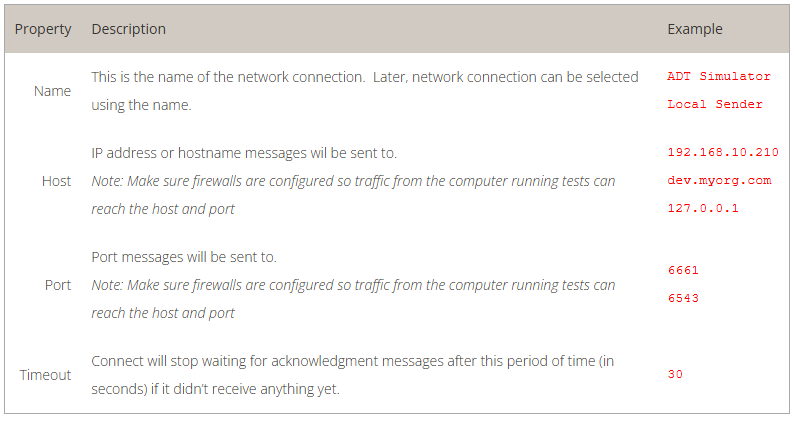
There is a lot of test automation power under the hood with Caristix Workgroup. Looking for examples to get started with the application? Here are a few to illustrate what to do and how to do it.
Feel free to contact us if you are looking for more How To articles that are not included here. We love hearing from our users. The best way to reach us is: support@caristix.com.
Some tutorials to help you with some common tasks.
Some others useful topics.
These examples walk you through a series of typical validation activities.
This tutorial shows you how to create test messages using Caristix software.
During interface coding or validation, you often need a set of sample messages. But there are times when the source or destination system hasn’t been deployed or upgraded, and it’s impossible to obtain real-world sample messages from the vendor. In these cases, the solution would be to create the messages yourself.
But the problem is that manually building a large set of sample messages (>50) is time-consuming and resource-intensive for busy teams. Sometimes you simply can’t build 50+ sample messages manually.
This tutorial explains how to generate a large amount of messages (>100,000) easily and quickly.
The process is straightforward. First, create a suite with two tasks. The first task will include all the configuration information needed to populate a message template from data sources. It will send the message to the second task. This second task will take the message and save it to a file. To generate multiple messages, those tasks just need to run multiple times. This tutorial will create 100 messages for you.
Here is a step-by-step explanation.
You can also download the test suite and use it to walk through this tutorial.
For the purposes of this tutorial, name the suite Caristix Test Tutorial
Name the scenario How To
Name the action Generate messages
Call this new task Generate A01 messages
Call it Receive generated messages
In this step, you’ll configure the message template and the data sources to populate the template.
– OR –
Now you’re going to set up variables for several fields such as the date and time of the message, patient name, patient date of birth, etc. These fields need to be linked to a data source so that during execution, the fields are populated with different data, so you get different messages. Data sources can be Excel files, text files, databases or built-in data generators.
Now, we have a street number from the Excel file. The street name is still missing so instead of leaving this dialog, we’ll continue and add another generator to add a street name to the variable.
Now, we’re done with PID.11.1. Let’s continue with another generator for PID.11.3 (city).
The last step is to format the data generated and add component delimiters
A file (C:Caristix Test Tutorial – Generate Message.hl7) is created with 100 messages in it.
Download the test suite and use it to walk through this tutorial.
Enjoy!
This tutorial shows you how to use Caristix software to validate transformations during a conversion project.
During projects where HL7 interfaces are ported from a legacy integration engine to a new technology, message flows (transformations, etc.) must remain the same. Actually, message content (structure and semantics) must remain the same. The challenge is to validate that the interface was ported but that the same transformations and filters still apply.
Manual validation is not a viable option for most projects. In this case, best-practice guidance is to automate repetitive, time-consuming and resource-intensive tasks.
This tutorial shows you how to set up a test suite to validate a small or a large volume of messages easily and quickly.
The process is straightforward. First, get inbound and outbound messages from your legacy engine; the outbound messages have had transformations applied to them. Second, send those original inbound messages to the new integration technology so the new transformations are applied. Finally, compare both sets of outbound messages, which should be identical. If there are any differences, it means that the transformations on each platform are not equivalent and you need to adjust the code.
Here is a step-by-step explanation.
For the purposes of this tutorial, name the suite Caristix Test Tutorial – Message Comparison
Name the scenario How To
Name the action Compare Messages
Call this new task Send initial HL7 messages.
Call it Receive transformed messages. Note: This assumes the interface will send the transformed messages back to the application. If the interface sends transformed messages to a file, use “Read HL7 file” task.
At this point, the suite skeleton is built (
).
In this step, you’ll configure the tasks to send the initial set of messages to the new integration engine. It receives it, transform messages and sends it back to the application. The application would then be listening to receive transformed messages for validation.
Good! Let’s run the test
Once the execution is complete, each tree node will have a status icon. The expected messages should be identical to the transformed messages from the new engine. If the test works, your Expected Messages and Received Messages should be identical.
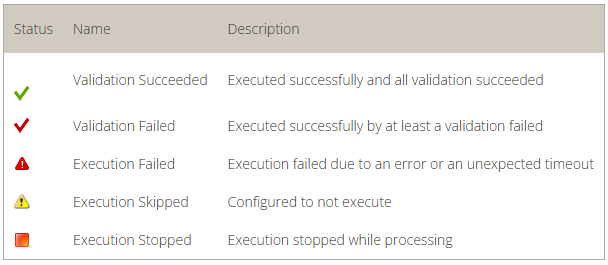
This tutorial shows you how to create HL7-like messages using a .csv file Caristix software.
We’ve had a lot of questions from users about how to send data from flat files or databases to an HL7 system. First, we need to keep in mind the HL7 system is expecting messages in a very specific event-based format. The format would define the list of supported trigger events as well as the list of segments and fields supported for each trigger event. It would also include attributes such as optionality, repeatability and data length description. You can even define code sets for specific fields. In other words, the format is the message specification the system is expecting to receive.
This tutorial explains how to generate valid HL7 messages where data comes from a csv file.
Scroll down to download files used in this tutorial.
The process is straightforward. First, create a task that includes all the configuration information needed to populate a message template from data sources. To make this example self-contained, we will send the message to a second task. This second task will take the message and save it to a file. The process then needs to be re-run to process the second (and subsequent) csv file rows.
Here is a step-by-step explanation.
For the purposes of this tutorial, name the suite Caristix Test Tutorial – Convert csv file to HL7 messages
Name the scenario How To
Name the action Generate messages from csv file
Call this new task Generate message
Call it Receive generated messages
In this step, you’ll configure the message template and the data sources to populate the template.
– OR –
Now you’re going to set up variables to link .csv file fields (data sources) to HL7 fields (message target). During execution, the HL7 message fields are populated with data from the data source, so a new message is created for each file row. Here, the data source will be a .csv file, but it can also be an Excel file or a database.
Repeat these steps for each field to be linked to the HL7 message template, changing the variable name and column to pick data from. Once all fields are linked, move to the next step.
As explained earlier, for the purpose of this tutorial, we will send generated messages to an internal task. If you want to send messages directly to the remote HL7 system, you can skip this step.
A file (Caristix Test Tutorial – Convert csv file to HL7 messages.hl7) is created with 10 messages in it.
Enjoy!
This tutorial explains how to execute a DOS command during a test scenario. Use this when you want to prepare a test execution to delete result files or run a batch file.
Using an Execute Command task, you can run accessible executable files. We will use this task type in this example to run a DOS batch file:
The Execute Command task can also be used to run commands directly – for instance, deleting a file. This time, the cmd.exe executable needs to be called.
In this example, we’ll validate that MSH.9 = ADT^A01. First set up your suite, scenario, and action.
You can download the rule file for use in Caristix Workgroup or Test software.
Download the rule file (Field1 = value.cxf)
Learn more about how to import validation rules into an inbound HL7 task.
In this example, we’ll validate that values for EVN.1 and MSH.9.2 are equal.

You can download the rule file for use in Caristix Workgroup or Test software.
Download the rule file (Field1 = Field2.cxf)
Learn more about how to import validation rules into an inbound HL7 task.
In this example, let’s validate the following:
Download the rule file (Field repetition = value.cxf)
Learn more about how to import validation rules into an inbound HL7 task.
In this example, we’ll validate values for PID.3.1 in the received message is equal to PID.3.1 in the previous sent message.

You can download the rule file for use in Caristix Workgroup or Test software.
Download the rule file (Field = Field1 from outbound msg.cxf)
Learn more about how to import validation rules into an inbound HL7 task.
In this example, we’ll validate that:
In the inbound HL7 task, select the Validation tab
This illustrates the power of regular expressions.
Other quantifiers can be used
You can download the rule file for use in Caristix Workgroup or Test software.
Download the rule file (Field length.cxf)
Learn more about how to import validation rules into an inbound HL7 task.
We’ll validate that PID.19 (SSN Number) is 9 digits long.
Note: The following rule is equivalent: PID.19 is matching regex ^[0|1|2|3|4|5|6|7|8|9].*{9}$ and just list the allowed characters one by one. Feel free to change the list of characters to adapt it to your situation.
You can download the rule file for use in Caristix Workgroup or Test software.
Download the rules file (Field contains some characters only.cxf)
Learn more about how to import validation rules into an inbound HL7 task.
We’ll validate that PID.19 (SSN Number) doesn’t contain any letters or dashes.
The rule means that from the beginning of the field value (^) up to the end ($), there are no characters (^) found in the following ranges:
You can download the rule file for use in Caristix Workgroup or Test software.
Download the rules file (Field not containing some characters.cxf)
Learn more about how to import validation rules into an inbound HL7 task.
How to build a Segment/Field rule validating that a field contains a valid date. This one is sophisticated – take a look at the logic below.
We’ll validate that MSH.7 (Date/Time of message) contains a date.
This rule means that:
We think this is a nice one…
You can download the rule file for use in Caristix Workgroup or Test software.
Download the rules file (Field is a valid date.cxf)
Learn more about how to import validation rules into an inbound HL7 task.
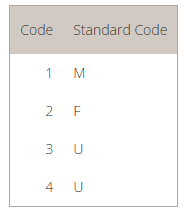
This tutorial explains how to build a Segment/Field rule validating that a field transformation is based on a mapping table.
In this example, we’ll validate that PID.8 (Administrative Sex) is transformed following this mapping table:
This rule tells the application to:
In other words, the validation rule loads the mapping table and returns the mapping value (M) for the initial PID.8 field (1).
Download the rules ( Field value mapping.cxf )
Learn more about how to import validation rules into an inbound HL7 task.
This tutorial explains how to build a Segment/Field rule validating that leading 0s were removed from field.
In this example. let’s validate that PID.3.1 (Patient Identifier) has no leading zeros.
This rule means that:
Download the rules file (Field has no leading 0s.cxf)
Learn more about how to import validation rules into an inbound HL7 task.
This tutorial explains how to build a Segment/Field rule validating that field has no values
In this example, we’ll validate that PV1.45 (Discharge Date/Time) is not set.
These rules mean:
Download the rules file (Field is empty.cxf)
Learn more about how to import validation rules into an inbound HL7 task.
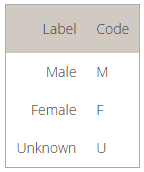
This tutorial explains how to build a Segment/Field rule validating that a field value is in a predefined code set.
In this example, we’ll validate that PID.8 (Administrative Sex) is equal to one of the codes in the following table. The table is preset in a conformance profile.
To learn more about how to add or customize a table in a conformance profile, refer to the profile documentation
The rule returns a pass (success) if it can find the PID.8 field value in the conformance profile table. If it doesn’t, the validation fails.
Download the rules file (Field value is in table.cxf)
Learn more about how to import validation rules into an inbound HL7 task.
This tutorial explains how to build a Segment/Field rule validating that a field value is in a list of values.
In this example, we’ll validate that PID.8 (Administrative Sex) is equal to one of the codes in the provided list. In this case, you set the list within the validation rule. To refer to a list defined in a conformance profile, see the How to validate field is in profile code set
The rule returns a pass (success) if it can find the PID.8 field value in the provided list of values. If it doesn’t, the validation fails. Make sure each value is separated by a comma (“,”).
Download the rules file (Field is in list.cxf)
Learn more about how to import validation rules into an inbound HL7 task.
In this example, we’ll validate that the PV2 segment exists and IN1 doesn’t exist.
Download the rule file (Segment exists.cxf)
Learn more about how to import validation rules into an inbound HL7 task.
A diagram helps you represent the architecture of your systems and the different dataflows between them.
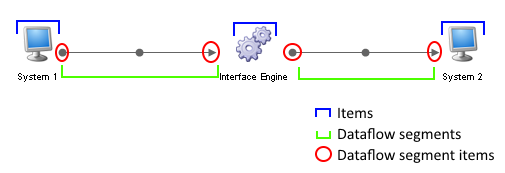
A diagram item represents a system or anything that interacts in the environment.
A dataflow represents the path taken by messages or any other type of information within the environment. It also represents the configuration needs by systems to communicate this information.
A dataflow segment is a part of a dataflow. It represents a link between two items (systems).
A dataflow segment item is one end of a dataflow segment. It represents one of the two end point between two items (systems).
Drag a system from the Drawings section on the right and drop it in the main section.
Drag a dataflow from the Drawings section on the right and drop it on the first item (system) that represents the flow you want to create. Then continue clicking on items to include in the dataflow.
You can also start a dataflow by right-clicking on an item and selecting New Dataflow…
When you’re done, right-click in a blank area and click Confirm Dataflow.
A diagram can be created using message logs and detecting the sending and receiving application value of the MSH segment of each message.
The source can be a file in your Library, a local file, a database or an interface engine using a Caristix Connector.
In the Diagram Editor, click TOOLS -> Import Dataflow… then select From messages and click OK. Browse and select all the files needed to generate the diagram.
Caristix provides an Excel Template to list your systems and dataflows and import them into a diagram.
The template is included in the application installation and located in %AllUsersProfile%\Application Data\Caristix\Common\Samples\Excel\InterfaceEngineTemplate.xlsx.
Create a copy of the template file and edit it to represent your environment. Then in the Diagram Editor, click on TOOLS -> Import Dataflows…
In the Import Dataflows window, select From Excel file and click OK, then browse to the Excel file you just created.
Caristix Connectors can be used to fetch a diagram representation directly from an interface engine.
In the Diagram Editor, click on TOOLS -> Import Dataflows… Select From interface engine and choose the connection to use. You can add or edit the connections by clicking the Connections… link.
Item (or system) information can be edited using the top-right section of the Diagram Editor.
Choose the icon that represents the type of item in the diagram. You can use one of the icons provided or use one of your own image files by clicking the folder icon on the right.
The logical name of the item.
The name used to represent the item in the diagram under the item icon.
The name of the system vendor.
The ip address of the system, if applicable.
A description of the item.
Dataflow information can be edited using the top-right section of the Diagram Editor
The logical name of the dataflow.
The name used to represent the dataflow in the diagram.
A description of the dataflow.
To continue a dataflow already created, right-click on the last segment item of the dataflow (an arrow) and click on Unlink…
Then select the other items to include. When you’re done, right-click in a blank area and click Confirm Dataflow.
You can split an already created dataflow into two parts.
Simply right-click on one of the segment items where you want to make the split (a dot or an arrow). Then continue adding items to the current dataflow or confirm the change.
While editing a dataflow, you can merge it with an existing dataflow to create a single entry.
When in edit mode, instead of adding new items, click on the first segment of another dataflow (on the dot in the middle of the segment).
Dataflow segment information can be edited by right-clicking on the dot in the middle of the segment and clicking Edit Information…
In the Edit Segment window, you can change the type of information that the segment transfers.
You can also edit the list of related documents located in your Library or directly on your local computer.
Dataflow segment items information can be edited by right-clicking directly on the end point (a dot or an arrow) and clicking Edit Information…
In the Edit Segment Item window, you can change the type of end point as well as its configuration properties.
You can also edit the list of related documents located in your Library or directly on your local computer.
A diagram is a mutli-level representation. Each item can be expanded and can contain other items.
To expand an item, right-click on it and click Add sub-level details. This will create a new item within the selected item and navigate to it.
Items that have sub-levels will be identified with a little diagram icon in the top-right corner of their normal icon.
Caristix Workgroup allows you to execute common tasks using a command line. This allows you to automate operations, such as data conversion, de-identification, test execution, etc. To automate operations, you will be able to use the WorkgroupConsole executable located in the software’s installation folder (typically C:\Program Files (x86)\Caristix\Caristix Workgroup).
You can open a command prompt and type the following command to get a list of available commands
WorkgroupConsole.exe help
To get help on a particular command, type
WorkgroupConsole.exe help <command-name>
This command will convert HL7v2 messages from HL7v2-ER7 format (pipe-delimited) to the HL7v2-XML format. To get help with this command, type: WorkgroupConsole.exe help Convert-HL7-to-XML
C:\Program Files (x86)\Caristix\Caristix Workgroup>WorkgroupConsole.exe help Convert-HL7-to-XML ** Convert-HL7-To-XML ** e.g. Convert-HL7-To-XML C:\first-document.hl7 D:\second-document.hl7 [-cp -ConformanceProfile "C:\ HL7Reference\HL7 v2.5.1.cxp"] [-r -Results "D:\results\"] [-lp -LogsFilePath "C:\logs.txt"] Source files : The documents to Convert (can also be folders). -cp [required] : Conformance Profile file path. The value has to be a .cxp path. -r [optional] : Result folder path. The value has to be a folder [default: .\Results]. -lp [optional] : Logs file path.
This command will convert HL7v2 messages from HL7v2-XML format to the HL7v2-ER7 (pipe-delimited). To get help with this command, type: WorkgroupConsole.exe help Convert-XML-to-HL7
C:\Program Files (x86)\Caristix\Caristix Workgroup>WorkgroupConsole.exe help Convert-XML-to-HL7 ** Convert-XML-To-HL7 ** e.g. Convert-XML-To-HL7 C:\first-document.xml D:\second-document.xml [-r -Results "D:\results\"] [-rt -ResultType "MessageCount 100"] [-lp -LogsFilePath "C:\logs.txt"] Source files : The documents to Convert (can also be folders). -r [optional] : Result file path. The value has to be a file by default. [default: .\result.txt]. -rt [optional] : Result format type: 'InitialFileStructure' to reflect the initial file structure (-r is required for InitialFileStructure. The -r value has to be a folder) 'CustomizedSize' to split by file size, in MB, followed by the size amount (The -r value has to be a file) 'MessageCount' to split by message count, followed by the amount (The -r value has to be a file) 'NoSplit' to save the result to a single file (default value) (The -r value has to be a file) -lp [optional] : Logs file path.
This command will de-identify HL7v2-ER7 messages. To get help with this command, type: WorkgroupConsole.exe help De-Identify-HL7
C:\Program Files (x86)\Caristix\Caristix Workgroup>WorkgroupConsole.exe help De-Identify-HL7 ** De-Identify-HL7 ** e.g. De-Identify-HL7 C:\first-document.hl7 D:\second-document.hl7 -de -DeIdentificationRules "C:\My DeId entification settings.cxd" [-cp -ConformanceProfile "C:\HL7Reference\HL7 v2.5.1.cxp"] [-pi -PersistentId entities "D:\persistence-xml.dic"] [-r -Results "D:\results.hl7"] [-rt MessageCount 100] [-opt -Options GenerateValueOnEmptyField|IgnoreQuote] [-mbd -MessageBeginningDelimiter "regex"] [-med -MessageEndingDel imiter "regex"] [-sed -SegmentEndingDelimiter "regex"] [-lp -LogsFilePath "C:\logs.txt"] Source files : The documents to De-Identify (can also be folders). -de required : De-identification settings file path. -cp [optional] : Conformance Profile file path. Required if your de-identification file contains data-type settings, or if any de-identification settings have a precondition. -pi [optional] : Persisted identities file path (if the file already exists, the context will be loaded fr om it). -r [optional] : Result file path. [default: .\results.txt]. -rt [optional] : Result format type: 'InitialFileStructure' to reflect the initial file structure (-r is r equired for InitialFileStructure. The -r value has to be a folder) 'CustomizedSize' to split by file size, in MB, followed by the size amount (The -r value has to be a file) 'MessageCount' to split by message count, followed by the amount (The -r value has to be a file) 'NoSplit' to save the result to a single file (default value) (The -r value has to be a file) -opt [optional] : Set de-identification options: 'ConsiderIdAsNumeric' to consider 001234 and 1234 as equi valent 'GenerateValueOnEmptyField' to populate empty field with generated values if applicable 'IgnoreQuote' to consider '1234', "1234" and 1234 as equivalent remark: GenerateValueOnEmptyField|IgnoreQuote will enable both options. -mbd [optional] : Message beginning delimiter (in regex format) -med [optional] : Message ending delimiter (in regex format) -sed [optional] : Segment ending delimiter (in regex format) -lp [optional] : Logs file path.
This command will de-identify HL7v2-XML messages, HL7v3 documents, or FHIR-XML resources. To get help with this command, type: WorkgroupConsole.exe help De-Identify-XML
C:\Program Files (x86)\Caristix\Caristix Workgroup>WorkgroupConsole.exe help De-Identify-XML ** De-Identify-Xml ** e.g. De-Identify-Xml C:\first-document.xml D:\second-document.xml -de <or> -DeIdentificationR ules "C:\My DeIdentification rules.cxdx" [-cp <or> -ConformanceProfile "C:\HL7Reference\CCD ( Continuity of Care).cxpx"] [-pi <or> -PersistentIdentities "D:\persistence-xml.dic"] [-r <or> -Results "D:\results\"] [-lp <or> -LogsFilePath "C:\logs.txt"] Source files : The documents to De-Identify (can also be folders). -de required : DeIdentification rules file path. -cp [optional] : Conformance Profile file path. -pi [optional] : Persisted identities file path (if the file already exists, the context will be loaded from it). -r [optional] : Result folder path. The value has to be a folder [default: .\Results]. -lp [optional] : Logs file path.
This command will execute a Caristix Scenario Suite. To get help with this command, type: WorkgroupConsole.exe help Execute-Test
C:\Program Files (x86)\Caristix\Caristix Workgroup>WorkgroupConsole.exe help Execute-Test
** Execute-Test **
e.g. Execute-Test C:\myScenarioSuite.cxs [-r <or> -ReportingEnabled y] [-rp <or> -ReportPath C:\resultingR
eport.xlsx] [-e <or> -LogExecutionEnabled y] [-ep <or> -LogExecutionPath "C:\ProgramData\Caristix\Caristix
Test\Execution logs\"] [-run <or> -PathsToRun "scenario 1/action 1" "scenario 2/Action 1/task 1"] [-skip <
or> -PathsToSkip "scenario 1/action 1" "scenario 2/Action 1/task 1"] [-lp <or> -LogsFilePath "C:\customLog
Path.log"] [ -var <or> -EditVariables "${MyVariable}[0].LimitationMax=5" ] [ -env <or> -Environments "MyEn
vironment" ]
Source file : The ScenarioSuite file to execute
-r [optional] : Output an Excel report file or not (y or n, default is n)
-rp [optional] : Excel report file path (default is '.\report.xlsx')
-er [optional] : Include extended report details. (y or n, default is y)
-e [optional] : Save execution result (y or n, default is n)
-ep [optional] : Execution result path (default is '.\result.xml')
-run [optional] : List of scenarios, actions and tasks to run in the scenario suite (cannot be used with
-skip)
-skip[optional] : List of scenarios, actions and tasks to skip in the scenario suite (cannot be used with
-run)
-skip "scenario 1" should skip the scenario 1
-skip "scenario 1/action 2" should skip the action 2 in scenario 1
-skip "scenario 1/action 2/task 1" should skip the task 1 in scenario 1/action 2
-lp [optional] : Logs file path (default is 'TestConsole.log')
-var [optional] : List of scenario suite variables to edit while running the suite.
-env [optional] : Active environment name (default is the environment active set in the scenario suite)This command will compare 2 sets of HL7v2-ER7 messages and create a report listing differences.
To get help with this command, type: WorkgroupConsole.exe help Message-Comparison-HL7
C:\Program Files (x86)\Caristix\Caristix Workgroup>WorkgroupConsole.exe help Message-Compar
ison-HL7 ** Message-Comparison-HL7 ** e.g. Message-Comparison-HL7 C:\first-document.hl7 C:\second-document.hl7 [-cfg -Configurat
ion "C:\Message Comparison Configuration.xml"] [-r -Report "C:\reportpdf"] [-rc -ReportCo
mments ""] [-or -OpenReport] [-lp -LogsFilePath "C:\logs.txt"] Source files : The documents to Convert (can also be folders). -cfg [optional] : Message Comparison Configuration file path -r [optional] : Report file path (pdf or .xlsx) -rc [optional] : Report comments -or [optional] : Open the report after the generation is completed -lp [optional] : Logs file path.
This command will extract a subset of HL7v2-ER7 messages, according to the provided filter rules.
To get help with this command, type: WorkgroupConsole.exe help Search-And-Filter-HL7
C:\Program Files (x86)\Caristix\Caristix Workgroup>WorkgroupConsole.exe help Search-And-Filter-HL7 ** Search-And-Filter-HL7 ** e.g. Search-And-Filter-HL7 C:\first-document.hl7 D:\second-document.hl7 -sfr -SearchAndFilterRules
"C:\MySearchAndFilterRules.cxf" [-cp -ConformanceProfile "C:\HL7Reference\HL7 v2.5.1.cxp"] [-r -R
esults "D:\results.hl7"] [-rt -ResultType "MessageCount 100"] [-lp -LogsFilePath "C:\logs.txt"] Source files : The documents to Search And Filter (can also be folders). -sfr [required] : Search-and-filter rules file path. -cp [optional] : Conformance Profile file path. Required if SearchAndFilterRules need reference to
the spec. -r [optional] : Result file path. efault: .\result.txt]. -rt [optional] : Result format type: 'InitialFileStructure' to reflect the initial file structure
(-r is required for InitialFileStructure. The -r value has to be a folder) 'CustomizedSize' to split by file size, in MB, followed by
the size amount (The -r value has to be a file) 'MessageCount' to split by message count, followed by the
amount (The -r value has to be a file) 'NoSplit' to save the result to a single file (default value)
(The -r value has to be a file) -lp [optional] : Logs file path.
The Execute-Test command executes Caristix Test Scenario suites. The syntax is as follows:
$ Execute-Test C:\myScenarioSuite.cxs
The command takes one argument, which is the full path to the Scenario Suite source file.
You can also provide the following optional flags:
Abbreviated as -r. Output an Excel report file or not. Accepted values are y (yes) or n (no). Default is n.
$ Execute-Test C:\myScenarioSuite.cxs -r y
Abbreviated as -rp. Excel report file path. Default is ‘.\report.xlsx’.
$ Execute-Test C:\myScenarioSuite.cxs -r y -rp C:\resultingReport.xlsx
Abbreviated as -e. Save execution result or not. Accepted values are y (yes) or n (no). Default is n.
$ Execute-Test C:\myScenarioSuite.cxs -e y
Abbreviated as -ep. Execution result path. Default is ‘.\result.xml’.
$ Execute-Test C:\myScenarioSuite.cxs -e y -ep "C:\ProgramData\Caristix\Caristix Test\Execution logs\"
Abbreviated as -run. List of scenarios, actions and tasks to run in the scenario suite. Accepted values are the paths to those scenarios, actions or tasks within the Scenario Suite. Cannot be used with -skip.
$ Execute-Test C:\myScenarioSuite.cxs -run "scenario 1/action 1" "scenario 2/Action 1/task 1"
Abbreviated as -skip. List of scenarios, actions and tasks to skip in the scenario suite. Accepted values are the paths to those scenarios, actions or tasks within the Scenario Suite. Cannot be used with -run.
$ Execute-Test C:\myScenarioSuite.cxs -skip "scenario 1/action 1" "scenario 2/Action 1/task 1"
Abbreviated as -lp. Logs file path. Default is ‘TestConsole.log’.
$ Execute-Test C:\myScenarioSuite.cxs -lp "C:\customLogPath.log"
Abbreviated as -var. List of scenario suite variables to edit while running the suite. Click here for more information on the EditVariables flag.
$ Execute-Test C:\myScenarioSuite.cxs -var "${MyVariable}[0].LimitationMax=5" "${MyVariable}.LimitationMin=2"
The EditVariables flag allows you to manually change the properties of variables’ value generators. Its syntax contains 4 elements.
The scenario suite variable’s full name.
Optional. If the variable’s value generator has multiple sub-variables, you can specify the index of the sub-variable you want to edit. By default, the index is 0.
The property of the variable’s value generator that you want to edit.
The value you want to assign to the modified property.
$ Execute-Test C:\myScenarioSuite.cxs -var "${MyNumeric}[2].IncrementSequenceValue=0.6"
The following value generator types are available in Test:
From the Main Menu, click Tools, then Options in the drop-down menu that appears.
A new Options window opens.

Use the “Reset hidden tips” link to restore all hidden tips.
The built-in collaboration back-end allows customers, vendors, and 3rd parties to work as a team on one or more interfacing projects, with appropriate permission levels set by the account owners. Teams can now collaborate on creating, sharing, and tracking interface profiles and associated tasks.
Set access rights based on user role within the repository. Those roles are:
| Role | Access Rights |
| Guest |
|
| Contributor |
|
| Manager |
|
| Owner |
|
Further role-related tasks:
If you’ve received an email invitation to join a Library, do the following:
To access a shared library, follow these steps:
| Label | Value to enter | Notes |
| Server URL | http://central.caristix.com | This is the default value. If Caristix Workgroup is deployed within your organization, ask the person who invited you for the Server URL. |
| Your email address | The email address must be the one you used to register to the service. Please refer to the invite email for more details. | |
| Password | Your password | The initial password was provided in the invite email. We recommend you change it the first time you log in to the system. |
Once logged in, the Library is accessible.
The HL7 Reference folder contains standard HL7 International profiles. They are the official profiles as defined by the standardization organization. They are read-only and are used as reference only. However, you can create copies in a new folder for further customization.
The other folders contain profiles created and shared by you and your team members. Feel free to take a look at them.
To access a shared library, follow these steps:
| Label | Value to enter | Notes |
| Server URL | http://central.caristix.com | This is the default value. If Caristix Workgroup is deployed within your organization, ask the person who invited you for the Server URL. |
| Your email address | The email address must be the one you used to register to the service. Please refer to the invite email for more details. | |
| Password | Your password | The initial password was provided in the invite email. We recommend you change it the first time you log in to the system. |
Once logged in, the Library is accessible.
The HL7 Reference folder contains standard HL7 International profiles. They are the official profiles as defined by the standardization organization. They are read-only and are used as reference only. However, you can create copies in a new folder for further customization.
The other folders contain profiles created and shared by you and your team members. Feel free to take a look at them.
To change your user information:
To change your password:
Passwords are case-sensitive, must be 8 characters long, and cannot contain spaces. Make sure your password is strong enough to protect any sensitive information the Library might contain.
As a Contributor, you will be able to perform tasks related to integration content creation and editing, such as:
To share documents with the rest of the group, you need to add them to the Library. You can do so using one of the following ways:
Documents will be uploaded to the library and made available.
Documents and folders will be uploaded to the library and made available.
Once documents are shared, you can manage sharing and privileges and/or manage notifications when documents are modified.
As you work through an interfacing project, you may need to consult older versions of a document. The internal storage structure of Caristix Workgroup makes it possible to view and retrieve previous versions of documents. Each version is stored and can be accessed as needed.
To view the list of previous versions:
From here, you can:
If you’ve selected a Profile, you will also be able to
To view a different document version:
You may need to undo several changes and revert to a previous version of a document. Or you may want to promote a previous version as the working version. Promoting a previous version will replace the current and latest version with the version you select.
To restore a previous version:
A dialog appears, stating that the previous version of the document will replace the current one
The promoted version is now the current document.
You can compare an older version with the current version of your Profile. To do so:
The Gap Analysis Workbench will open, showing you differences between the current version (left-side) and the selected version (right side).
You can compare Profile versions. To do so:
The Gap Analysis Workbench will open, showing you differences between the selected versions.
As a Manager, you have all rights assigned to Contributors as well the following additional rights:
You can invite others to join your Library so you can all work on the same documents and artifacts when needed. That would avoid multiple versions of the same document going around.
To invite a new users to join your Library:
An email is sent to new users notifying them of their new accounts. Users also get an automatically generated password.
Sharing permissions are folder-based. Manage folder access as follows:
This is useful when you want to change sharing permissions for an entire group.
When a user (or a group) is a member of another group (see Manage Groups), group settings will applied. These settings will be shown in the user’s membership, sharing permissions and notifications as read-only. Settings specific for the current user-group will be editable.
For example, we have a group (Group A) with a sharing permission on the folder “HL7 References”. If you set a user (John Doe) as a member of the Group A, and add a new sharing permission for John Doe, you will see 2 permissions. The first row (grayed) represent the permission inherited from the membership to Group A. The second row is a permission specifically set to John Doe.
Groups can be very useful when you have several users with similar sharing permissions accessing a Library . Placing users in groups simplifies access management, since you can apply across-the-board changes easily.
For instance, if you work for an HIT vendor or consulting firm – and need to provide guest access to hospital or provider users, you might want to manage all hospital users as a single group. This will be easier to manage than setting permissions individually, and you’ll ensure that everyone in the group has the same privileges.
Manage these group and access sharing permissions from the Manage Library section.
Note: To create groups, you need Administrator rights. Refer to Manage Sharing to learn how to assign Administrator rights to a user.
Notifications are quick email updates that are automatically sent to users when Library content is changed.
Notifications are set on folders, not individual documents. There are two notification types:
To add a notification, you need Manager privileges for the folder you are configuring. Refer to section Manage sharing and privileges to learn how to provide Manager privileges to a user.
Provides step-by-step guides and practical tutorials designed to help users understand and implement features efficiently. Each tutorial breaks down complex processes into clear, actionable steps, making it easy to follow along and achieve desired results. Whether you are a beginner or an advanced user, these guides offer structured instructions, helpful tips, and best practices to ensure smooth execution.
The application would replace PHI with new patient data generated at run-time, keeping patient history but removing any link with the actual patients.
Open the Caristix Workgroup application.
Click on Messaging v2 → De-Identify…
Click Yes to load the default de-identification rules. They are in line with the HIPAA rules for HL7 standard compliant messages.
Click No to create or load your rules.
To get started, let’s open the de-identification module and load a file containing HL7 messages. Message could also be loaded from a database or directly from your interface engine if you have the connector installed.
Open HL7 v2.x messages you want to de-identify:
Click FILE → Open → Messages… → +Add…
Choose the files containing the messages. If it is saved on your computer, click Browse My Computer.
The chosen file will be added to the file list.
Click Next > to load the file content.
Your message will appear in the Original section and an example of your message de-identified will appear in the De-identified section.
(0:35) All de-identified data in messages is in red so you can see the actual message and the result.
(0:41) The application comes with a set of de-identification rules. It covers all standard HL7 fields HIPPA identified as containing sensitive data. If messages contain customized fields or Z-segments, go ahead and customize rules.
If needed, you can modify the de-identification rules. Look at this video if you need help.
Once all rule configurations are as wanted, click View Example. You can see an example of the result in the De-identified section. If anything is not as expected in the response, continue customizing the rules.
Set the dictionary:
Click TOOLS → Option… → Settings → Enable Re-apply rules and replacement data across multiples files.
You can create as many dictionaries as needed. For this tutorial, let’s create a new dictionary called HL7Deid. Replace the file name with: C:\ProgramData\Caristix\Carisitx Workgroup\Temp\HL7Deid.dic
(0:58) Once de-identification rules are set, it’s time to launch it so all messages are de-identified and stored in files. At the end of the processing, if needed, an audit PDF file can also be created, documenting all settings de-id was done with.
Click OK → De-identify. → Choose where to save the result. Click Browse My Computer to save it onto your computer. → OK → Yes if you want to create a De-identify Process Report in PDF.
(1:14) This ends the “De-Identifying HL7 Messages” introduction tutorial. If you have any question, feel free to contact us. We love questions and feedback!
Thanks for watching
The application would replace PHI with new patient data generated at run-time, keeping patient history but removing any link with the actual patients.
Open the Caristix Workgroup application.
Click on Messaging v3 → De-Identify…
Click Yes to load the default de-identification rules. They are in line with the HIPAA rules for HL7 standard compliant messages.
Click No to create or load your rules.
To get started, let’s open the de-identification module and load a CCD or XML file. Message could also be loaded from a database or directly from your interface engine if you have the connector installed.
Open CCD or XML you want to de-identify:
Click FILE → Open → Messages…
Choose the files containing the messages. If it is saved on your computer, click Browse My Computer.
Your message will appear in the Original section and an example of your message de-identified will appear in the De-identified section.
(0:35) All de-identified data in messages is in red so you can see the actual message and the result.
(0:41) The application comes with a set of de-identification rules. It covers all standard CCD identified as containing sensitive data. If messages contain customized fields or Z-segments, go ahead and customize rules.
If needed, you can modify the de-identification rules. Look at this video if you need help. It explains how to modify HL7 rules, but the process is the same.
Once all rule configurations are as wanted, click View Example. You can see an example of the result in the De-identified section. If anything is not as expected in the response, continue customizing the rules.
Set the dictionary:
Click TOOLS → Option… → Settings → Enable Re-apply rules and replacement data across multiples files.
You can create as many dictionaries as needed. For this tutorial, let’s create a new dictionary called XMLDeid. Replace the file name with: C:\ProgramData\Caristix\Carisitx Workgroup\Temp\XMLDeid.dic
(0:58) Once de-identification rules are set, it’s time to launch it so all messages are de-identified and stored in files. At the end of the processing, if needed, an audit PDF file can also be created, documenting all settings de-id was done with.
Click OK → De-identify. → Choose where to save the result. Click Browse My Computer to save it onto your computer. → OK → Yes if you want to create a De-identify Process Report in PDF.
See the procedure to connect with Ensemble/Caché database: