
Test

Introducing CaristixTM Test

Caristix Test is designed to help interface analysts and engineers validate HL7 interfaces. The software provides the following features and functionality:

System Requirements

Table des matières

Getting started

Install and Register Caristix Test Software

  • Install Caristix Test by clicking on the installation file (.msi file) you received.
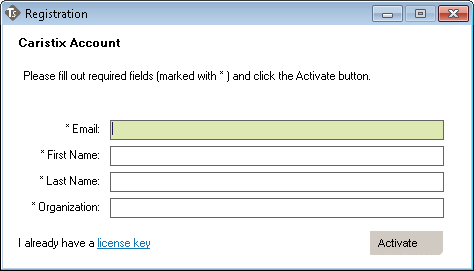
  • Launch the software, and fill out the EmailFirst NameLast Name and Organization fields in the registration form.
  • Click the Activate button.Registration

If you have a trial version, you will need to purchase a license to continue using Test after the end of the trial period.

Suite

Definition

Suites are analogous to a test plan. A suite contains all of the test scenarios and workflows that you will run in order to validate that an interface works.  A suite manages a collection of test scenarios (test cases). 

Suites are files with the .cxs extension and are represented in the document library by theScenarioSuite_32icon.


Create a new suite

  1. In the application, go to the main menu and click TEST SCENARIOS –> New… 
    A new Scenario Editor window opens.
  2. Make sure the root node in the tree on the left (New Scenario Suite.cxs) is selected
  3. In  the Documentation tab, type a name for the suite.  It will be the file name.
  4. Optionally, add a suite description, a list of requirements the suite covers, or any useful notes.
  5. Save the file by clicking FILE –> Save
    An empty suite is now created.


Next


Configuration & Results

Configuring a Suite

On the Configuration tab, you set timing and execution parameters for your suite.

These settings let you run scenarios contained in a suite several times, in a loop. For instance,  you can set a scenario to execute 100 times with 100 different patient names.

  • Timing: Specify the wait time before and after execution.  Wait times give a sending or receiving system enough time to initiate. They also add a a pause between suite executions.
  • Instantiate variables:  Check this box to populate variables with different test values at the Suite level. For instance, if you need to execute the test with 100 different patient names, check this box.

Results

After the scenario suite has been executed once, a new tab will be displayed (Results). The Results tab contains the detailed information about what was executed for any specific execution. If variables were used in configuration or validation, you will see their instantiated values.

Select a result to see the detailed information. You can also perform action (right-click) with a result, such as:

  • Re-Run: The scenario suite will be re-executed using the exact same values used for the previous execution.
  • Create Scenarios from Result: The scenarios result will be converted as new scenarios, using the exact same values used for the execution.
  • Save as New Scenario Suite: Save a new Scenario Suite containing the scenarios, using the exact same values used for the execution.

Scenario

Definition

Scenarios are analogous to a test case.  A scenario is are a sequence of steps to test the behavior of the interface.  Suites contain one or more scenarios.  An example of a scenario would be a med pass, which would include a patient arrival, a series of lab orders and results, medication orders, etc.

Create a new blank scenario

  1. Select the root node in the suite tree (suite name)
  2. Right-click and select Add new Scenario –> Blank .
    A new node is created at the end of the tree view.
  3. In the Documentation tab, type a name for the scenario.
  4. Optionally, add a scenario description, a list of requirements the scenario covers, or any useful note.

Create a new scenario using profile workflows

  1. Select the root node in the suite tree (suite name).
  2. Right-click and select Add new Scenario –> Using Profile Workflows.
    A new dialog opens.
  3. Select the system(s) you want to simulate; these are part of the workflow to be tested.
  4. Click Next.
  5. Click Change to select the profile you want to use to generate the workflow.
  6. Select a profile from the document library or from your local computer.
  7. Double-click the trigger events representing the events of the workflow to be tested.
    Messages will stack. They can be updated as needed.
  8. Once the workflow is complete, click Next.
  9. (Optional) If Both was selected at step #3, repeat steps #5 to #8 to complete the workflow for the second system.

A new scenario representing the workflow and containing several actions and tasks is created.  The scenario can be updated as needed.

Next

Configuration & Results

Configuring a Scenario

On the Configuration tab, set timing and execution parameters at the Scenario level.

These settings let you run tests several times, in a loop.

  • Timing: Specify the wait time before and after execution.  Wait times give a sending or receiving system enough time to initiate. They also add a a pause between scenario executions.
  • Execution: Specify the number of times to execute the scenario. 
  • Execution probability: Specify the expected execution probability of a scenario. The feature enables your validation to skip the scenario from time to time. For instance, at 50% probability over 10 executions, the scenario will run 5 times when the suite is executed.  Use this feature when some of the steps in your scenario are optional.  You still need to validate both cases (when the optional step is executed and when it isn’t).  Adding execution probability allows you to validate both cases with only one scenario.
  • Instantiate variables:  Check this box to populate variables with different test values at the Scenario level. For instance, if you need to execute the test with 100 different patient names, check this box.


Results

After the scenario has been executed once, a new tab will be displayed (Results). The Results tab contains the detailed information about what was executed for any specific execution. If variables were used in configuration or validation, you will see their instantiated values.

Select a result to see the detailed information. You can also perform action (right-click) with a result, such as:

  • Re-Run: The scenario will be re-executed using the exact same values used for the previous execution.
  • Create Scenario from Result: The scenario result will be converted as a new scenario, using the exact same values used for the execution.
  • Save as New Scenario Suite: Save a new Scenario Suite containing the scenario, using the exact same values used for the execution.

Action

Definition

A scenario consists of a series of actions.  An action represents a single step in a specific workflow — for instance, the arrival of a patient.

Create a new action

  1. Select a suite, then a scenario.
  2. Right-click and select Add new Action.
    A new node is created at the end of the scenario. Drag and drop the new action to the right location if needed.
  3. In Documentation tab, type a name for the action.
  4. Optionally, add an action description, a list of requirements the action covers, or any useful note.

Configuration & Results

Configuring an Action

On the Configuration tab, set timing and execution parameters at the Action level.

These settings let you run tests several times in a loop.

  • Timing: Specify the wait time before and after execution.  Wait times give a sending or receiving system enough time to initiate. They also add a pause between action executions.
  • Execution: Specify the number of times to execute the action.
  • Execution probability: Specify the expected execution probability of an action. This feature enables your validation to skip the action from time to time. For instance, at 50% probability over 10 executions, the scenario will run 5 times when the suite is executed.  Use this feature when some of the steps in your action are optional.  You still need to validate both cases (when the optional step is executed and when it isn’t).  Adding execution probability allows you to validate both cases with only one action.
  • Instantiate variables:  Check this box to populate variables with different test values at the Action level. For instance, if you need to execute the test with 100 different patient names, check this box.

Results

After the action has been executed once, a new tab will be displayed (Results). The Results tab contains the detailed information about what was executed for any specific execution. If variables were used in configuration or validation, you will see their instantiated values.

Select a result to see the detailed information. You can also perform action (right-click) with a result, such as:

  • Re-Run: The action will be re-executed using the exact same values used for the previous execution.
  • Create Scenario from Result: The action result will be converted as a new action, using the exact same values used for the execution.
  • Save as New Scenario Suite: Save a new Scenario Suite containing the action, using the exact same values used for the execution.

Task

Definition

Actions are made up of tasks. A task represents the smallest unit of work contained in a scenario. It could be an HL7 message exchange (an admit/visit notification), a database interaction (a query to the patient table), or a manual step requiring the user to interact with a 3rd party application.

Your test cases are based on a sequence of tasks.


Task types

There are several types of tasks. Each task type has its own behavior.

  • Send HL7 Message: Simulate a system sending an HL7 message to a host on a specific TCP port. The HL7 message is defined directly in the task. Validation can be done on the acknowledgment message that are sent back.
  • Send HL7 File: Simulate a system sending a file of HL7 messages to a host on a specific TCP port. Validation can be done on the acknowledgment messages that are sent back.
  • Receive HL7 Message: Simulate a receiving system listening for HL7 messages on a specific TCP port. Validation can be done on the messages received.
  • Read HL7 Message: Simulates a receiving system listening for HL7 messages on specific files. Validation can be done on the messages received.
  • Query Database: Query a database and validate the result. It could be a clinical application database or the internal integration engine database.
  • Execute Web-Service: An Execute Web Service task allows you to interact with a Web Service during a test.
  • Execute Command: Interact with other applications using command line tasks. For instance, call a cmd script to delete files or prepare content for subsequent tasks.
  • Execute Manual Task:Manual tasks pause the execution of the scenario and wait for manual input from the user. It could be an interaction with a 3rd party application or just a way to pause the execution so extra manual validation can be done.
  • JavaScript Task: JavaScript tasks run JavaScript code that is provided at the configuration stage. Additionally, JavaScript tasks can make use of our JavaScript API to access Caristix resources.


Results Tab

After the task has been executed once, a new tab will be displayed (Results). The Results tab contains the detailed information about what was executed for any specific execution. If variables were used in configuration or validation, you will see their instantiated values.

Select a result to see the detailed information. You can also perform action (right-click) with a result, such as:

  • Re-Run: The task will be re-executed using the exact same values used for the previous execution.
  • Create Task from Result: The task result will be converted as a new task, using the exact same values used for the execution.
  • Save as New Scenario Suite: Save a new Scenario Suite containing the task, using the exact same values used for the execution.


Next

Fake Execution

Test Scenario JavaScript Engine API

The Javascript engine allows you to inject custom Javascript at different steps of a Task execution.

Fake Execution

You can toggle the “Fake Execution” mode on each task, which executes your custom Javascript code instead of performing the task as configured. That way, you can mock, for instance, a web service result to quickly develop your test cases, even if the real web service that would be used in tests is not ready to be used yet.

To use Fake Execution, call the “callback(result)” method, providing a string containing the fake result you want your task to have.

For each task type, a default fake execution script is provided. The default scripts are as follows.

Send Message Task / Send Task File

This script fakes the task’s execution as if the messages were successfully sent, and the configured connection endpoint returned an HL7-ACK.

callback(`MSH|^~\&|GHH LAB, INC.|GOOD HEALTH HOSPITAL|ADT1|GOOD HEALTH HOSPITAL|20210305104622||ACK^A01^ACK|ACK-MSG00001|T|2.5.1
MSA|AA|MSG00001
`);

Receive Message Task / Read File Task

This script fakes the task’s execution as if it received/read the HL7v2 messages provided in the callback method.

callback(`MSH|^~\&|ADT1|GOOD HEALTH HOSPITAL|GHH LAB, INC.|GOOD HEALTH HOSPITAL|198808181126|SECURITY|ADT^A01^ADT_A01|MSG00001|T|2.5.1
EVN||200708181123||
PID|1||PATID1234^5^M11^ADT1^MR^GOOD HEALTH HOSPITAL~123456789^^^USSSA^SS||EVERYMAN^ADAM^A^III||19610615|M||2106-3|2222 HOME STREET^^GREENSBORO^NC^27401-1020
NK1|1|JONES^BARBARA^K|SPO^Spouse^HL70063||||NK^NEXT OF KIN
PV1|1|I|2000^2012^01||||004777^ATTEND^AARON^A|||SUR||||7|A0|
`);

Query Database Task

This script fakes a database query result. A JSON Array with 2 entries is provided as a result. This mocks the following dataset

callback(`[
{
"column1": "value 1",
"column2": "value 2"
},
{
"column1": "value 3",
"column2": "value 4"
}
]`);

Column 1Column 2
Value 1Value 2
Value 3Value 3

Web Service Task

This script fakes the execution of the task as if an HTTP result is returned. A JSON object is provided, allowing you to mock the HTTP Response Status Code (200, 404, 500) and the response Body. The above script would return an OK – 200 status code with a JSON value in the response body.

callback(`{
"responseStatusCode": "200",
"responseBody": {
"resourceType": "operationOutcome"
},
}`);

HTTP Response Status: 200 (OK)
HTTP Body: { "resourceType": "operationOutcome" }

JavaScript Task

Definition

A JavasScript task executes JavaScript code using our JavaScript API.

Creating a new JavaScript task

Right-click the name of the parent Action the new task will be created in, and select Add New Task –> Execute JavaScript Task.

Create JavaScript Task

A new Task appears under the parent Action. Edit the task name as needed. Drag and drop to change the task order.

Configurating a JavaScript task

Any valid JavaScript can be executed in this task. Simply add the code you wish to execute to the code textbox in the configuration tab. You can also use our JavaScript API to manipulate Caristix-related resources.

To return a result for validation, use the callback() method. The callback() method takes a string as an argument and sets the value returned by the task when called.

The following is an example of a JavaScript task’s code. In the example, a GET request is sent to a public FHIR server, and the resulting bundle is returned for validation.

//Create an HTTP request using the provided HTTP GET method and full resource url,
// https://daas.caristix.com/fhir/Patient.
var request = HTTP.create('GET', 'https://daas.caristix.com/fhir_r4/Patient/');

//Add the Accept header with the value application/fhir+json to the request.
request.setHeader(‘Accept’, ‘application/fhir+json’);

//Send the HTTP request.
var result = request.send();

//Obtain the HTTP result’s body – a Bundle of Patient Resources.
var body = result.body;

//Return the body.
callback(body);

Send HL7 Message

Definition

A Send HL7 Message task simulates a system sending HL7 messages to a host on a specific TCP port. The HL7 messages are defined directly in the task. Validation can be done on the acknowledgment (ACK) messages that are sent back.


Create a new “Send HL7 Message” task

  1. Right-click the name of the parent Action the new task will be created in.
  2. Select Add New Task –> Send HL7 Message
  3. New Task appears under the parent Action.
  4. Edit the task name as needed.

A new task is added at the end of the current action. Drag and drop to change the task order.


Configuring a “Send HL7 Message” task

There are several options to control message format and destinations.

  1. Set timing: Specify the wait time before and after execution. Wait times give a sending or receiving system enough time to initiate. They also add a pause between action executions.
  2. Set the message destination: Default network connections are preconfigured destinations for messages. They contain a hostname (or IP address), a port and a connection timeout. Using default network connections lets you quickly change the testing environment by updating the default network connection instead of modifying all tasks individually. More details about how to define network connections are available on the Options page.
    • If “Use default connection” is checked, the message will be sent to the host and port defined in the default sending network connection.
    • If “Use default connection” is unchecked, pick a destination for the message to be sent to from the list.
  3. Connection attempts: Set the number of time the task will try to send the message to destination. The task will fail after unsuccessful attempts.
  4. Wait for response: Check if you want to wait for an ACK message after sending the message.
  5. Select the message format: Messages can be sent using the HL7-v2.x or XML encoding format.
    • HL7-v2.x format is the most popular and uses pipe (“|”) and caret (“^”) delimiters. This is the default.
  6. Sent message profile: Set the reference profile for the message to be sent. The reference profile will be used to show metadata related to the message (message structure, segment/field definition).
  7. Message to send: Enter the messages to send in the large text area.
    • If you don’t have messages available for testing, use the Generate message from Profile button to generate one. The message generated will require editing but will provide a framework to work with.
    • Messages can come directly from a variable. To do so, right-click the messages area, and select “Use Variable”. Then select the variable that generates the messages to be sent.
    • Messages can include variables which will be instantiated (filled out) at run time. For more details about variables, take a look at the Variables page.
      To add variables to the message:
      1. Move the mouse over the field content to be replaced by a variable.
      2. Right-Click and select Set Variable to Field…
      3. Select the variable and configure it if needed.
      4. Click OK.
    • Messages can also include values coming from another message in the scenario suite.
      1. Move the mouse over the field content to be replaced.
      2. Right-Click and select “Insert Criteria”.
      3. Configure the criteria field.
      4. Click Apply.

Note: If you’re using the XML format, you will need to open the XML Editor (click the Edit.. button) to be able to insert variables or edit the document.

  1. Specify the segment delimiter: By default the HL7 standard delimiter (Carriage Return) will be used but you can select another if needed by the receiving system.
  2. Save message sent to file: Sent messages are stored in the execution results and in the execution reports. If needed, sent messages can be stored in a file at execution time. Stored messages will be exactly what was sent, with actual instantiated values for each variable.
    • If checked, the messages will be stored in the file path provided. Variables can be used to build the file path.
    • If unchecked, the messages will not be stored on disk. This is the default.


Add validation rules

If the receiving system is configured to return message acknowledgement, each sent message would be responded to with an ACK or a NACK message. Validations can be added to the task to confirm the ACK/NACK response is as expected. Several validation types can be added:

Send HL7 File

Definition

A Send HL7 File task simulates a system sending HL7 messages from a file to a host on a specific TCP port. Validation can be done on the acknowledgment messages that are sent back.

Create a new “Send HL7 File” task

  1. Right-click the name of the parent Action the new task will be created in.
  2. Select Add New Task –> Send HL7 File
  3. New Task appears under the parent Action.
  4. Edit the task name as needed.

A new task is added at the end of the current action. Drag and drop to change the task order.

Configuring a “Send HL7 File” task

There are several options to control where the messages in the file are sent.

    1. Set timing: Specify the wait time before and after execution. Wait times give a sending or receiving system enough time to initiate. They also add a pause between action executions.
    2. Set the message destination: Default network connections are preconfigured destinations for messages. Using default network connections let you quickly change the testing environment by updating the default network connection instead of modifying all tasks individually. More details about how to define network connections are available on the Options page.
      • If checked, the message will be sent to the host and port defined in the default send network connection.
      • If unchecked, pick a destination for the message to be sent from the list
    3. Connection attempts: Set the number of time the task will try to send the message to the destination. The task will fail after unsuccessful attempts.
    4. Wait for response: Check if you want to wait for an ACK message after sending the message.
    5. Select the sent message format: Messages can be sent using the HL7-ER7 or XML encoding format.
      • HL7-ER7 format is the most popular and uses the pipe (“|”) and caret (“^”) delimiters. This is the default.
    6. File path: Enter the file containing messages to be sent. Messages must be separated by the default message delimiter.
    7. Save message to file: Sent messages are stored in the execution results and in the execution reports. If needed, sent messages can be stored in file at execution time. Messages stored will be exactly what was sent with actual instantiated values for each variable.
      • If checked, the messages will be stored in the file path provided. Variables can be used to build the file path.
      • If unchecked, the messages will not be stored on disk. This is the default.

Add validation rules

If the receiving system is configured to send back message acknowledgement, each message sent would be responded to with an ACK or a NACK message. Validations can be added to the task to confirm the ACK/NACK response is as expected. Several validation types can be added.

Receive HL7 Message

Definition

A Receive HL7 Message task simulates a receiving system listening for HL7 messages on a specific TCP port. Validation can be done on the messages received.


Create a new “Receive HL7 Message” task

  1. Right-click the name of the parent Action the new task will be created in
  2. Select Add New Task –> Receive HL7 Message
  3. New Task appears under the parent Action
  4. Edit the task name as needed


Configuring a “Receive HL7 Message” task

There are several options to control message listening.

    1. Receive connection: Default network connections are pre-configured listeners. They contain the hostname (or local IP address) to listen to, a port and a connection timeout. Using default network connections let you change the testing environment by updating the default network connection instead of modifying all tasks individually. More details about how to define network connections are available on the Options page.
      • If checked, the application will listen to the hostname and port defined in the default send network connection.
      • If unchecked, pick a receiving network connection from the list.
    2. Purge pending messages: Enable this option to receive and discard any pending messages that are waiting to be sent by the interface engine. The purge will last until the specified network connection timeout is reached without any incoming messages. Once the purged is completed, the task will start listening as usual and sending tasks will be started for the current Action. This ensures that received messages are new messages and not lingering ones stuck in the queue from a previous execution.
    3. Listen for several messages: This configuration lets the software listen to the port until it receives a set number of messages.
      • Enter the expected number of messages. At execution, once this number is reached, the test execution continues to the next task.
      • OR select the Listen until timeout option so the task will continue listening and receiving messages until the connection timeout is reached.

      In both cases, validation rules will apply to all received messages.

    4. Save received messages to file: Received messages are stored in the execution results and in the execution reports. If needed, messages can also be stored in file at execution time.
      • If checked, the messages will be stored in the file path provided. Variables can be used to build the file path.
      • If unchecked, the messages will not be stored on disk. This is the default.

Note: During test execution, Receive HL7 Message tasks will start to listen at the beginning of the parent Action so there can only be one task that listens to a specific port per Action.


Add validation rules

Validations rules can be added to confirm the received messages are as expected. Several validation types can be added.

Read HL7 File

Definition

A Read HL7 File task simulates a receiving system listening for HL7 messages on specific files. Validation can be done on the messages received.


Create a new “Read HL7 File” task

  1. Right-click the name of the parent Action the new task will be created in
  2. Select Add New Task –> Read HL7 File
  3. New Task appears under the parent Action
  4. Edit the task name as needed


A new task is added at the end of the current action. Drag and drop to change the task order.


Configuring a “Read HL7 File” task

There are several options to configure:

  1. Set timing: Specify the wait time before and after execution. Wait times give a sending or receiving system enough time to initiate and add a pause between action executions.
  2. Directory: Specify the directory where the HL7 Files to be read are located.
    • Recursive: If checked, the task will read HL7 messages in all sub-folders of the specified directory.
  3. Filename pattern: The filename pattern will be used by the task to find which files to read from the specified directory.
    • Example: With the filename pattern “*.hl7”, the task will read each file with the extension “.hl7” contained in the specified directory.
    • If Regular Expression is checked, the filename pattern will be evaluated using the Regular Expression rules.


Add validation rules

Validations rules can be added to confirm the received messages are as expected. Several validation types can be added.

Execute Web Service

Definition

An Execute Web Service task allows you to interact with a Web Service during a test.

Create a new “Execute Web Service” task

  1. Right-click the name of the parent Action the new task will be created in.
  2. Select Add New Task –> Execute Web Service.
  3. New Task appears under the parent Action.
  4. Edit the task name as needed.

Configuring an “Execute Web Service” task

  1. Set timing: Specify the wait time before and after execution.  Wait times give a sending or receiving system enough time to initiate. They also add a pause between action executions.
  2. Type: Specify the Web Service protocol to be used.
    • HTTP GET – Encode the specified parameters directly in the URI.
    • HTTP POST – Enclose the specified parameters in the message’s body.
    • REST – Representational State Transfer is a software architecture style consisting of guidelines and best practices for creating scalable web services.
    • SOAP – Simple Object Access Protocol, is a protocol specification for exchanging structured information in the implementation of web services in computer networks.
  3. Host: Specify where the Web Service is located (IP address and port).
    • If “Use default connection” is checked, the Web Service request will be sent to the host and port defined in the default sending network connection.
    • If “Use default connection” is unchecked, pick a destination for the Web Service request to be sent to from the list.
  4. URL: Specify the name of the Web Service request.
  5. Parameters: Using the HTTP GET/HTTP POST protocol, specify the parameters to be part of the request.
  6. Request: Using the REST protocol, specify the JSON request.
  7. SOAP Action: Using the SOAP protocol, select the action to be called. The related SOAP Envelope will be generated.
  8. SOAP Envelope: Using the SOAP protocol, specify the XML request.

Add validation rules

Validations rules can be added to confirm that the query result is as expected.


Query Database

Definition

A Query Database task is for querying a database and validating the result.  Examples of databases to query include a clinical application database or the internal integration engine database.

Create a new “Query Database” task

  1.  Right-click the name of the parent Action the new task will be created in
  2. Select Add New Task –> Query Database
  3. New Task appears under the parent Action.
  4. Edit the task name as needed.

Configuring a “Query Database” task

There are several options available.

  1. Set timing: Specify the wait time before and after execution.  Wait times give a sending or receiving system enough time to initiate. They also add a pause between action executions.
  2. Use default connection:  Default database connections are pre-configured data sources.  Using default database connections let you change the testing environment by updating the default database connection instead of modifying all tasks individually.  More details about how to define database connections are available in the Options page.
    • If checked, the application will use the default database connection as defined in application options.
    • If unchecked, pick a database connection from the list
  3. Query:  Enter the query to execute on the database.  Use the Query Builder to help you building the query if needed.  To parameterize the query and make it contextual to the execution, variables can be used within the query statement.

You can retrieve HL7 or XML messages from a database and perform HL7 v2.x or XML validations. To do so, your SQL Query must return only one column (the HL7 or XML message). Then, in the Validation tab, select the appropriate Validation type.

Add validation rules

Validations rules can be added to confirm the query result is as expected. Several validation types can be added:

Execute Command

Definition

An Execute Command task allows you to interact with other applications during a test using command-line commands.  For instance, call a cmd script to delete files or prepare content for subsequent tasks.

Create a new “Execute Command” task

  1.  Right-click the name of the parent Action the new task will be created in
  2. Select Add New Task –> Execute Command
  3. New Task appears under the parent Action.
  4. Edit the task name as needed.

Configuring an “Execute Command” task

  1. Set timing: Specify the wait time before and after execution.  Wait times give a sending or receiving system enough time to initiate. They also add a pause between action executions.
  2. Comnand line path:  Enter the full path and file name of the application to start.  Use the browse button to start an application stored on your local computer.
  3. Arguments:  Enter any argument the application might need to start.

Add validation rules

Validations rules can be added to confirm that the execution result is as expected.

Execute Manual Task

Definition

Manual tasks pause the execution of the scenario and wait for a manual intervention from the user. A manual task can  be an interaction with a 3rd party application or just a way to pause the execution so extra manual validation can be done.  It’s up to the user to confirm whether the task succeeds.

Create a new Manual task

  1.  Right-click the name of the parent Action the new task will be created in.
  2. Select Add New Task –> Execute Manual Task
  3. New Task appears under the parent Action.
  4. Edit the task name as needed.

Configuring a Manual task

Manual tasks are very easy to configure.  Just enter instructions to the user explaining what to do.  The instructions will be displayed  on the screen when the scenario executes this task.  Once displayed, the execution will pause and wait for feedback from the user, based on whether the task succeeds or fails.  This feedback is integrated in the test execution report.

Validation

Each time the Manual Task is executed, a popup will be shown. From there, you can mark the task as succeeded, skipped or failed. If you set the task as failed, you can use the comment area to type what went wrong. The text will be added to the task validation errors.

Validation

Definition

Validation is the fundamental test activity. Without validation, you can’t prove that an interface works unless you bring it into production and wait for defects to emerge. Validation ensures that the interface meets requirements and behaves as expected without defects.

As a testing activity, validation is a set of rules applied to a message or a task response to verify the message or the response behaves as expected.

Validation types

  • String Comparison: Some tasks return content using a string representation. It those cases, basic string-comparison validations can be applied on the content.
  • Database: Configure a set of rules to ensure SQL Query result conforms to expected values.
  • HL7 v2.x: Configure a set of rules to ensure that HL7 message content appears and behaves as expected.
  • XML: Configure a set of rules to ensure that XML message content appears and behaves as expected.

Add a validation

  1. Select the task validation will be added to
  2. Select the Validation tab on the right
  3. Depending on the task type, different options are possible. Please refer to the validation type to be added.

JavaScript Validation

Javascript Validation

After a task is executed, you can validate the task result with different validation types. One of them is Javascript Validation, which allows you to code multiple validation rules using Javascript.

By using the callback() method, you can notify the task when an error has occurred during one of the validations. You can provide callback() with an error message as a string.

All your Validation Rules are executed independently.

Task Validation Context

The Javascript validation context object allows you to access the task result, as well as a map that is shared between different validations in the same task.

Poperties

The context object contains the following properties.

taskResult: string

The result returned by the task. Using the task result, you can use the HL7XML, or JSON parser to parse the text result as a queryable object and build sophisticated validations with it.

var result = context.taskResult;

map: Map

A Map that is shared between different validations in the same task.

context.map.set("PID.5.1", "Smith");
callback("PID.5.1: " + context.map.get("PID.5.1"));
// PID.5.1: Smith

Map

The Map object is a collection of key-value (string-object) pairs that can be added and updated.

Methods

The Map object exposes the following methods.

set(key: string, value: object): void

Updates the key’s value to the provided value. If the key does not exist in the map, adds the key-value pair to the map.

get(key: string): object

Returns the value associated with the key in the map. If the key does not exist in the map, returns null.

map.set("PID.5", { family: "Smith", given: "John" });
callback("PID.5 Given: " + context.map.get("PID.5").given);
// PID.5 Given: John

has(key: string): bool

Returns whether or not the key exists in the map.

map.set("PID.5", { family: "Smith", given: "John" });
callback("Contains PID.5: " + map.has("PID.5"));
// Contains PID.5: true

String-Comparison Validation

Definition

Some tasks return content using a string representation. In those cases, basic string-comparison validations can be applied.

Configuration

Validations

  • [Enable/Disable]: If checked, the string-comparison will be included in the validation process.
  • OPERATOR
    • Must Contain: If selected, the result string must contain the specified value.
    • Must Not Contain: If selected, the result must not contain the specified value.
    • Contains at least one of these: If selected, the value must contain at least one value of the many “Contain at least one of these” rules specified in the list.
  • VALUE: The string value to compare the result to.


Sample Result to Validate

This area contain the string representation of an execution result. The default value displayed is the latest task’s result. You can display a previous result, if available, using the Right-Click menu item “Previous Results”. You can also use this text area to add validation rules. Highlight the text you want as the VALUE for your validation, then Right-Click and select “Add Validation”.

Check-List Validation

Definition

Configure a set of rules to be validated manually by the user.

Configuration

  • [Enable/Disable]: If checked, the check-list validation will be displayed to the user when the task will be executed.
  • CHECK: Description of the validation rule to be executed.
  • RELATED DOCUMENT: (Optional). Related document helping the user to validate the rule. To do so, click the “Edit” button at the right of the cell, the browse the file you want to link.


Execution

At run-time, a dialog listing validations will be shown. Users will have to set the status for each rules, and a reason if needed.

  • CHECK: The description of the validation to be executed.
  • RELATED DOCUMENT: Related document helping the user to validate the rule. Click the document name to open it.
  • STATUS: Select the status for a validation rule. Default value is Skipped.
  • REASON: (Optional). If needed, write a note about this specific execution.

Database Validation

Definition

Configure a set of rules to ensure SQL Query results conforms to expected values.

Configuration

Validations

  • [Enable/Disable]: If checked, the database validation will be included in the validation process.
  • AND/OR
    • AND: All validation rules must be valid.
    • OR: One of the validation rules must be valid.
  • COLUMN: Select the data-set column to compare result with the criteria.
  • [Is/Is Not]:
  • OPERATORSee Data-Filter Operators
  • CRITERIA: The string value to compare the result to.

Sample Result to Validate

This area contain the grid representation of an execution result. The default value displayed is the latest task’s result. You can display a previous result, if available, using the Right-Click menu item “Previous Results”. You can also use this area to add validation rules. Right-Click a value you want as the VALUE for your validation, then select “Add Validation”.

HL7 v2.x Validation

Definition

HL7 v2.x Validation configures a set of rules that validate message content is as expected. Rules are associated to messages fields or components.


Segment/Field Validation Rule

Create

You can create your validation from an existing message, which simplifies the process, or manually.

To create from a message:

  1. Run the Action containing the task. This will add messages to the “Sample Message to Validate” area.
  2. Right-click the desired field in the message and select Add Validation.

To create manually:

  1. Click the Add button in the Validations grid.
  2. Specify the field that the validation will be applied to.

Configure

  • Modify the component or sub-component the validation will be applied to, if needed.
  • Change the operator, if needed.
  • Modify the Field# value if validation needs to occur on a specific field repetition.
  • If several rules are set, modify the and/or logical operator and parenthesis so the rule evaluation is done correctly.

You can edit the criteria by clicking on the cell to set a basic text value. In addition, you have access to the Variable Editor and the Criteria Editor which are opened by right-clicking on the criteria cell. From there you can insert a Variable or a Field Value criteria by specifying its location.

Enabling/Disabling a Validation Rule

It may be necessary to temporarily disable a validation rule so it is no longer evaluated during test execution. To disable a rule, uncheck the check box in the very first column of the Segment-Field Validation table. To re-enable it, recheck the check box to the initial state.

Advanced Mode

Repetition

In Advanced Mode, you can also select a specific field repetition to which the validation will apply.

Conditional Validation

You can use And, Or and Parentheses to perform more advanced conditions for your validations.

Operators

Data filters and operators let you define validation rules. The operators let you build filter queries, ranging from simple to complex. The most basic operator set consists of the use of “is” and “=”.
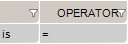
Pinpoint_Filter_Operator

These are the default operators in the Add Data Filter command, available on the right-click dropdown menu in the Last Result area.

The other data filter operators let you build sophisticated filters for analyzing HL7 data.

Operators List

OperatorAction
isIncludes messages that contain this data
is notExcludes messages that contain this data
=Covers messages with an exact match to this data (this is like putting quotation marks around a search engine query)
<Less than. Covers filtering on numeric values.
<=Less than or equal to. Covers filtering on numeric values.
>Greater than. Covers filtering on numeric values.
>=Greater than or equal to. Covers filtering on numeric values.
likeCovers messages that include this data. Covers filtering on numeric values.
presentLooks for the presence of a particular message building block (such as a segment, field, component, or sub-component)
emptyLooks for an unpopulated message building block (such as a segment, field, component, or sub-component)
inBuilds a filter on multiple data values in a message element rather than just one value.
in tableLooks if the data is in a specific table of the referenced Profile.
matching regex

Use .NET regular expression syntax to build filters. For advanced users with programming backgrounds. Learn more about regular expressions here:

This is also a quite good utility to hep you create complex regular expressions:

Import/Export validation rules

Export Validation Rules

Validation rules can be exported to file so they can be reused for validation in some other tasks.  They are exported in files with .csf extension.

To export every validation rules for a task:

  1. Select the task containing validation rules to export
  2. Select Validation tab
  3. Select Segment/Field Validation tab
  4. Right-click in the table content
  5. Select Export Segment/Field Validation Rules
    The file browser window opens
  6. Give the file to be created a location and a name
  7. Click OK

Import Validation Rules


The same way, validation rules can be imported from file so validation rules can be reused.  By default, validation rule files have .csf extension.

To import validation rules from a file and add them to the already existing rules:

  1. Select the task to add validation rules to
  2. Select Validation tab
  3. Select Segment/Field Validation tab
  4. Right-click in the table content
  5. Select Import Segment/Field Validation Rules
    The file browser window opens
  6. Select the file to import
  7. Click OK

Message Comparison

Definition

During the validation phase, you compare transformed messages with another set of messages you already know are valid (golden message set).  The highlighted differences will indicate any issues in your code or any missing transformations.  This is a quick and easy way to validate that your code fulfills the requirements.

Create a new Message Comparison Validation Rule

  1. Run the action containing the task validation will be added to.
    This educates the application about what would be returned and would simplify the process.
  2. Select the task
  3. Select the Validation tab on the right.
  4. Provide the expected message count
  5. Select the Message Comparison tab
    As the task executed once, the Last Result section is now populated.
  6. Move the mouse over the Expected Message section
  7. Right-click and paste the message expected.  More than one message can be added.  During test execution, message received will be compared with this/those message(s).

1-on-1 Comparison

For a more detailed view of a message pair or message differences, double-click the message pair you want to compare.  Navigate through the tree view, field by field, to see the differences.

Click on the gray zone at the bottom of the screen to view more details about each difference.  Double-clicking on a grid row helps you navigate through the differences.

Include/Exclude Fields from comparison

You may want to exclude fields from the comparison so they are simply not considered in the comparison.  This allows you to ignore differences in fields you don’t need to consider.

To exclude fields from comparison:

  1. Move your mouse pointer over the field you want to exclude
  2. Right-click and select Add to Exclude Filters

Alternatively, you can:

  1. Click the Change Filters icon (FilterEmptyicon on the upper-right corner)
  2. Make sure Exclude is selected
  3. Click Add…
  4. Change the new line that appears to the field to be excluded
  5. Repeat step #4 and #5 to exclude more fields

It can be easier to provide a list of fields to include instead of excluding a large number of fields.  The procedure is similar.  In the Filter  tab, be sure Include (instead of Exclude) is selected.

To set a large number of fields in one operation,  use the 1-on-1 message comparison screen.  For example, if you want to compare fields PID.2 to PID.13:

  1. Go to the 1-on-1 message comparison by double-clicking on a message pair
  2. Expand the PID segment so you can view all fields
  3. Select PID.2 to PID.13 holding down the SHIFT key
  4. Right-click on the selection zone and select Switch to Include Filter and Set Only This Field
  5. Close the window

The comparison will refresh using the new field set.

 Hide/Show what matters

After the comparison is completed, message pairs can have one of the following statuses:

  • Changed:  Matching message found and one or more differences were found
  • Unmatched:  No matching message found
  • Identical:  Matching message found and no differences was found

On the bottom left of the screen, the  message pair count for each status is listed.

Message pairs can be shown/hidden based on their status.  For instance, to hide identical messages:

  1. On the bottom left of the screen, select the identical message status
  2. Select Hide identical messages

Identical messages are filtered so only changed and unmatched messages are listed.

Comparison

Definition

During the validation phase, you compare transformed messages with another set of messages you already know are valid (golden message set).  The highlighted differences will indicate any issues in your code or any missing transformations.  This is a quick and easy way to validate that your code fulfills the requirements.

Create a new Message Comparison Validation Rule

  1. Run the action containing the task validation will be added to.
    This educates the application about what would be returned and would simplify the process.
  2. Select the task
  3. Select the Validation tab on the right.
  4. Provide the expected message count
  5. Select the Message Comparison tab
    As the task executed once, the Last Result section is now populated.
  6. Move the mouse over the Expected Message section
  7. Right-click and paste the message expected.  More than one message can be added.  During test execution, message received will be compared with this/those message(s).

1-on-1 Comparison

For a more detailed view of a message pair or message differences, double-click the message pair you want to compare.  Navigate through the tree view, field by field, to see the differences.

Click on the gray zone at the bottom of the screen to view more details about each difference.  Double-clicking on a grid row helps you navigate through the differences.

Include/Exclude Fields from comparison

You may want to exclude fields from the comparison so they are simply not considered in the comparison.  This allows you to ignore differences in fields you don’t need to consider.

To exclude fields from comparison:

  1. Move your mouse pointer over the field you want to exclude
  2. Right-click and select Add to Exclude Filters

Alternatively, you can:

  1. Click the Change Filters icon (FilterEmptyicon on the upper-right corner)
  2. Make sure Exclude is selected
  3. Click Add…
  4. Change the new line that appears to the field to be excluded
  5. Repeat step #4 and #5 to exclude more fields

It can be easier to provide a list of fields to include instead of excluding a large number of fields.  The procedure is similar.  In the Filter  tab, be sure Include (instead of Exclude) is selected.

To set a large number of fields in one operation,  use the 1-on-1 message comparison screen.  For example, if you want to compare fields PID.2 to PID.13:

  1. Go to the 1-on-1 message comparison by double-clicking on a message pair
  2. Expand the PID segment so you can view all fields
  3. Select PID.2 to PID.13 holding down the SHIFT key
  4. Right-click on the selection zone and select Switch to Include Filter and Set Only This Field
  5. Close the window

The comparison will refresh using the new field set.

 Hide/Show what matters

After the comparison is completed, message pairs can have one of the following statuses:

  • Changed:  Matching message found and one or more differences were found
  • Unmatched:  No matching message found
  • Identical:  Matching message found and no differences was found

On the bottom left of the screen, the  message pair count for each status is listed.

Message pairs can be shown/hidden based on their status.  For instance, to hide identical messages:

  1. On the bottom left of the screen, select the identical message status
  2. Select Hide identical messages

Identical messages are filtered so only changed and unmatched messages are listed.


Message Conformance

Definition

The Message Conformance validation lets you compare a received HL7 message against a profile in order to flag conformance gaps.  This is useful when you need to troubleshoot data flow in a live interface where the conformance profile has been documented.

Validations are done on:

  • Segment presence and repeatability
  • Field presence, repeatability and length
  • Component presence and length
  • Data conformance:  Validation fields value in-line with associated code set (HL7 table)

Enabling Message Conformance Validation

  1. You can configure the conformance profile to use in the validation process.
  2. Check the option “Validate message/ACK conforms to profile
    A new tab “Message Conformance” will appear.

A list of warnings is produced.  Each row is a broken profile conformance rule.

Conformance

Definition

The Message Conformance validation lets you compare a received HL7 message against a profile in order to flag conformance gaps.  This is useful when you need to troubleshoot data flow in a live interface where the conformance profile has been documented.

Validations are done on:

  • Segment presence and repeatability
  • Field presence, repeatability and length
  • Component presence and length
  • Data conformance:  Validation fields value in-line with associated code set (HL7 table)

Enabling Message Conformance Validation

  1. You can configure the conformance profile to use in the validation process.
  2. Check the option “Validate message/ACK conforms to profile
    A new tab “Message Conformance” will appear.

A list of warnings is produced.  Each row is a broken profile conformance rule.

XML Validation

Definition

XML Validation configures a set of rules that validate that message content is as expected. Rules are associated to X-Path values.


X-Path Validation Rule

Create

You can create your validation from an existing message, which can simplify the process, or manually.

To create from a message:

  1. Run the Action containing the task. This will add messages to the “Sample Message to Validate” area.
  2. Right-click the desired field in the message and select Add Validation.

To create manually:

  1. Click the Add button in the Validations grid.
  2. Specify the X-Path that the validation will be applied to.

Configure

  • Change the operator, if needed.
  • If several rules are set, modify the and/or logical operator and parenthesis so the rule evaluation is done correctly.

You can edit the criteria by clicking on the cell to set a basic text value. In addition, you have access to the Variable Editor and the Criteria Editor, which are opened by right-clicking on the criteria cell. From there, you can insert a Variable or a Field Value criteria by specifying its location.

Enabling/Disabling a Validation Rule

It may be necessary to temporarily disable a validation rule so it is no longer evaluated during test execution. To disable a rule, uncheck the check box in the very first column of the X-Path Validation table. To re-enable it, recheck the check box to the initial state.

Advanced Mode

Conditional Validation

You can use And, Or and Parentheses to perform more advanced conditions for your validations.

Message Conformance

Definition

The Message Conformance validation lets you compare a received XML message against a profile in order to flag conformance gaps.  This is useful when you need to troubleshoot data flow in a live interface where the conformance profile has been documented.

Validations are done on:

  • XML Structure
  • Schematron Validations

Enabling Message Conformance Validation

  1. You can configure the conformance profile to use in the validation process.
  2. Check the option “Validate message/ACK conforms to profile
    A new tab “Message Conformance” will appear.

A list of warnings is produced.  Each row is a broken profile conformance rule.

Conformance

Definition

The Message Conformance validation lets you compare a received XML message against a profile in order to flag conformance gaps.  This is useful when you need to troubleshoot data flow in a live interface where the conformance profile has been documented.

Validations are done on:

  • XML Structure
  • Schematron Validations

Enabling Message Conformance Validation

  1. You can configure the conformance profile to use in the validation process.
  2. Check the option “Validate message/ACK conforms to profile
    A new tab “Message Conformance” will appear.

A list of warnings is produced.  Each row is a broken profile conformance rule.

HL7-ER7 encoding

This is the most popular representation of an HL7 message using message, segment, field, component and sub-component delimiters. This encoding is usually referred to as a “pipe delimited” message.

Example:

MSH|^~&|MegaReg|XYZHospC|SuperOE|XYZImgCtr|20060529090131-0500||ADT^A01^ADT_A01|01052901|P|2.5
EVN||200605290901||||200605290900
PID|||56782445^^^UAReg^PI||KLEINSAMPLE^BARRY^Q^JR||19620910|M||2028-9^^HL70005^RA99113^^XYZ|260 GOODWIN CREST DRIVE^^BIRMINGHAM^AL^35 209^^M~NICKELL’S PICKLES^10000 W 100TH AVE^BIRMINGHAM^AL^35200^^O |||||||0105I30001^^^99DEF^AN
PV1||I|W^389^1^UABH^^^^3||||12345^MORGAN ^REX^J^^^MD^0010^UAMC^L||67890^GRAINGER^LUCY^X^^^MD^0010^UAMC ^L|MED|||||A0||13579^POTTER^SHERMAN^T^^^MD^0010^UAMC ^L|||||||||||||||||||||||||||200605290900
OBX|1|NM|^Body Height||1.80|m^Meter^ISO+|||||F
OBX|2|NM|^Body Weight||79|kg^Kilogram^ISO+|||||F
AL1|1||^ASPIRIN DG1|1||786.50^CHEST PAIN, UNSPECIFIED^I9|||A


The other allowed encoding uses HL7-XML.

HL7-XML encoding

This is a basic XML representation of an HL7 message where XML elements represent HL7 messages constructs like segments, fields and components.

Example:

<ADT_A01>
    <MSH>
        <MSH.1>|</MSH.1>
        <MSH.2>^~&amp;</MSH.2>
        <MSH.3>
            <MSH.3.1>MegaReg</MSH.3.1>
        </MSH.3>
        <MSH.4>
            <MSH.4.1>XYZHospC</MSH.4.1>
        </MSH.4>
        <MSH.5>
            <MSH.5.1>SuperOE</MSH.5.1>
        </MSH.5>
        <MSH.6>
            <MSH.6.1>XYZImgCtr</MSH.6.1>
        </MSH.6>
        <MSH.7>
            <MSH.7.1>20060529090131-0500</MSH.7.1>
        </MSH.7>
        <MSH.9>
            <MSH.9.1>ADT</MSH.9.1>
            <MSH.9.2>A01</MSH.9.2>
            <MSH.9.3>ADT_A01</MSH.9.3>
        </MSH.9>
        <MSH.10>
            <MSH.10.1>01052901</MSH.10.1>
        </MSH.10>
        <MSH.11>
            <MSH.11.1>P</MSH.11.1>
        </MSH.11>
        <MSH.12>
            <MSH.12.1>2.5 </MSH.12.1>
        </MSH.12>
    </MSH>
    <EVN>
        <EVN.2>
            <EVN.2.1>200605290901</EVN.2.1>
        </EVN.2>
        <EVN.6>
            <EVN.6.1>200605290900 PID</EVN.6.1>
        </EVN.6>
        <EVN.9>
            <EVN.9.1>56782445</EVN.9.1>
            <EVN.9.4>UAReg</EVN.9.4>
            <EVN.9.5>PI</EVN.9.5>
        </EVN.9>
        <EVN.11>
            <EVN.11.1>KLEINSAMPLE</EVN.11.1>
            <EVN.11.2>BARRY</EVN.11.2>
            <EVN.11.3>Q</EVN.11.3>
            <EVN.11.4>JR</EVN.11.4>
        </EVN.11>
        <EVN.13>
            <EVN.13.1>19620910</EVN.13.1>
        </EVN.13>
        <EVN.14>
            <EVN.14.1>M</EVN.14.1>
        </EVN.14>
        <EVN.16>
            <EVN.16.1>2028-9</EVN.16.1>
            <EVN.16.3>HL70005</EVN.16.3>
            <EVN.16.4>RA99113</EVN.16.4>
            <EVN.16.6>XYZ</EVN.16.6>
        </EVN.16>
        <EVN.17>
            <EVN.17.1>260 GOODWIN CREST DRIVE</EVN.17.1>
            <EVN.17.3>BIRMINGHAM</EVN.17.3>
            <EVN.17.4>AL</EVN.17.4>
            <EVN.17.5>35 209</EVN.17.5>
            <EVN.17.7>M~NICKELL’S PICKLES</EVN.17.7>
            <EVN.17.8>10000 W 100TH AVE</EVN.17.8>
            <EVN.17.9>BIRMINGHAM</EVN.17.9>
            <EVN.17.10>AL</EVN.17.10>
            <EVN.17.11>35200</EVN.17.11>
            <EVN.17.13>O </EVN.17.13>
        </EVN.17>
        <EVN.24>
            <EVN.24.1>0105I30001</EVN.24.1>
            <EVN.24.2/>
            <EVN.24.3/>
            <EVN.24.4>99DEF</EVN.24.4>
            <EVN.24.5>AN </EVN.24.5>
        </EVN.24>
    </EVN>
    <PV1>
        <PV1.2>
            <PV1.2.1>I</PV1.2.1>
        </PV1.2>
        <PV1.3>
            <PV1.3.1>W</PV1.3.1>
            <PV1.3.2>389</PV1.3.2>
            <PV1.3.3>1</PV1.3.3>
            <PV1.3.4>UABH</PV1.3.4>
            <PV1.3.8>3</PV1.3.8>
        </PV1.3>
        <PV1.7>
            <PV1.7.1>12345</PV1.7.1>
            <PV1.7.2>MORGAN</PV1.7.2>
            <PV1.7.3>REX</PV1.7.3>
            <PV1.7.4>J</PV1.7.4>
            <PV1.7.7>MD</PV1.7.7>
            <PV1.7.8>0010</PV1.7.8>
            <PV1.7.9>UAMC</PV1.7.9>
            <PV1.7.10>L</PV1.7.10>
        </PV1.7>
        <PV1.9>
            <PV1.9.1>678 90</PV1.9.1>
            <PV1.9.2>GRAINGER</PV1.9.2>
            <PV1.9.3>LUCY</PV1.9.3>
            <PV1.9.4>X</PV1.9.4>
            <PV1.9.7>MD</PV1.9.7>
            <PV1.9.8>0010</PV1.9.8>
            <PV1.9.9>UAMC</PV1.9.9>
            <PV1.9.10>L</PV1.9.10>
        </PV1.9>
        <PV1.10>
            <PV1.10.1>MED</PV1.10.1>
        </PV1.10>
        <PV1.15>
            <PV1.15.1>A0</PV1.15.1>
        </PV1.15>
        <PV1.17>
            <PV1.17.1>13579</PV1.17.1>
            <PV1.17.2>POTTER</PV1.17.2>
            <PV1.17.3>SHER MAN</PV1.17.3>
            <PV1.17.4>T</PV1.17.4>
            <PV1.17.7>MD</PV1.17.7>
            <PV1.17.8>0010</PV1.17.8>
            <PV1.17.9>UAMC</PV1.17.9>
            <PV1.17.10>L</PV1.17.10>
        </PV1.17>
        <PV1.44>
            <PV1.44.1>200605290900 </PV1.44.1>
        </PV1.44>
    </PV1>
    <OBX>
        <OBX.1>
            <OBX.1.1>1</OBX.1.1>
        </OBX.1>
        <OBX.2>
            <OBX.2.1>NM</OBX.2.1>
        </OBX.2>
        <OBX.3>
            <OBX.3.2>Body Height</OBX.3.2>
        </OBX.3>
        <OBX.5>
            <OBX.5.1>1.80</OBX.5.1>
        </OBX.5>
        <OBX.6>
            <OBX.6.1>m</OBX.6.1>
            <OBX.6.2>Meter</OBX.6.2>
            <OBX.6.3>ISO+</OBX.6.3>
        </OBX.6>
        <OBX.11>
            <OBX.11.1>F </OBX.11.1>
        </OBX.11>
    </OBX>
    <OBX>
        <OBX.1>
            <OBX.1.1>2</OBX.1.1>
        </OBX.1>
        <OBX.2>
            <OBX.2.1>NM</OBX.2.1>
        </OBX.2>
        <OBX.3>
            <OBX.3.2>Body Weight</OBX.3.2>
        </OBX.3>
        <OBX.5>
            <OBX.5.1>79</OBX.5.1>
        </OBX.5>
        <OBX.6>
            <OBX.6.1>kg</OBX.6.1>
            <OBX.6.2>Kilogram</OBX.6.2>
            <OBX.6.3>ISO+</OBX.6.3>
        </OBX.6>
        <OBX.11>
            <OBX.11.1>F AL1</OBX.11.1>
        </OBX.11>
        <OBX.12>
            <OBX.12.1>1</OBX.12.1>
        </OBX.12>
        <OBX.13/>
        <OBX.14>
            <OBX.14.2>ASPIRIN DG1</OBX.14.2>
        </OBX.14>
        <OBX.15>
            <OBX.15.1>1</OBX.15.1>
        </OBX.15>
        <OBX.17>
            <OBX.17.1>786.50</OBX.17.1>
            <OBX.17.2>CHEST PAIN, UNSPECIFIED</OBX.17.2>
            <OBX.17.3>I9</OBX.17.3>
        </OBX.17>
        <OBX.20>
            <OBX.20.1>A</OBX.20.1>
        </OBX.20>
    </OBX>
</ADT_A01>

Variables

Definition

Variables are symbolic names to which a value can be assigned.  Variables can be used to:

  • Populate HL7 message fields
  • Create dynamic file paths
  • Create dynamic SQL queries
  • Validate tasks

Variable are in the ${variable_name} format


There are 2 variable types:

  1. System variables:  They are variables managed automatically by the application
  2. User-defined variables:  Variables managed by the user building the test scenarios

System Variables

How to Use System Variables

System variables are quite useful to get contextual information regarding the suite execution. This variables can be used to improve tasks reusability and speed up test definition. Use them to build:

  • Validations
  • Messages
  • Paths and file names
  • Documentation


Here is the list of system variables:

Variable NameDescription
${CxScenarioSuiteName}Name of the Scenario Suite
${CxScenarioName}Name of the task’s parent Scenario
${CxScenarioIteration}Current running iteration number for the Scenario
${CxActionName}Name of the task’s parent Action
${CxActionIteration}Current running iteration number for the Action
${CxTaskName}Name of the Task
${CxToday}The current Date
${CxNow}The current Date and Time


Using system variables, the last inbound and outbound messages are also accessible:

[Deprecated] – Use Criteria Editor

Variable (including example)
Description
${CxLastOutboundMessage[%FIELD%]} 
${CxLastOutboundMessage[%MSH.3%]}Returns content of MSH.3 from the last outbound message (last message sent)
${CxLastOutboundMessage[%OBX[2].5[3]%]}OBX segment and OBX.5 being both repeatable, it returns content of 3rd repetition of OBX.5 in the 2nd OBX segment of the last outbound message
  
${CxLastInboundMessage[%FIELD%]} 
${CxLastInboundMessage[%PID.3%]}Returns content of PID.3 from the last inbound message (last message received)
${CxLastInboundMessage[%PID.3[3].4%]}PID.3 being repeatable, this expression returns content of the 4th component of the 3rd repetition of PID.3.

User-Defined Variables

Definition

User-defined variables are variables managed by the test scenario builder.  Variables allow the application to create message content and field values at run time, so that you can perform tests without having to create multiple messages yourself.  Values assigned to user-defined variables are managed by generators.


Create a new variable

  1. Click the “Edit Variables” link at the right side of the window.
  2. Click Add…  A new row is added to the grid.
  3. Give it a name.
  4. Select the variable type.
    Variable Type NameDescription
    StringA set of characters
    CharA single character
    BooleanTrue or False
    IntNumber between -2,147,483,648 and 2,147,483,647
    LongNumber between –9,223,372,036,854,775,808 and 9,223,372,036,854,775,807
    Double A 15 digit number between ±5.0 × 10−324 and ±1.7 × 10308
    Date TimeCalendar date between January 1, 0001 and December 31, 9999
    Mapping TableA 2-column table where each row contains an initial value and its equivalent mapping value
    Environment VariableA set of values for which the used value is determined by the active environment.
  5. Configure the generator.  Generators refer to the data sources used to set values to your variable.
    Generator Recommended Use
    BooleanInsert a Boolean value (true or false).
    Date TimeInsert a randomly generated date-time value. You can set the range, time unit, format, and other parameters.
    Directory ListingIterate through files in a specified directory.
    Excel FilePull random data from an Excel 2007+ spreadsheet — for instance, a list of names, addresses, and cities.
    NumericInsert a randomly generated number. You can set the length, decimals and other parameters.
    SQL QueryPull data from a database based on an SQL query. You’ll be able to configure a database connection.
    StringInsert a randomly generated string or static value. You can set the length and other parameters.
    Substring Insert a part of another variable.
    TablePull data from HL7-related tables stored in one of your profiles, useful for coded fields.
    Text FilePull random data from a text file — for instance, a list of names. Several file formats can be used: txt, csv, etc

    Note: Advanced Mode allows you to combine several generators to generate complex value formats. For instance, a patient ID with the format XXX-9999-M can be generated by combining Excel, numeric and string generators.


Generators

Definition

Generators are algorithms or data sources used to assign variables with values.  Several generators are available:

  • Basic data:  These generators generate data based on the data type they represent.  Use parameters to control the value that is generated.
  • Profile-based:  These generators retrieve data from a selected profile.  Profiles contain tables for code sets and other structures specifying message format and content.  If you must ensure that test messages are built with valid (or constrained) data, this generator is critical.
  • Record-based:  Those generators retrieve data rows from different data sources. During test execution, all variables that use the same generator, use the same record.
  • Environment-based: These generators retrieve data in a way that’s dependent on the current active environment. This can be useful for rapidly switching the parameters of a test based on what environment you’re testing.


Advanced Mode

Combining Generators

In Advanced Mode, you can generate data with complex data formats by combining generators for a single variable.  For instance, a patient ID with the format XXX9999M (3 random characters, a number between 0000 and 9999 plus a static character at the end) can be generated by combining Excel, numeric, and string generators.

To combine generators:

  1. Click the Advanced Mode link in the generator section.
  2. Click the Add link that appears.
  3. Configure the newly created generator.
  4. Redo steps #2 and #3 if needed.

Change the generator order by dragging and dropping them in the generator chain.


Generator Formatting

Use the Generator formatting field to add more formatting. You can create sophisticated values that mimic unstructured data using this functionality. Formatting can be quite powerful.

GeneratorFormattingGenerated ValueDescription
Numeric 0-99He is {0} years oldHe is 34 years old
He is 17 years old
He is 88 years old
{0} is replaced with the generated value
Numeric 0-99{0} + {0} = 2*{0}34 + 34 = 2*34
17 + 17 = 2*17
88 + 88 = 2*88
A generator can be used several times
Numeric 0-99{0:D5}00042
93277
03007
15432
Adding leading zeros so the values has 5 digits
String (length=1)
Numeric 0-99999
{0} – {1}P – 22
C – 42
I – 1
L – 82
Generators are combined and formatting is added
Excel (first name)
Excel (last name)
{1}^{0}Doe^John
Smith^Suzan
Generators are combined to create a field value having 2 components (subfields)

Boolean

This generator creates a Boolean (True or False) value.

How to use the Boolean generator

  • Random values
    • Generate True or False value randomly.
    • Include random blanks. Allowing random blanks will mean that you generate empty strings among the values for use in the field or data type.
  • Sequential list
    • Generate a sequence of True, False, True, False, True, etc.
    • Start new list. Always start the sequence with True.
    • Continue from previous list. If you run the test and it ends with True, the next time it will start with False.
Example #1:Generated Values
  • Random values
  • Include random blanks: unchecked
True
True
False
True
False

Environment Variable

This generator uses user-defined environments and allows you to map values specific to those environments for a given variable. This allows for efficient re-use of tests that are based on different development environments (Development, Production, etc.)

How to use the environment variable generator

To use this generator, you first need to define environments to which you will map the variables. To do so, open the environment editor.
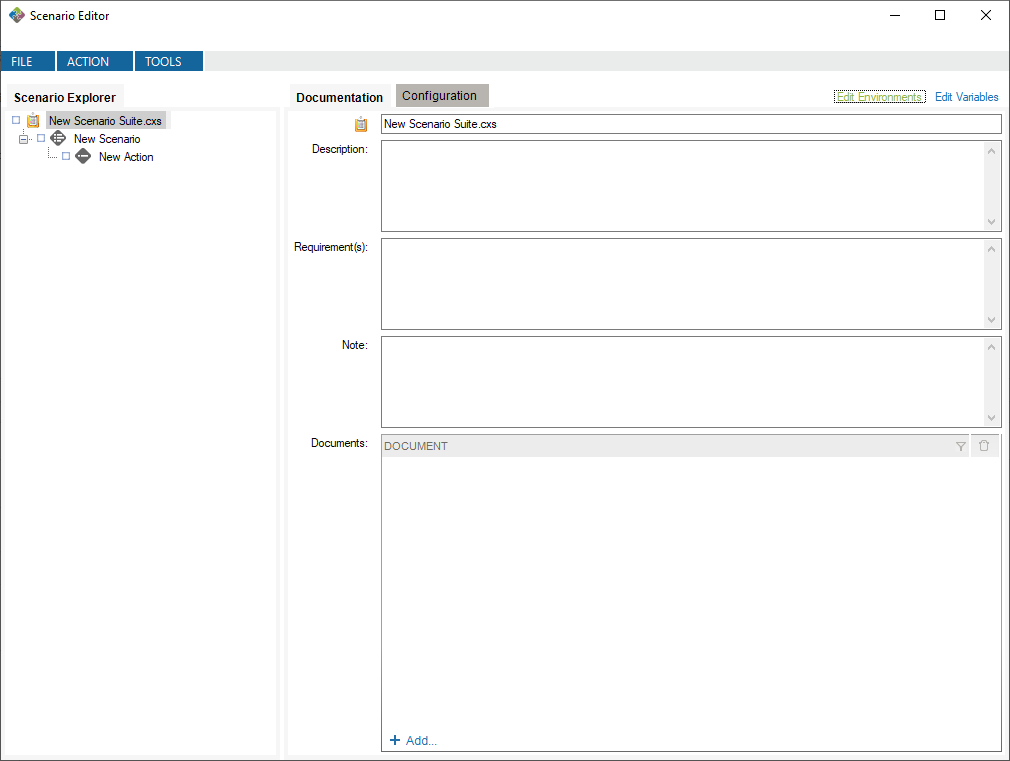
Open Environment Editor

This will create default environments to work in. You can modify or delete these environments, and you can define your own environments if you want.

Now, you can create a variable of type Environment Variable and define it with the Environment Variable value generator.
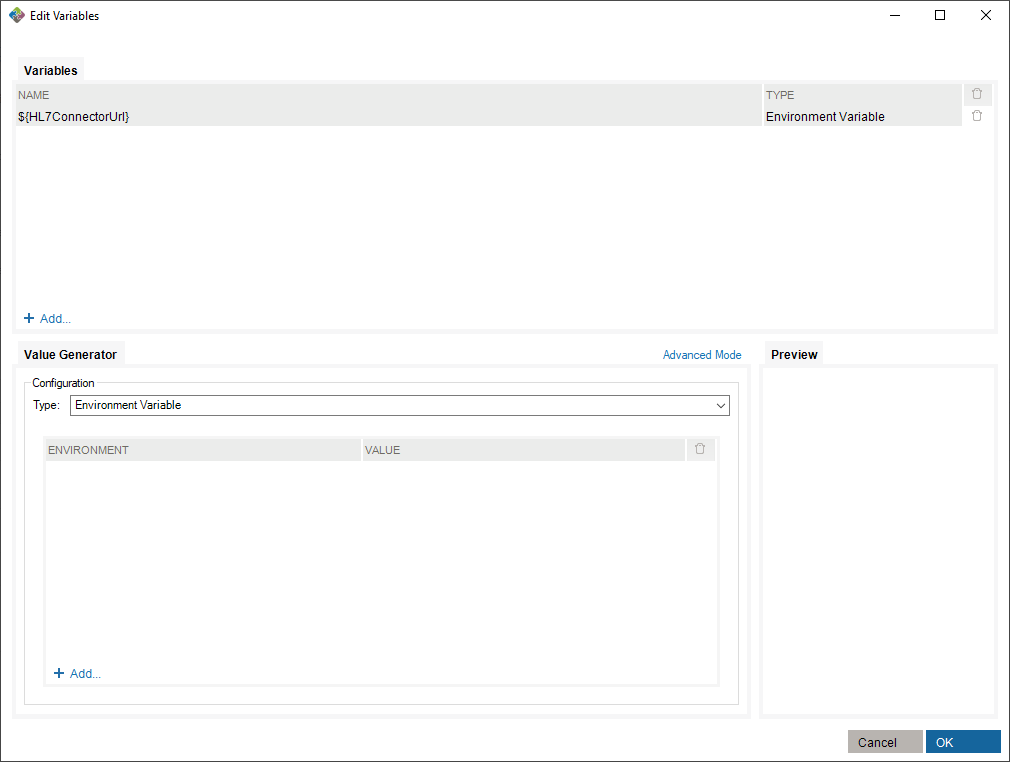
Create Environment Variable

To make use of this variable, you need to assign values to existing environments in the value generator.
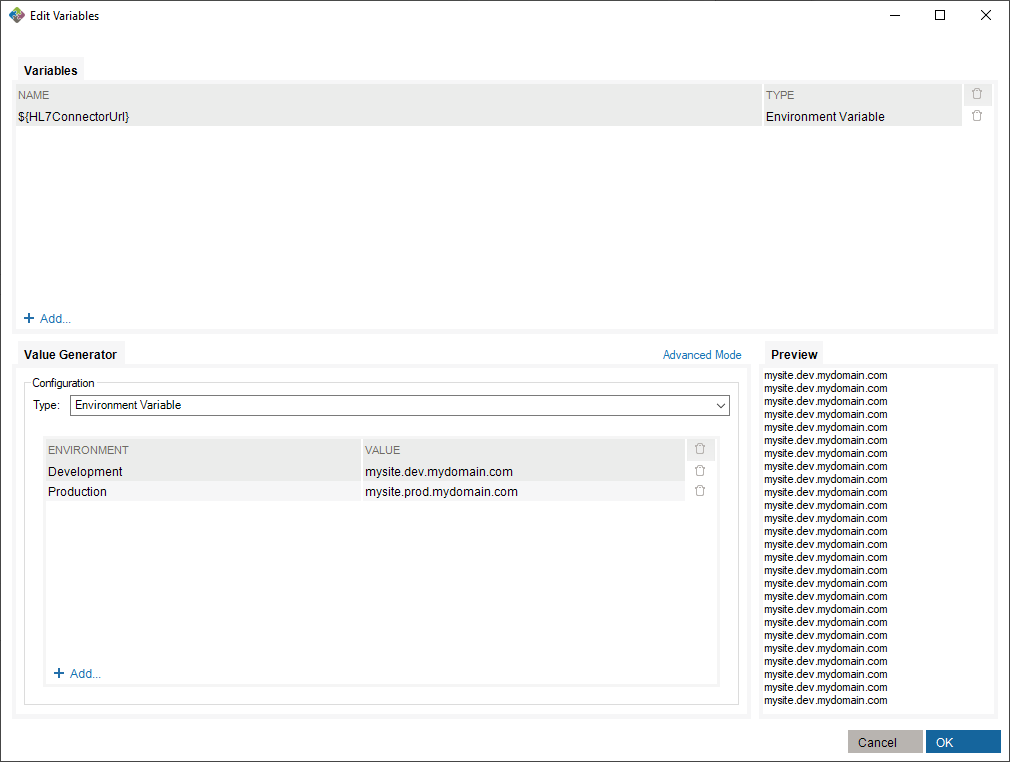
Assign Values to Environments

Finally, select an environment in which you run the scenario suite.
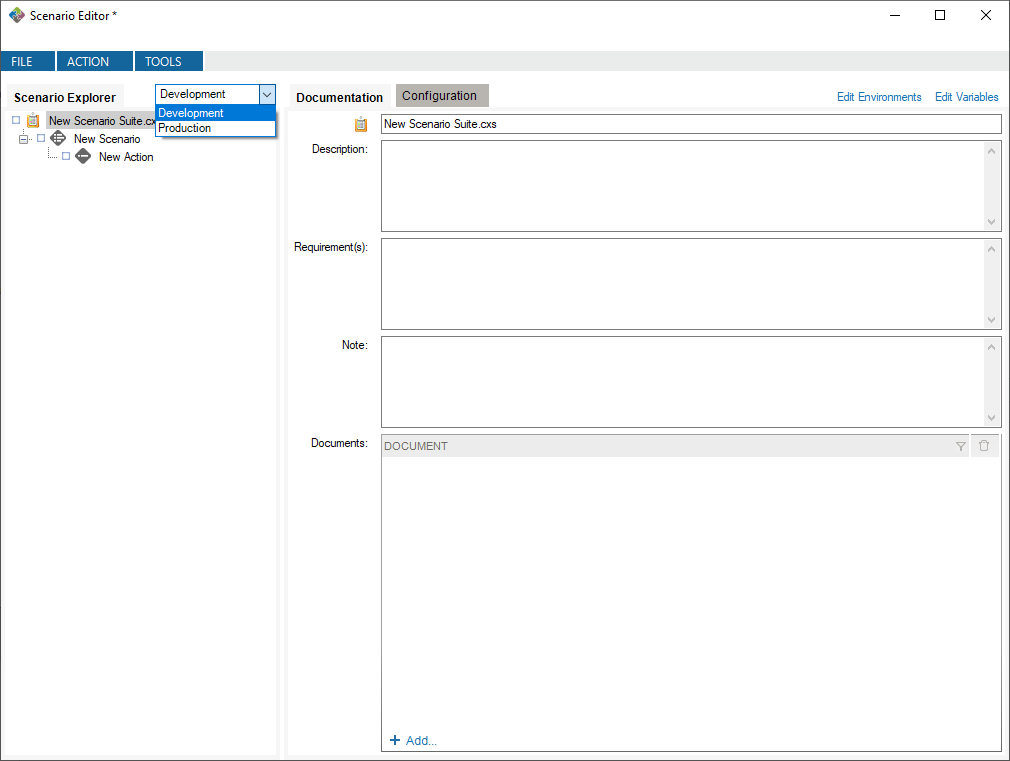
Select Environment

In this case, running with the Development environment will assign the value mysite.dev.mydomain.com to the ${HL7ConnectorUrl} variable.

Variable

This generator uses user-defined environments and allows you to map values specific to those environments for a given variable. This allows for efficient re-use of tests that are based on different development environments (Development, Production, etc.)

How to use the environment variable generator

To use this generator, you first need to define environments to which you will map the variables. To do so, open the environment editor.

Open Environment Editor

This will create default environments to work in. You can modify or delete these environments, and you can define your own environments if you want.

Now, you can create a variable of type Environment Variable and define it with the Environment Variable value generator.

Create Environment Variable

To make use of this variable, you need to assign values to existing environments in the value generator.

Assign Values to Environments

Finally, select an environment in which you run the scenario suite.

Select Environment

In this case, running with the Development environment will assign the value mysite.dev.mydomain.com to the ${HL7ConnectorUrl} variable.

Date Time

This generator creates date and time values.

How to use the “Date time” generator

  • Random values
    • Randomly generate values in a range between minimum and maximum limits of time unit (second, minute, etc.)
    • Based on:
      • Now. Uses the current date time as a reference.
      • Actual field value. Uses the date time value from the field in the original message.
      • A specific date. You specify a date and time to use as a reference.
    • Date format. Set the format of the new date-time. Note that you have a choice of formats. You can also enter your own format manually.
    • Include random blanks. Allowing random blanks will mean that you generate empty strings among the values for use in the field or data type.
  • Sequential list
    • Generate a sequence of date-time values, for instance: 2013-12-12, 2013-12-13, 2013-12-14, 2013-12-15, etc.
    • Based on:
      • Now. Uses the current date time as a reference.
      • Actual field value. Uses the date time value from the field in the original message.
      • A specific date. You specify a date and time to use as a reference.
    • Date format. Set the format of the new date-time. Note that you have a choice of formats. You can also enter your own format manually.
    • Increment by. The interval to use between each value. You can use a negative value and set a time unit (second, minute, etc.)
    • Start new line. Always start with the minimum limit or the maximum limit if you’re using a negative increment.
    • Continue from previous list. If you run the test suite and it ends with 2013-12-13, next time, it will start with 2013-12-14.
Example #1:Generated ValuesDescription
  • Random values
  • In a range between: 10 and 1000 Day
  • Based on: A specific date (2012-01-01 00:00:00)
  • Date format: yyyyMMdd
  • Include random blanks: unchecked
20120318Reference date + 77 days
20120614Reference date + 165 days
20140102Reference date + 732 days
20120212Reference date + 42 days
20130508Reference date + 493 days
Example #2:Generated ValuesDescription
  • Sequential list
  • In a range between: 0 and 1440 Minute
  • Based on: A specific date (2012-01-01 09:15:30)
  • Date format: yyyyMMddHHmmss
  • Increment by: 15 minutes
20120101091530Reference date + 0 minutes
20120101093030Reference date + 15 minutes
20120101094530Reference date + 30 minutes
20120101100030Reference date + 45 minutes
20120101101530Reference date + 60 minutes
Example #3:Generated ValuesDescription
  • Sequential list
  • In a range between: 0 and 30 Minute
  • Based on: A specific date (2012-01-01 09:15:30)
  • Date format: yyyyMMddHHmmss
  • Increment by: 10 minutes
20120101091530Reference date + 0 minutes
20120101092530Reference date + 10 minutes
20120101093530Reference date + 20 minutes
20120101094530Reference date + 30 minutes
20120101091530Reference date + 0 minutes

When the generator exceeds the maximum value (30), the sequence is reset starting at the minimum value (0).

Example #4: Manipulate date of birthOriginal field ValueGenerated Value
  • Random values
  • In a range between: -3650 and 3650 Day
  • Based on: Actual field value
  • Date format: yyyyMMdd
  • Include random blanks: unchecked
1913011319110213
1990090920000812
1985090919870514
1960102019650218
1980031719880617

Excel File

This generator pulls data from an Excel 2007+ file (*.xlsx).

How to configure the generator to use Excel file content

  • Random values
    • Randomly generate values from an Excel file.
    • File. Specify the source of the Excel file. Use the Browse… button to select a file.
    • Worksheet. Specify the Worksheet to use.
    • Column. Specify the column to use.
    • First/Last rows. Specify the rows to get data.
    • Restrict to values between. Will only use values that are within the specified limits.
    • Include random blanks. Allowing random blanks will mean that you generate empty strings among the values for use in the field or data type.
  • Sequential list
    • Generate a sequence of values from an Excel file starting with the first row.
    • File. Specify the source of the Excel file. Use the Browse… button to select a file.
    • Worksheet. Specify the Worksheet to use.
    • Column. Specify the column to use.
    • First/Last rows. Specify the rows to get data.
    • Restrict to values between. Will only use values that are within the specified limits.
    • Start new line. Always start with the first row in the Excel file.
    • Continue from previous list. If you run a test and it ends with the 13th entry, the next time, the test will start with the 14th entry.

Note: If more than one field is configured using the same worksheet, the same row will be applied across a message. In other words, you can use an Excel file to ensure that several values will be used together. This is useful when you need to link a city with a zip code or a first name with a gender.

The examples below use the following content from a file named C:MyDocumentsmyExcelFile.xlsx

1Road RunnerMACMEAnycity12345
2The CoyoteMACMEAnycity12345
3Sylvester The CatMACMEAnycity12345
4Tweety BirdMACMEAnycity12345
5Jane DoeF Anothercity98765
6John SmithM Anothercity98765

Example #1:

Generated Values
  • Random values
  • File: C:MyDocumentsmyExcelFile.xlsx
  • Worksheet: TheFirstSheet
  • Column: 2
  • Restrict to values between: 1 and 20 characters
  • Include random blanks: Unchecked
John Smith
Jane Doe
Road Runner
The Coyote
Tweety Bird
Example #2:Generated Values
  • Sequential list
  • File: C:MyDocumentsmyExcelFile.xlsx
  • Worksheet: TheFirstSheet
  • Column: 3
  • Restrict to values between: 1 and 20 characters
  • Start new list
M
M
M
M
F
M

Numeric

This generator creates a number.

How to use the “Numeric” generator

  • Random values
    • Randomly generate values between minimum and maximum limits.
    • Decimal. Set the number of places after the decimal point. Example #2 will generate value with 2 decimals (3.75).
    • Include random blanks. Including random blanks generates empty strings among the values for use in the field or data type.
  • Sequential list
    • Generate a sequence of 0, 1, 2, 3, etc.
    • Decimal. Set the number of places after the decimal point. Example #2 will generate value with 2 decimals (3.75).
    • Increment by. The step or interval to use between each value. You can use a negative value.
    • Start new list. Always start with the minimum limit or the maximum limit if you’re using a negative increment.
    • Continue from previous list. If you run the test and it ends with 13, the next time it will start with 14.
Example #1:Generated Values
  • Sequential list
  • Between: 10 and 1000
  • Decimal: 2
  • Increment by: 5
  • Start new list
10.34
15.2
20.85
25.39
30.12
Example #2:Generated Values
  • Random values
  • Between: 10 and 1000
  • Decimal: 0
  • Include random blanks: unchecked
353
942
359
626
967

SQL Query

This generator pulls data from an SQL-accessible database.

How to configure this generator to use SQL query results as test values

  • Select a database connection. If no database connections are configured, click Connections… to set up a connection.
  • Enter the SQL query. You can use the embedded Query Builder to help you build the query.
  • Restrict to values between. Will only use values that are within the specified limits.
  • Include random blanks. Allowing random blanks will mean that you generate empty strings among the values for use in the field or data type.
Example #1:Generated Values
  • Connection: Connection1
  • Query: SELECT name FROM employees
  • Restrict to values between: 1 and 20 characters
  • Include random blanks: Unchecked
John Smith
Jane Doe
Road Runner
The Coyote
Tweety Bird

String

This generator creates a uppercase character string to be used to set a static value.

How to use the “String” generator

  • Check the Random option.
  • Set the minimum length of the strings you want to generate.The minimum value for this configuration is 0. A string with a length of 0 is equivalent to an empty string.
  • Set the maximum length of the strings you want to generate.
  • Include random blanks. Including random blanks generates empty strings among the values for use in the field or data type.

How to use the “String” generator to set a static value:

  • Check the Static option.
  • Set the static value to be inserted.
Example #1:Generated Values
  • Random
  • Minimum length: 0
  • Maximum length: 5
  • Include random blanks: checked
XDZ
VOJHZ

BFAR

Example #2:Generated Values
  • Static
  • Static Value: MyNewValue
MyNewValue

Substring

This generator retrieves a part of another variable value.

How to use the “Substring” generator

  • Select the pre-defined variable that the value will be extracted from.
  • Specify where the substring starts (first or any other character)
  • Specifiy where the substring ends (last or any other character)
  • Include random blanks. Including random blanks generates empty strings among the values for use in the field or data type.


The following examples use a pre-defined variable:

  • Variable name:  ${ReceivingFacility}
  • Variable type:  String
  • Variable static value:  FacilityA
Example #1:Generated Values
  • Based on ${ReceivingFacility}
  • From: First character
  • To: Last character
  • Include random blanks: unchecked
FacilityA
Example #2:Generated Values
  • Based on ${ReceivingFacility}
  • From Specific character: 2
  • To Specific character: 8
  • Include random blanks: unchecked
cility

Directory Listing

This generator lists files in a directory, where the name of the files match a specified pattern.

How to configure this generator

  • Directory: Select the directory to list files.
  • [Recursive]: If checked, the generator will list every file in the directory hierarchy.
  • Filename pattern: (Optional) Filenames shall match the specified pattern to be included in the list.
  • [Regular Expression]: If checked, the filename pattern will be handled as a regular expression.

Table

This generator pulls data from HL7-related tables stored in a profile. Read how to set the profile.

How to configure the generator to use the appropriate HL7 table

  • Random values
    • Randomly generate values from an HL7 table.
    • Source. Select the profile containing the table.
    • Table. Select a table from which the value will be generated.
    • To access the table content, click on the Edit Table button. If you change the table content, the new table content will appear in the profile you
      select.
    • Restrict to values between. Will only use table entries that are within the specified limits.
    • Include random blanks. Allowing random blanks will mean that you generate empty strings among the values for use in the field or data type.
  • Sequential list
    • Generate a sequence of value starting with the first table entry.
    • Source. Select the profile containing the table.
    • Table. Select a table from which the value will be generated.
    • To access the table content, click on the Edit Table button. If you change the table content, the new table content will appear in the profile you
      select.
    • Restrict to values between. Will only use table entries that are within the specified limits.
    • Start new line. Always start with the first entry of the table.
    • Continue from previous list. If you run the test and it ends with the 13th entry, the next time it will start with the 14th.
Example #1:Generated Values
  • Random values
  • Table: 0001 – Administrative Sex
  • Include random blanks: unchecked
N
M
A
F
A
Example #2:Generated Values
  • Sequential list
  • Table: 0001 – Administrative Sex
  • Start new list
A
F
M
N
O

Text File

This generator pulls data from a text file (*.txt, *.csv, etc).

How to configure this generator to use text file content

  • Random values
    • Randomly generate values from a text file.
    • File. Specify the source of the text file. Use the Browse… button to select a file.
    • Column. Specify the column id to use (in case of a character delimited file, ex: *.csv)
    • Column delimiter. The character that separates each column in the text file.
    • First/Last rows. Specify the rows to get data.
    • Between character position. Will only use characters that are within the specified positions.
    • Restrict to values between. Will only use values that are within the specified limits.
    • Include random blanks. Allowing random blanks will mean that you generate empty strings among the values for use in the field or data type.
  • Sequential list
    • Generate a sequence of value from a text file starting with the first row.
    • File. Specify the source of the text file. Use the Browse… button to select a file.
    • Column. Specify the column id to use (in case of a character delimited file, ex: *.csv)
    • Column delimiter. The character that separates each column in the text file.
    • First/Last rows. Specify the rows to get data.
    • Between character position. Will only use characters that are within the specified positions.
    • Restrict to values between. Will only use values that are within the specified limits.
    • Start new line. Always start with the first row in the text file.
    • Continue from previous list. If you run the De-Identication and it ends with the 13th entry, next time, it will start with the 14th one.

Note: If more than one field is configured using the same text file, the same line will be used within the same message. In other words, you can use a text file to ensure several values will be used together. This can be useful when linking a a city with a zip code or a first name with a gender.

The examples below use the following content in a file C:MyDocumentsmyFile.txt

1Road RunnerMACMEAnycity12345
2The CoyoteMACMEAnycity12345
3Sylvester The CatMACMEAnycity12345
4Tweety BirdMACMEAnycity12345
5Jane DoeF Anothercity98765
6John SmithM Anothercity98765


Example #1:Generated Values
  • Random values
  • File: C:MyDocumentsmyExcelFile.xlsx
  • Worksheet: TheFirstSheet
  • Column: 2
  • Restrict to values between: 1 and 20 characters
  • Include random blanks: Unchecked
John Smith
Jane Doe
Road Runner
The Coyote
Tweety Bird
Example #2:Generated Values
  • Sequential list
  • File: C:MyDocumentsmyExcelFile.xlsx
  • Worksheet: TheFirstSheet
  • Column: 3
  • Restrict to values between: 1 and 20 characters
  • Start new list
M
M
M
M
F
M

Criteria Editor

Definition

The Criteria Editor is used to construct string-value using Carlang expressions.

Carlang

Carlang is an excel-like function language. With Carlang, you are able to retrieve HL7/XML/JSON/DataSet values from a specified task/field. Currently, there are some functions available:

@ConvertDateTime(“DATE_TIME_TO_CONVERT”, “SOURCE_FORMAT”, “DESTINATION_FORMAT”)

This function is used to convert a date value from any executed task in the scenario suite. The function has 3 parameters.

  • DATE_TIME_TO_CONVERT: The date the user wish to convert.
  • SOURCE_FORMAT: The format of the date before the conversion. (Can use the “HL7” and “FHIR” constant or any format from the DateTime c# .net documentation)
  • DESTINATION_FORMAT: The target format of the date after the conversion. (Can use the HL7 an “FHIR” constant or any format from the DateTime c# .net documentation)

EX: @ConvertDateTime(“20200428011122-0500”, “HL7”, “FHIR”) 🠖 2020-04-28T01:11:22-05:00
@ConvertDateTime(“2021-04-20”, “yyyy-MM-dd”, “MM-dd-yyyy”) 🠖 04-20-2021

@DataSet(“TASK_PATH”[9],”COLUMN”,”ROW”,”TABLE”)

This function is used to retrieve a value from an SQL Query result-set. The function has 4 parameters:

  • TASK_PATH: (Optional) The task containing the source SQL Query result-set. If not specified, the current task will be used.
    • [9]: (Optional) Use this parameter to specify which iteration of the specified task from which to get data.
  • COLUMN: The name/index of the column in the result-set containing the data.
  • ROW: (Optional) The row index in the result-set containing the data.
  • TABLE: (Optional) The name/index of the table in the result-set containing the data.

@EncodeBase64(“VALUE_TO_CONVERT”)

This function is used to encode a raw value to a base64 value from any executed task in the scenario suite. The function has 1 parameter.

  • STRING_TO_CONVERT: The value the user wish to convert.

@HL7(“TASK_PATH”[R9],”HL7_FIELD”)

This function is used to retrieve an HL7 field value from any executed task in the scenario suite. The function has 2 parameters.

  • TASK_PATH: The task containing the source HL7 message. If not specified, the current task will be used.
    • [R]: (Optional) Use this parameter to get the value from the task’s result message (ACK).
    • [9]: (Optional) Use this parameter to get the value from the task’s ninth message (if your task have many messages). Message index is a 1-based index.
  • HL7_FIELD: The HL7 Field to retrieve value from. Ex: PID.3.1, PID[2].3.1.

Hl7 Field syntax is SEGMENT_NAME[SEGMENT_REPETITION].FIELD_POSITION[FIELD_REPETITION].COMPONENT_POSITION.SUB_COMPONENT_POSITION

@JSON(“TASK_PATH”,”JSON_PATH”)

This function is used to retrieve a JSON-Path value from any executed task in the scenario suite. The function has 2 parameters.

  • TASK_PATH: The task containing the source JSON resource. If not specified, the current task will be used.
  • JSON_PATH: The JSON-Path to retrieve value from: Ex: ‘$.name[*].family’.

@XML(“TASK_PATH”[R],”X_PATH”)

This function is used to retrieve an X-Path value from any executed task in the scenario suite. The function has 2 parameters.

  • TASK_PATH: The task containing the source XML message. If not specified, the current task will be used.
    • [R]: (Optional) Use this parameter to get the value from the task’s result message (ACK).
  • X_PATH: The X-Path to retrieve value from: Ex: ClinicalDocument/typeId/@extension.

@Value(“TASK_PATH”[R])

This function is used to retrieve a string value from any executed task in the scenario suite. The function has 1 parameter.

  • TASK_PATH: The task containing the source value. If not specified, the current task will be used.
    • [R]: (Optional) Use this parameter to get the value from the task’s result value.

Configuration

HL7 v2.x Field

  • Click on the ‘Browse…’ button to select the Task containing the value or leave it empty to use the current task.
  • Check the ‘Get field from ACK’ if you which to get the value from the ACK message instead of the HL7 message sent/received.
  • If more than one message is present and you wish to compare against a specific message, you can set the index. If an index is not specified then all messages are matched 1-on-1 for validation. The first message of the source Task will be compared to the first message of the compared Task, the second with the second, etc.
  • Specify which element you wish to validate by setting the Segment, Field, Component and Sub-Component as needed.
  • By default, the first instance found of a Segment or Field will be used for the validation. If needed, you can specify which repetition to use by setting the Seg # and/or Field #.

XML Field

  • Click on the ‘Browse…’ button to select the Task containing the value or leave it empty to use the current task.
  • Select the X-Path to be used.

JSON Field

  • Click on the ‘Browse…’ button to select the Task containing the value or leave it empty to use the current task.
  • Select the JSON-Path to be used.

 DataSet Field

  • Click on the ‘Browse… button’ to select the Task containing the value or leave it empty to use the current task.
  • (Optional) Select the task iteration.
  • Select the column name.
  • (Optional) select the row index.
  • (Optional) Select the table from the result-set (if the SQL Query contains more than one SELECT).

When finished, click on insert to add it to the criteria. You can then insert another Field Value or text. When you are done editing, click on Apply to close the editor and apply the changes.

Advanced Criteria Example

To check that PID.2 and PID.4 of a sending task named “Send Task 1”, have been properly merged and separated by a dash in the Z01.1 field of the current task:

  1. Create the following validation: Z01.1 is = _
  2. Set the criteria to: @HL7(“/ScenarioName/ActionName/Send Task 1″,”PID.2”)-@HL7(“/ScenarioName/ActionName/Send Task 1″,”PID.4″)

So, if PID.2 is “ABC” and PID.4 is “123”, then the runtime validation would be: Z01.1 is = ABC-123

Executing Tests

How to Run Tests

Right-click the name of the Scenario suite, the Scenario, the Action or the Task you wish to execute. Click Run.

You can stop a test mid-way or at any time. Simply right-click on a node and select Stop.


Generate an execution report

After a test is executed, you can generate an execution report:

  1. In the main menu, click FILE –> Save Execution Report…
  2. Give the report a location and a file name.
  3. Click OK.
    The report is saved and opens.


The generated report is an Excel document containing descriptions of the test and all results.

  • Summary Worksheet:  The summary worksheet contains counts for all execution statuses.
  • Execution Details:  This worksheet contains the configuration and the results of all tasks executed.
    Column NameDescription
    NameThe name of the suite, scenario, action or task executed.
    StatusStatus of the node.  A node inherits status from its children.  If a task fails, the parent action, scenario and suite status will also fail.
    DocumentationAny documentation added to the node and last execution time.
    ConfigurationNetwork connection parameters that were used.
    Messages specified in the Configuration tab (including variables), if any.
    ExecutionMessage Sent where all variables are instantiated.  It’s exactly what was sent on the port.
    ValidationLast Result
    Validation rules and statuses for each of them
    Time Execution elapse time spent on the task, action, scenario or suite


Run tests using the command line application

You can also run your Scenario Suite using the command line application (TestConsole.exe) located in the Test installation folder (%PROGRAMFILES(X86)%CaristixCaristix Test or %PROGRAMFILES%CaristixCaristix Test). Simply call the application by providing the Scenario Suite to run in argument:

TestConsole.exe “C:MyScenarioSuite.cxs”

Use TestConsole.exe -h for more information.


Creating Test Messages

Message Maker in Caristix Test Software

Use the Message Maker tool to create test messages to PLACE INTO a scenario or to copy to another application. The messages you generate will be based on a specific profile (an HL7 version based on the reference standard, or a profile created in Caristix Conformance or Caristix Workgroup software).

Message Maker vs. variables

In most of your test automation work, you will want to use variables to populate test workflow with data. But if you need to generate HL7 messages to copy to another application, use Message Maker. Also use Message Maker if you want to use the same test data over and over again in a test scenario created with Caristix software.
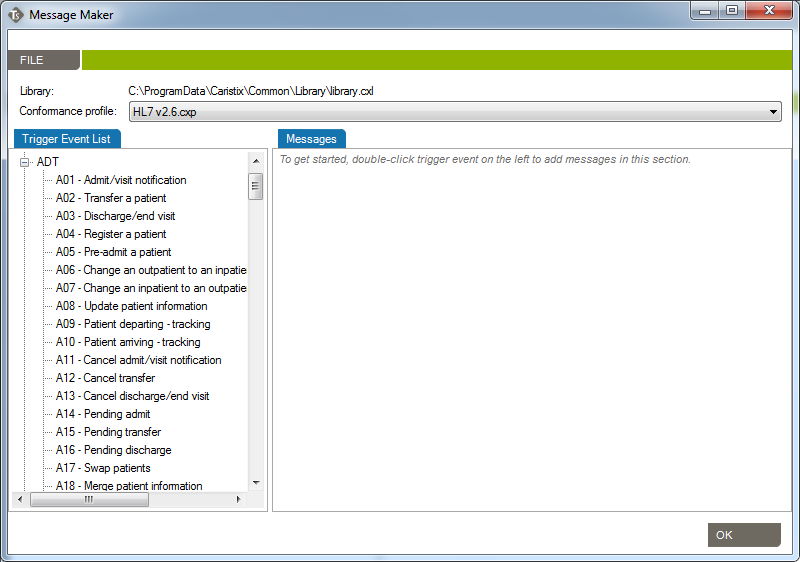
How to create messages with Message Maker

  1. In the main menu, click Tools, Message Maker. The Message Maker dialog box appears.
  2. In the Conformance Profile dropdown list, select a profile to base the message on. If you use Caristix Conformance/Workgroup, the list includes the profiles you’ve created in the application (in addition to the standard HL7 reference profiles).
  3. Expand the tree view on the message type you need.
    Test_MessageMaker
  4. Double-click an event, and the Messages tab automatically populates with a message based on data contained in the Caristix data dictionary.
  5. Navigate the tree view to add as many messages as needed.
  6. To save messages to a .txt file, click File, Save Results.
  7. To close the Message Maker tool, click the OK button at the bottom of the screen.

Options

Options in Caristix Test

Before starting to use Caristix Test, review Options to ensure your setup is appropriate for your testing and validation.

From the Main Menu, click Tools, then Options in the drop-down menu that appears.

A new Options window opens. 4 tabs are available: Logging, Reference Profile, Default Connections and Preferences.


Logging

Enabling this configuration activates internal execution log storage.  Internal execution logs are actually xml files and can be open as a test suite so the test can be run again using the exact same configuration, meaning that variables are replaced with the actual values generated at run time.

  • Log Execution: This is the storage location.  If the location varies from the default, Browse to the location required and enter the file name.
  • If you uncheck the Log Execution box, you will not generate internal execution reports. We recommend leaving this box checked for full product functionality.


Reference Profile

This is the default profile used to validate and create new messages.  Reference conformance profiles based on the HL7 standard are located here. Also, any other profile the organization may have created would be listed here too.

To know more about how to create new customized profiles (including Z-segments and customized fields), refer to the Caristix Conformance or Caristix Workgroup products.


Default Connections

This is where connections to integration engines (or other HL7 systems) and databases are configured.  Configuring a default connection for each category has a few advantages:

  • It makes it faster to configure tasks
  • It allows to change the environment tests will run on just updating the default connections

Database ConnectionsCaristix Test can perform tasks against a database. For instance, you can execute a SQL query to validate against expected results; or you can instantiate a variable from a data set. These settings enable you to set up database connection library and select a default database.
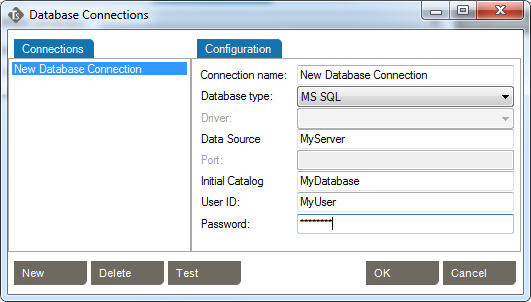
  • Select a default connection from the dropdown list.
  • To change the list of database connections, click the Connections button.
  • Fill out Database Connections dialog box:
    Test_DatabaseConnection
  • To add a new connection, click New.
  • Edit the connection name as needed.
  • Choose the database type.
  • Fill corresponding connection informations.
  • Click the Test button to test the database connection.
  • To delete a connection, click Delete.
  • Click OK to save changes.


Receive HL7 Connections

Caristix Test can interact with an integration engine or a system sending HL7 messages.  These settings enable you to set up the network connection library and select one as the default.

Choose the default receiving network connection from the list of network connections.  To configure a new network connection:

  1. Click Network Connections…
    The Network Connection dialog opens.
  2. Click Add…
  3. Enter connection details.
    PropertyDescriptionExample
    NameThis is the name of the network connection.  Later, network connection can be selected using the name.EMR Simulator
    Local Listener
    HostIP address or hostname listener will listen to.
    Note: Make sure firewalls are configured so traffic from the message sender computer can reach the host and port the listener is listening to
    127.0.0.1
    127.0.0.0
    192.168.10.210
    PortPort listener will listen to.
    Note: Make sure firewalls are configured so traffic from the message sender computer can reach the host and port the listener is listening to
    6661
    6543
    TimeoutListener stops listening to the address/port after this period of time (in seconds) even if it did not receive anything30
  4. Click OK


Send HL7 Connections

Caristix Test can interact with an integration engine or a system receiving HL7 messages.  These settings enable you to set up the network connection library and select one as the default.

Choose the default sending network connection from the list of network connections.  To configure a new network connection:

  1. Click Network Connections…
    The Network Connection dialog opens.
  2. Click Add…
  3. Enter connection details.
    PropertyDescriptionExample
    NameThis is the name of the network connection.  Later, network connection can be selected using the name.ADT Simulator
    Local Sender
    HostIP address or hostname messages wil be sent to.
    Note: Make sure firewalls are configured so traffic from the computer running tests can reach the host and port
    192.168.10.210
    dev.myorg.com
    127.0.0.1
    PortPort messages will be sent to.
    Note: Make sure firewalls are configured so traffic from the computer running tests can reach the host and port
    6661
    6543
    TimeoutConnect will stop waiting for acknowledgment messages after this period of time (in seconds) if it didn’t receive anything30
  4. Click OK


Preferences

Check for updates upon startup.

  • Every time you start Test, the software will check for available updates. You can manually check for updates by going to Help, Check for Updates

Show tips

  • This will display information boxes that will provide guidance on Test features. If you want to hide a tip permanently, you can click the close button. Restore all hidden tips with the “Reset hidden tips” link.

Show Did You Know

  • Every time you start Test, the software will show a ‘Did you know’ article.


Examples – How to Use Caristix

There is a lot of test automation power under the hood with Caristix Test. Looking for examples to get started with the application? Here are a few to illustrate what to do and how to do it.

Feel free to contact us if you are looking for more How To article that are not included here. We love hearing from our users. The best way to reach us is: support@caristix.com.


Tutorials

Some tutorials to help you with some common tasks.


Segment Field Validation

