Conformance

Introducing CaristixTM Conformance Software

Caristix Conformance is designed to help interface analysts and engineers to accurately scope HL7 interfaces before coding and configuration begin. Conformance provides the following features and functionality:

System Requirements

Table des matières

Getting  Started

Install and Register Caristix Conformance Software

  • Install Caristix Workgroup by clicking on the installation file (.msi file) you received.
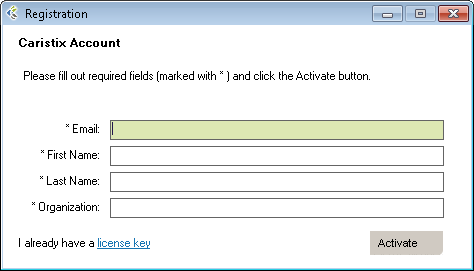
  • Launch the software, and fill out the EmailFirst NameLast Name and Organization fields in the registration form.
  • Click the Activate button.

    Registration

  • If you have a trial version, you will need to purchase an annual license to continue using Workgroup after the end of the trial period.

Managing Your Files

Conformance File Management

From the Main Menu, click FILE. A number of file management options are available in Caristix Conformance:
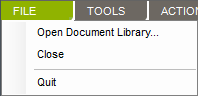
Conformance_FileMenu

  • Open Document Library – Opens a Library File (*.cxl). If needed, change the default Library from this command.
  • Close – Close the current Library.
  • Quit – Quit the application.

You can add documents (Word, Excel, PDF documents, etc.) to the Library.  You can do so using one of the following ways:

Import document

  • Navigate to the Document Library
  • Right-click the folder you want to add the document to
    Note: You can also create a new folder by right-clicking the parent folder and select New –> Folder
  • Click Import Document…
  • Select the document(s)

Documents will be uploaded to the library and made available from Conformance.

Drag document to the library

  • Just like drag-and-drop in Windows Explorer, open a folder on your machine and open the Document Library in Conformance.
  • Select the document(s) or folder(s) and drag them to the destination folder in Conformance.

Documents and folders will be uploaded to the library and made available from Conformance.

Add a shortcut to a local document

  • Navigate to the Document Library
  • Right-click the folder you want to add a shortcut to
    Note: You can also create a new folder by right-clicking the parent folder and select New –> Folder
  • Click New –> Shortcut
  • Select the document(s)

Document(s) will not be uploaded to the server and will only be available from your computer. Other user from the same library will see the shortcut, but won’t be able to open it. This will act as a normal shortcut in Windows.

Actions

There are actions that can be performed on the library via the Main Menu’s Action section, the right-click contextual menu (right-click a node or blank space), and the Gear icon beside the search bar.

When there is no document highlighted, the available actions are:

  • Sort By [Date, Name, Type]: select a document to sort in ascending order. Select again to sort in descending order.
  • New > Folder: creates a new root folder.
  • Refresh Library: refresh the entire library.

When a document is selected, the available actions depends on the document type. Common actions are:
  • Open: Open the selected document with the default editor (Profile Explorer, Scenario Explorer, etc).
  • Open With: Open the selected document with any application that can handle the document type.
  • Send To:
    • Desktop: Send a copy of the document to your computer’s desktop.
    • Mail Recipient (file): Send a copy of the document as an email attachment.
  • Copy: Copy the document.
  • Cut: Cut the document.
  • Paste: Paste a previously copied document.
  • Rename: Rename the selected document.
  • Delete: Delete the selected document.
  • Refresh Library: Refresh the entire library.

Creating a Profile

The Role of Profiles

In Caristix software, profiles serve as interface documentation.  The Document Library is a repository for all interface specifications: HL7 reference specifications (which come built into Caristix Conformance software), product specifications, and specifications for the customized mapping and configuration that must occur for working interfaces as well as any other type of documentation file.

There are several ways to create a profile or specification:

Create Profile Based on HL7 Reference

Copy a Reference Profile

This method is useful when you have a large volume of message types and trigger events to document, based on a specific HL7 version. If your specification is more limited, consider building a profile from individual message elements.

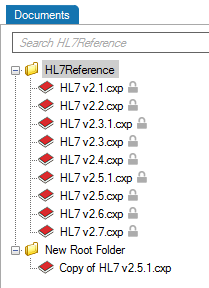
  1. From the Document screen, right-click the HL7 reference standard appropriate to the new profile you want to create.
  2. Select Copy.
  3. If needed, create a new Folder, right-click and select NewFolder.
  4. On the destination folder, right-click and select Paste.
  5. A new profile labeled Copy of HL7 v2.x.cxp appears.  This profile includes all messages, segments, fields, and data types from the HL7 version you selected.
  6. Rename the profile.

Conformance_CopyProfile_v3

You will need to edit the profile to reflect the specification. Go to Editing a Profile to learn more.

Create Profile from Message Elements

A Profile from Trigger Events, Segments, and Fields

You can also build a profile from individual message elements. This method is useful when the specification you are building is limited to a small subset of an HL7 version and when customization is extensive

  1. Navigate to the Document pane, and right-click on a folder.
  2. Select New and Profile.
  3. A new profile is created. Rename the profile.
  4. Double-click on the Profile to enter the Profile Explorer.
  5. Add trigger events and segments to build out the profile. There are two ways to do this, as follows.


Add an Event from an Existing Profile

You can add a trigger event or message type from one of the HL7 references or from a previously built profile.

  1. In the Document pane, double-click on the profile you want to build out.

  2. In the Profile Explorer, right-click on the first node.

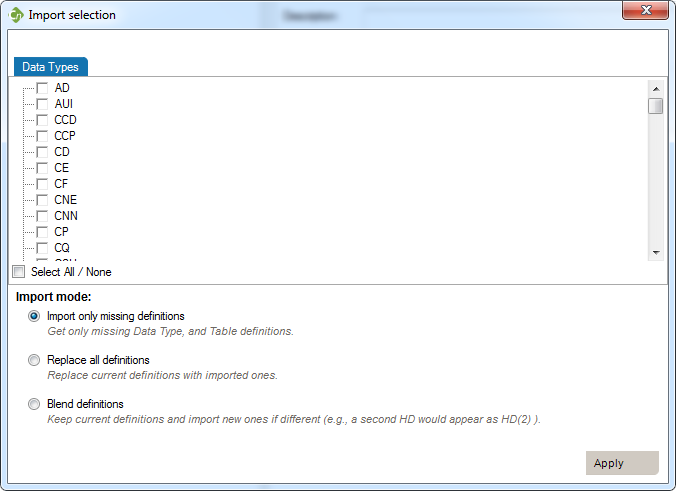
  3. Select Import, Trigger Event... In the Import from a Profile window, select the source Profile you want to import event from. A new window, Import selection, opens. (Click to enlarge image below.)
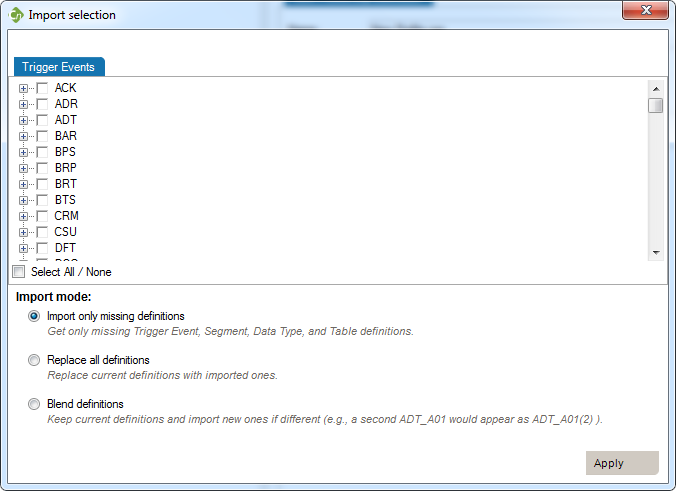
Conformance_ImportSelection_TriggerEvent

 
Select the message types you would like to create. Note that you can expand the tree view to select individual events. In the Import mode section, you can select the type of import you want to perform.

Add a New, Undefined Event

You can add an event or message without segments, fields, associated data types, or tables.  These elements must be to be defined later. Use this method when the event to be specified has not been formally defined in the HL7 standard.

  1. In the Document pane, double-click on the profile you want to edit. Right-click on the first node and select Add, Trigger Event.  A new trigger event is added.

    Conformance_Add_TriggerEvent

  2. Rename the trigger event and add a description.

Once you have added trigger events, you can edit segments, fields, and data types within your profile. See Editing a Profile for more information.

Import a Profile

In order to use a profile created in another installation of the application, you will need to import the file.

  1. Right-click on a Folder and select Import Document…
  2. Browse to the profile file you want to import.
  3. Click Open. The file loads.
  4. The profile is added to the folder.

Reverse Engineering

Reverse Engineering

The Reverse Engineering tool enables you to create a profile from an HL7 log  (or HL7 message file). A profile (also known as a specification or message definition) documents the message structure and content, including the use of Z-segments and custom data types.

Setup: Choose Log Files

To open the Reverse-Engineering tool, click TOOLS, Reverse-engineerer HL7 Profile... The tool opens to Choose Log Files.

  • Select messages from files
    1. Click the Add button to load one or more HL7 logs.
    2. Optional: Check Use Large File mode  when loading files above 10MB in size. (This option is selected automatically if file size reaches 25 MB)
  • Alternative: Select messages from a database or Connector
    1. Click on the Database tab and select a Data Source. Click on Sources… to configure a Data Source.

Then click Next to go to the next step. You can also load messages by querying a database.
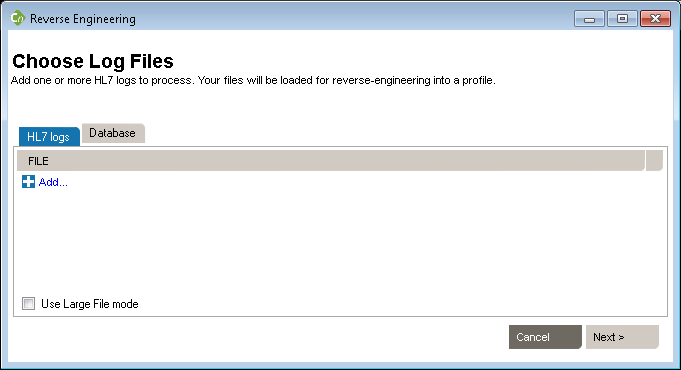
Conformance_ReverseEngineering_LogSelection

Setup: Choose a Reference Profile

To begin building a profile based on the messages you just loaded, the software needs an established profile to compare against. Select a profile that most closely matches your messages, then click Next. (Note: the software picks up on the HL7 version specified in your messages, but you are free to choose another reference).
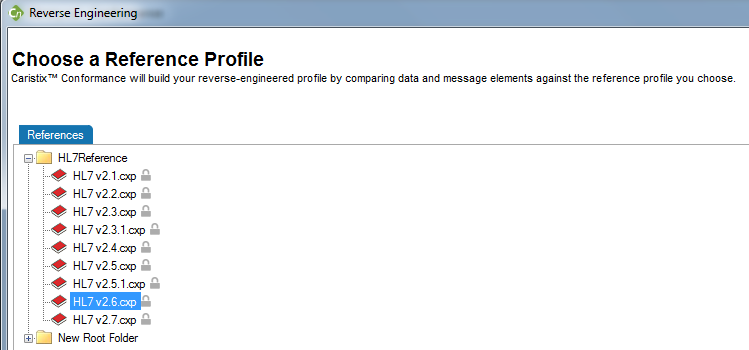
Conformance_ReverseEngineering_ReferenceProfileSelection

Setup: Filter Messages

The messages load.

(If they load too slowly, you can click the Cancel button in the Loading dialog box and only messages that have loaded thus far will appear.)

If there are files, events, segments, or other data elements you don’t require for the profile, filter them out in this step (read Filter an HL7 Log to learn more), then click Next to go to the next step. To reverse-engineer all messages without filtering, simply click Next.
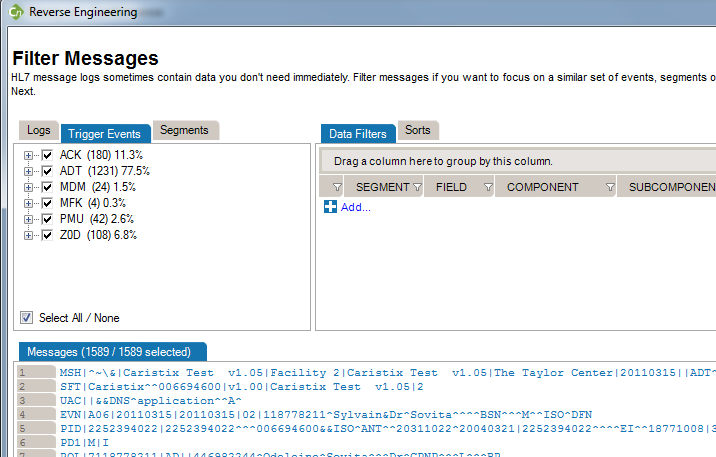
Conformance_ReverseEngineering_FilterMessages

Setup: Sending and Receiving Application Filters

This step is optional. The software will detect all sending and receiving applications present in the messages. If only one combination is detected, this step is skipped.

You have two options here. You can either generate a single profile combining all applications represented in the message file, or you can create separate profiles for each sending and receiving application combination. The second option offers you the possibility to choose specific combinations; it will also run the next 5 steps consecutively for all selected combinations.
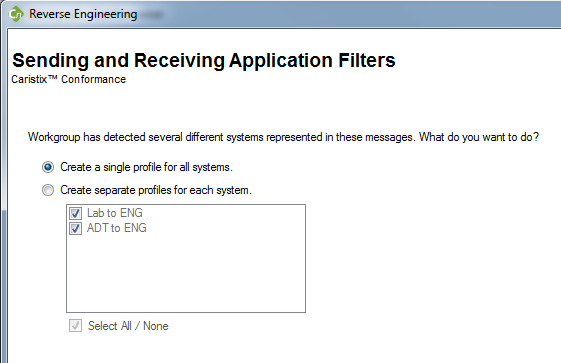
Conformance_ReverseEngineering_SendingAndReceivingApplicationFilters

Step 1: Initialize New Profile

The software sets up the reference profile and messages you selected. Once the processing is complete, simply click Next to continue, as specified on-screen.

Step 2: Options

Choose between Basic and Advanced field analysis.

Basic Field Analysis

This choice lets you analyze fields and data values and assign known data types. If Conformance finds data values and fields that do not match known data types, an new data type will be assigned. You can manually edit the data types later, when the reverse-engineering profile appears in the Library.

Select Basic Field Analysis if:

  • you are not sure that data types are important to your analysis.

  • you want to speed up your analysis and focus on identifying details in other message elements such as events and segments.

Advanced Field Analysis

This choice lets you fully analyze fields and data values. Data values and fields that do not match expected data types will be flagged. You will have the opportunity to either create custom data types to handle non-HL7-compliant data, or assign an existing data type.

Select Advanced Field Analysis if:

  • you need complete data type analysis for your interfacing project

  • you are comfortable creating new data types for further analysis

Data and Field Options

This section allows you to set more specific options for data and field analysis.

Once you make your selection in Step 2, click Next.

Step 3: Analyze Messages and Segments

The software reads through the messages and segments to begin building the profile. When processing is complete, click Next to continue, as specified on-screen.

Step 4: Analyze Fields and Data Types

This step creates the field structure in your profile, assigns data values to user tables, and associates data types to fields and values.

Step 4: Analyze Fields and Data Types – Basic Mode

If you selected Basic Field Analysis in Step 3, Basic Mode appears in Step 4. Workgroup processes the fields and data types automatically. When the processing is finished, click Next.

Step 4: Analyze Fields and Data Types – Advanced Mode

If you selected Advanced Field Analysis in Step 3, Advanced Mode appears in Step 4. Workgroup analyzes each segment for data values and fields that do not match expected data types. In other words, the software automatically performs a conformance check. When non-compliant elements are flagged, the software automatically suggests a data type and field structure. You can accept the suggestion, assign another data type, or create a new data type to handle the non-compliant values and fields.

Description

  • Add a description or notes if needed.

Data Type

  • Select a data type from the drop-down list.
  • Or click the New link to create a new one. If you click New, the Data Type Creation dialog box opens.
  • Select a data type from the drop-down list, click the items in the Data Type Details pane to edit as appropriate.

Edit as needed to reflect maximum field length

Usage

Specify usage.

Flagged Data Values

This tab provides a list of the data values that were flagged as non-compliant, as well as how many times they were found in the messages.

When processing is complete, click Next to continue.

Step 5: Collect Message Flows (Optional)

This step will collect analyze the message flows in your logs (if you select this option at step 2). These message flows will be stored into the profile and available for future uses, to generate test messages for example.

Step 6: Save New Profile

This is the final step in the Reverse-Engineering wizard. Specify a folder to save the profile to or browse your computer to save it locally. Name the profile. And provide a description if needed. Click Save to close the Reverse-Engineering wizard and go to the Documents pane. (If multiple Sending and Receiving Applications were selected, the wizard will start a new analysis on Step 1)

Filter an HL7 Log

Remove Unneeded Data Values, Trigger Events, and Segments

When the reverse engineering wizard is run, you have the option of filtering out unneeded data values, trigger events, and segments. These data elements may not be needed for the profile you are creating, despite their presence in the HL7 message log.

Trigger Events and Segments

  1. Click the Trigger Events or Segments tab to select, then click check-boxes to select or unselect specific elements.
  2. Selected message elements automatically appear in the Messages area.

Data Filters

Data filters let you set up queries to find messages containing specific data. Queries can filter on specific message building blocks: segments, fields, components, and subcomponents.

Filter Operators

OperatorAction
isIncludes messages that contain this exact data
is notExcludes messages that contain this data
= < > =< >=Filters on numeric values
likeCovers messages that include this data somewhere in the element (ex: 42 in 4342, 3421, 4286)
presentLooks for presence of a message element (such as segment, field, etc.)
emptyLooks for unpopulated message elements (such as a segment, field, etc.)
inFilter on multiple data values in a message element rather than a single value
regex syntax.NET regular expression syntax, equivalent to wildcard expressions


Building Filters

  1. In the Messages area, look for the field containing the data you want to filter on. It could be a patient name, a date, a location, or another string. Right-click within the field. A menu appears.
  2. Click Add Data Filter. The filter is automatically created within the Data Filters Area, and the data is highlighted within the Messages area. 


Data Sorting

The data sorting functionality lets you set up sort queries on data values.

  1. In the Messages area, look for the field you want to sort.  Right-click within the field. A menu appears.
  2. Click Add Sort. The sort query is automatically created within the Sort area. Change the data order under the Order column, and change the query order using the up and down arrows.


Manage Search and Filter Rules File

You can use an existing Search and Filter Rules file or save newly created rules throughout the Reverse Engineering filtering step. To do so, right-click anywhere in the Data Filters, Sorts or Data Distributions section.

Editing a Profile

Editing Tasks

After creating a profile, you will need to edit it. There are three main editing tasks: editing existing message elements, adding new elements, and deleting elements you no longer need.

Add Segment

There are two ways to add segments, depending on your needs. You can either add a segment defined in the profile you’re working on, or add one from a different profile.

Start here:

  1. In the Documents screen, double-click on the profile you want to modify. The Profile Explorer appears.
  2. Right-click on the first node, select Segments…
  3. Click Add Segment. Choose either New… or From Profile… as explained below.

Option: Add Segment –> New

To create a new Segment definition, click on Add SegmentNew. A new Segment definition appears at the bottom of the list.

You can also create a copy of an existing Segment definition by right-clicking on the source definition, select Copy and then right-click again and select Paste. A new Segment definition appears at the bottom of the list.
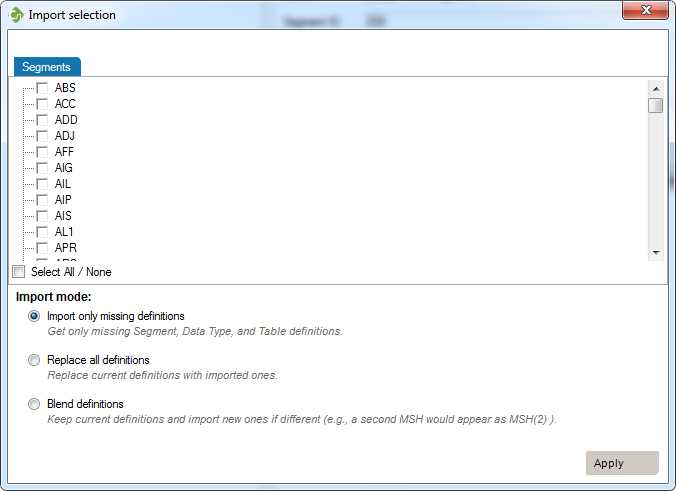
Option: Add Segment –> From Profile

  • To add a segment based on a different profile, click From Profile….
  • In the Import from a Profile, select the Profile to import segments from.
  • The Import Selection dialog box appears. Select the segments you wish to add and the import mode to perform. The next section explains the difference.

 Conformance_ImportSelection_Segments


ModeWhy Choose This Option
ActionExample
Import only missing definitionsChoose this if you only want to import element that don’t already exist in your profile.This will import definitions that are not present in the current profile and all referenced elements.Your profile doesn’t have a PID segment you’d like to add from HL7 v2.6.
Replace all definitionsChoose this if you need to replace all existing definitions with the imported definitions.Replace existing elements with imported elements. This means that you’ll overwrite current definitions. The segment definition will change to the imported definition.Your profile has an XPN definition that you would like to replace with the one from v2.6.
Blend definitionsChoose this if you need to import a definition from another profile, but also need to keep all definitions from both profiles.This will import all selected and referenced definitions and will duplicate all elements that are different.Your profile has a custom ZOD definition from one source system. A second source system uses a different definition. You need to code an interface for both definitions.

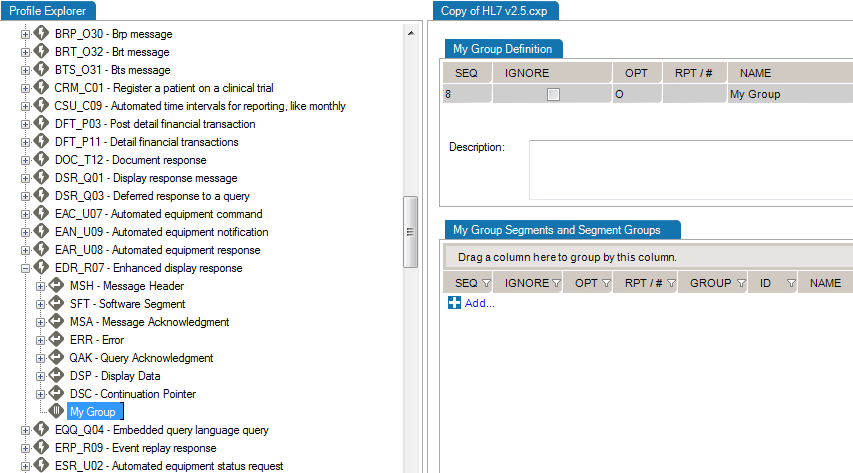
Add Segment Groups

  • In the Document Library, double-click on the profile you want to modify then expand the tree view to open the trigger event you need to change.
  • Right-click on it and select Add, Segment Group.
  • Rename the group and edit the description and other attributes.


Conformance_AddSegmentGroup

Add Data Types

This is useful when you need to add a new data type for a Z-segment or a custom field.
  1. In the Documents screen, double-click on the profile you want to modify. The Profile Explorer appears.
  2. Right-click on the first node and select Data Types…
  3. Mouse over any data type, and right-click. A menu appears.
  4. Select Add Data Type. Choose either New… or From Profile… as explained below.

Option: Add Data Type –> New

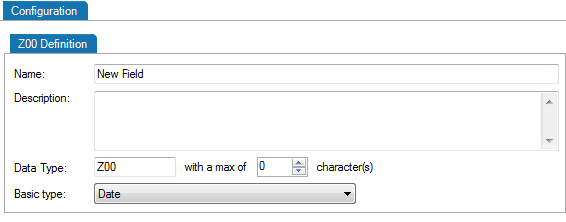
  • To create a new data type for your profile, click New… .
  • A new data type appears at the bottom of the Data Type Library. In the Configuration pane, rename the data type, add a description, and edit attributes (maximum characters and basic type).

Conformance_EditProfile_DataTypeConfiguration

  •  You can also create a copy of an existing data type definition by right-clicking on the source definition, selecting Copy and then right-clicking again and selecting Paste. A new data type definition appears at the bottom of the list.

Option: Add Data Type –> From Profile…

  • To add a data type based on a different profile, click From Profile….
  • In the Import from a Profile, select the Profile to import data types from.
  • The Import Selection dialog box appears. Select the data types you wish to add and an import mode. See table below for import mode choices.

 Conformance_ImportSelection_DataTypes

ModeWhy Choose This Option
ActionExample
Import only missing definitionsChoose this if you only want to import elements that don’t already exist in your profile.This will import definitions that are not present in the current profile and all referenced elements.Your profile doesn’t have a TS (time-stamp) data type you’d like to add from HL7 v2.6.
Replace all definitionsChoose this if you need to replace all existing definitions with the imported definitions.Replace existing elements with imported elements. This means that you’ll overwrite current definitions. The segment definition will change to the imported definition.Your profile has an HD definition that would like to replace by the one from v2.6.
Blend definitionsChoose this if you need to import a definition from another profile, but also keep all definitions from both profiles.This will import all selected and referenced definitions and will duplicated all elements that are different.Your profile has a custom TS definition from one source system. A second source system uses a different definition. You need to code an interface for both definitions.

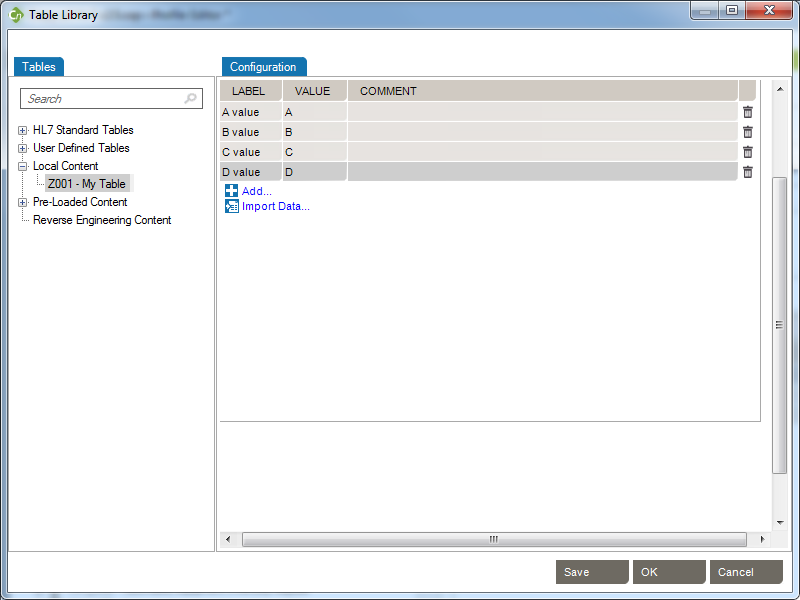
Add Tables

This is useful when you need to add a new table for a Z-segment.
  1. In the Document Library, double-click on the profile you want to modify. The Profile Explorer appears.
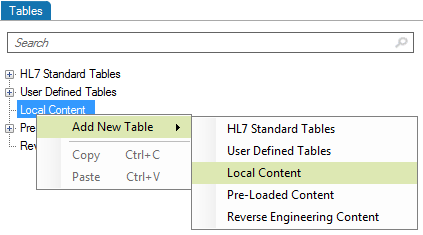
  2. Right-click on the first node and select Data Tables… The Table Editor appears.
  3. Mouse over any table section, right-click and select Add New Table and then a section where you want to add the table.Conformance_AddTable
  4. Edit the ID, Name and entries.

 Conformance_EditTable

Edit Segments And Fields

Edit segments and fields, so you capture the data elements pertinent to your specification. Due to the nature of the HL7 standard (HL7 is object-oriented), any changes made are global changes and affect the entire profile.

There are two ways to access segments and fields:

1. Edit within Each Message

Click the “+” sign to expand a message, then edit the segment.
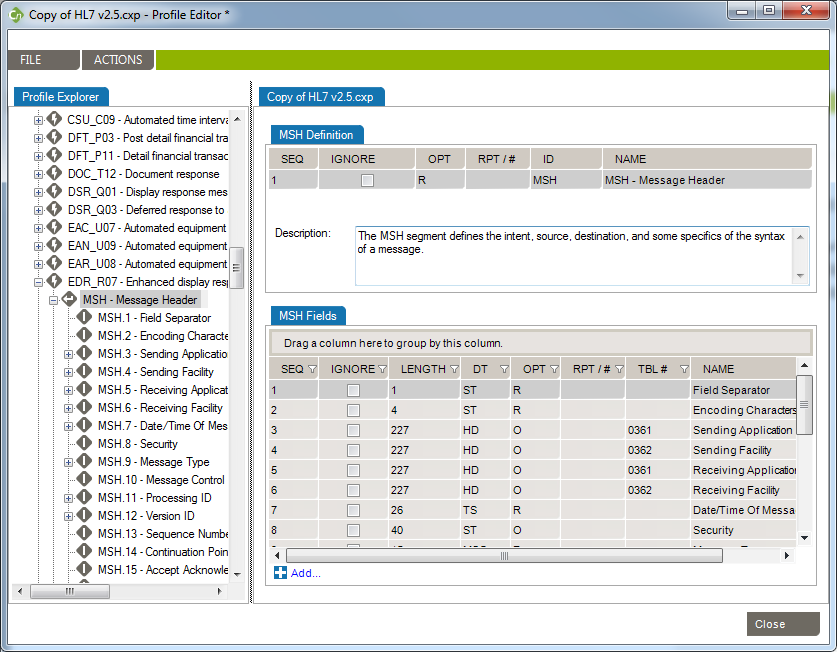
 Conformance_EditSegment1

2. Edit from the Segment Library

Right-click a message, and select Segment... A separate window displays the Segment Library. Expand the segment you wish to edit by clicking the plus sign.
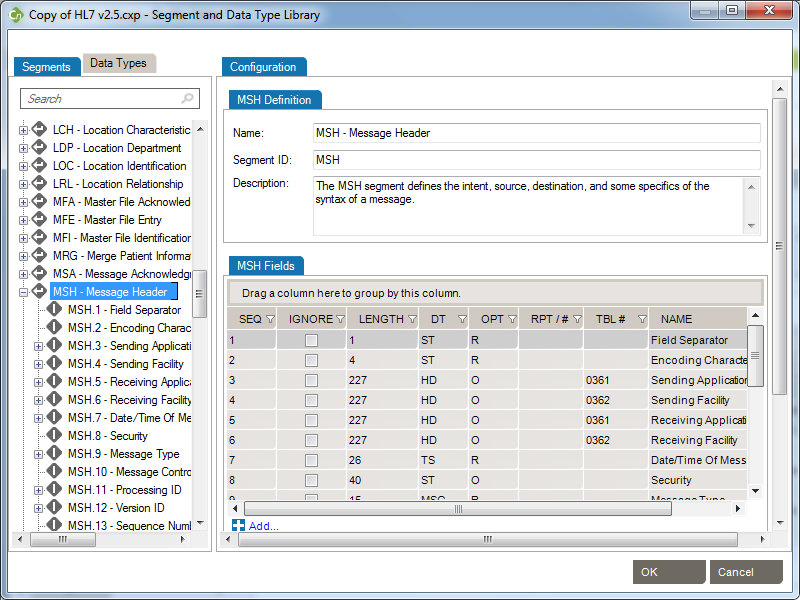
 Conformance_EditSegment2

To edit each field or individual component, click on the title. Under the Configuration tab, make the changes to each field attribute.
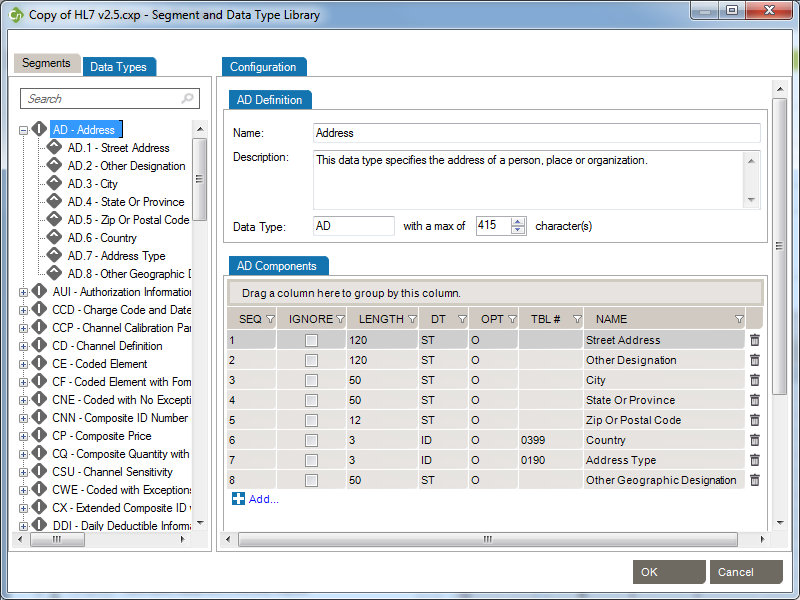
Edit Data Types

  • In the Document Library, double-click on a profile, right-click on the first node and select Data Types… The Data Type Library appears.
  • Click a data type to expand. In the Configuration pane, edit attributes.

Conformance_EditDataType

Edit Tables

  • In the Document Library, double-click a profile, right-click on the the first node and select Data Tables… The Table Editor appears.
  • Click a table to expand. In the Configuration pane, edit attributes.

Conformance_EditTable

Delete Messages and Trigger Events

This is useful when you want to reduce the profile to relevant trigger events.

  1. In the Document Library, double-click on the profile you want to edit. Expand the tree view by click the plus (+) sign next to the profile.
  2. Use the Delete key on your keyboard to delete the events you don’t need in the profile. Note: you can keep hitting the Delete key multiple times to remove a batch of messages.

Field Validation

From the Validations tab, you can configure a set of rules that validate message content (data) is conform.

Configure


Example – MSH.7 – Date/Time of Message

In the following example, the rule will validate (and raise conformance gaps) if the MSH.7 of a message does not conform to the format “yyyy-mm-dd hh:MM:ss”
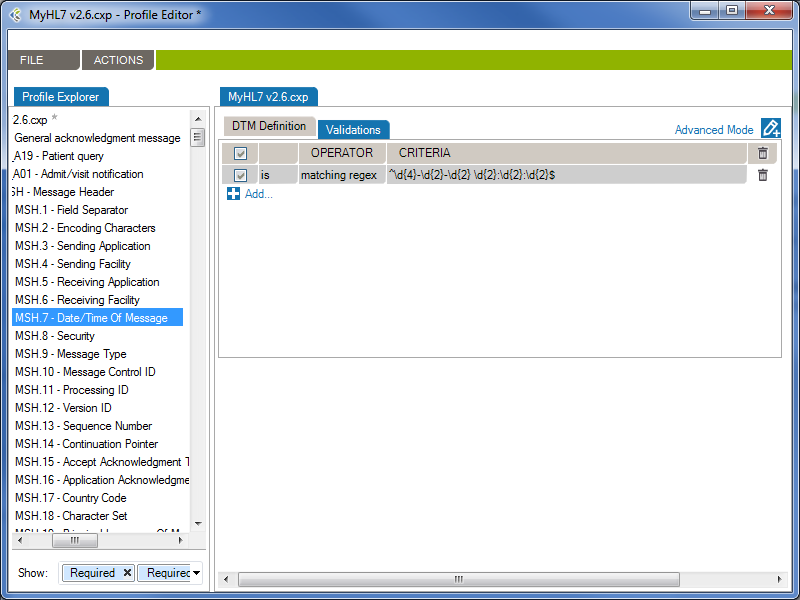
 Field Validation - MSH.7

Operators

Operators let you define validation rules whether they range from simple to complex.

Operators List

Operator

Action

isValid that contain this data
is notValid that does not contain this data
=Valid with an exact match to this data (this is like putting quotation marks around a search engine query)
<Less than. Covers validating on numeric values.
<=Less than or equal to. Covers validating on numeric values.
>Greater than. Covers validating on numeric values.
>=Greater than or equal to. Covers validating on numeric values.
likeValid if includes this data. Covers validating on numeric values.
presentLooks for the presence of a particular message building block (such as a field, component, or sub-component)
emptyLooks for an unpopulated message building block (such as a field, component, or sub-component)
inBuilds a filter on multiple data values in a message element rather than just one value.
in tableLooks if the data is in a specific table of the Profile.
matching regex

Use .NET regular expression syntax to build validations. To be used by advanced users with programming backgrounds. Learn more about regular expressions here:

This is also a quite good utility to hep you create complex regular expressions:

JavaScript Validation

HL7 Message JavaScript Engine API

The JavaScript engine allows you to create custom validation rules, which will be used during the conformance validation of your HL7 messages.

You can add custom javascript validation rules at the profile, trigger-event, segment and data-type levels. The javascript rules will be evaluated during the HL7 message validation, depending on the element of the message being validated.

Profile: Validation rules added at the Profile level will be evaluated first and only once per message.

Trigger-Event: Validation rules added at the Trigger-Event level will be evaluated only once per message and will only be evaluated for matching messages. The MSH.9 – Message Type is used to match messages and trigger-events.

Segment: Validation rules added at the Segment level will be evaluated for each instances of the segment in a message.

Data-Type: Validation rules added at the Data-Type level will be evaluated for each instances of the data-type in a message.

By using the callback() method, you can notify the message validator when an error has occurred. You can provide callback() with an error message as a string, or with a ValidationError object.


HL7 Message Validation Context

During HL7 message validation, the JavaScript engine context is updated, allowing you to access the current element being validated.  The context has the following properties you can refer to:

  • profile: Allows you to fetch data from profile. See the Profile object definition.
  • message: Allows you to access the message being validated and any of its properties or methods. See the Message object definition
  • segment: Allows you to access the current segment being validated and any of its properties or methods. See the Segment object definition.
  • field: Allows you to access the current field being validated and any of its properties or methods. See the Field object definition.
  • component: Allows you to access the current component being validated and any of its properties or methods. See the Component object definition.
  • subComponent: Allows you to access the current sub-component being validated. See the SubComponent object definition.
  • dataType: Allows you to access the current data-type instance being validated. The dataType can be any FieldComponent or SubComponent.


ValidationError

The ValidationError allows you to return a customized validation error in the callback method. The ValidationError object exposes the following properties and methods:

Constructors

ValidationError()

Returns a new, empty ValidationError.

var validationError = new ValidationError();
callback(validationError);
// Returns a new ValidationError object in the callback method.

Properties

summary: string

A summary of the error.

var validationError = new ValidationError();
validationError.summary = 'Invalid Medical Number';
// The validation error's summary should be 'Invalid Medical Number'

description: string

A detailed description of the error.

var validationError = new ValidationError();
validationError.description = 'PID.3 does not contain a valid MR - Medical Number for the patient';
// The validation error's description should be 'PID.3 does not contain a valid MR - Medical Number for
// the patient'

Methods

toString(): string

Returns the JSON string value of the ValidationError.

var validationError = new ValidationError();
validationError.description = 'PID.3 does not contain a valid MR - Medical Number for the patient';
var validationErrorString = validationError.toString();
// validationErrorString should be '{ "description":"PID.3 does not contain a valid MR - Medical Number for the patient"}'

Gap Analysis

What is Gap Analysis?

Gap analysis is an HL7 interface scoping activity. When you build an HL7 interface, before jumping into the code, you need to understand what data you are going to play with. Most importantly, you need to understand the differences between source and destination systems at the messaging level. Before jumping into integration engine configuration, you need to know what to configure. Some of your questions are likely to include the following:

  • Are there any differences between the message structures in each system?  If so, what are they?
  • Are there any mandatory data elements on one side that are optional on the other?  If so, what are they?
  • Do both systems use the same code sets? Are they the same values?  Which values do I need to map?
  • Is the data semantically consistent? In other words, does the meaning or significance of an element always match across both systems?

These are often challenging questions to answer.

The Gap Analysis functionality in Conformance helps you identify these differences in a matter of a few seconds. Gap Analysis enables the following:

Find Gaps

Gap Analysis Setup

Determine gaps between 2 profiles or between a profile and a set of messages.

Compare 2 Profiles

To list the differences (including differences in data structure and data content) between two profiles, follow this procedure:

  • Open Conformance and navigate to the Documents screen.
  • In the menu bar, go to TOOLS, then click on Gap Analysis and then Start New Gap Analysis.
  • In the Gap Analysis window, select the profiles you want to compare.
  • Select which Gap Analysis Filter you want to use for comparison
  • Click Next.

Both profiles are loaded and you are taken to the Gap Analysis Workbench. You can now refine your comparison criteria. By default, data elements are not selected. Select the data elements (data structure and/or code sets) you want to compare. See Refine Gap Analysis Criteria for more information.

Compare a Profile with HL7 Messages

To list the differences (including differences in data structure and data content) between a profile and a set of HL7 messages (probably a few thousand), follow this procedure:

  • Open Conformance and navigate to the Documents screen.
  • In the menu bar, go to TOOLS, then click on Gap Analysis and then Start New Gap Analysis.
  • In the Gap Analysis window:
    • Select the profile you want to compare in the References section.
    • Click Compared HL7 logs tab.
    • In the Compared HL7 logs tab, click the Add… button to add message files.
    • Select one or more files and click Open.
    • Optional: Check Use Large File mode  when loading files above 10MB in size. (This option is selected automatically if file size reaches 25 MB. It will also deactivate the Sort, Replace and Edit Message features.)
  • Select which Gap Analysis Filter you want to use for comparison
  • Click Next.

The profile and the HL7 messages are loaded and messages are analyzed. Depending on the number of messages you provided, the message analysis might take several minutes. A progress window tracks the process.

Once the loading process is complete, you are taken to the Gap Analysis Workbench. You can now refine your comparison criteria. By default, no data element is selected.

  • Select the data elements (data structure and/or code sets) you want to compare.
  • View/Filter Messages helps you refine the gap on specific messages.

Gap Analysis Filter

Gap Analysis Filters are used to remove irrelevant gaps. Each filter contains a set of preset options which will optimize the Gap Analysis detection process in order to show you only the “dangerous” gaps. A Gap Analysis Filter contains:

 When you’ll start a new Gap Analysis, after selecting the profiles to compare, you will be asked to select a Gap Analysis Filter.
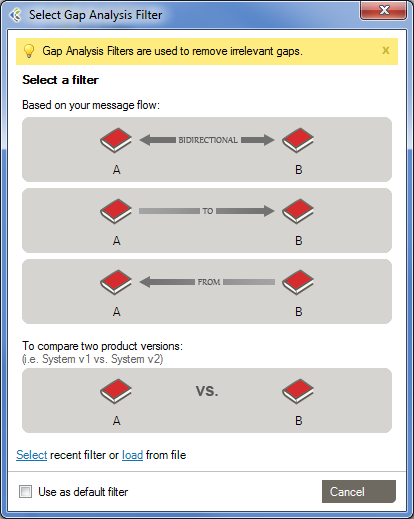
Conformance_GapAnalysisFilter_v3

Pre-defined Filters

There are 4 pre-defined Filters that can be used.

Bidirectional

This filter should be used when both systems exchange messages between each other.

A To B

This filter should be used when the first system sends messages to the second system.

A From B

This Filter should be used when the first system receives messages coming from the second system.

Compare two product versions

This filter should be used when you want to compare profiles representing the same system. Ex: Comparing reverse-engineered profiles coming from sample messages of your development and production environments.


 Custom Filter

While working with the Gap Analysis Workbench, you can edit computed attributes, options and difference filters. These can then be saved as a  Custom Filter, which can be re-used for other Gap Analysis.

In the Gap Analysis Filter Selection window, you’ll be able to Select a “recent Gap Analysis Filter”, or Load a previously saved filter from your Library.

You’ll be able to set your choice of the default filter for your subsequent Gap Analysis and will not be asked to select a Gap Analysis filter again. Whenever you want, you may apply another Gap Analysis Filter in the Gap Analysis Workbench with “File > Gap Analysis Filter > Change Filter…

Gap Analysis Workbench

Here is a quick look of the Gap Analysis Workbench.
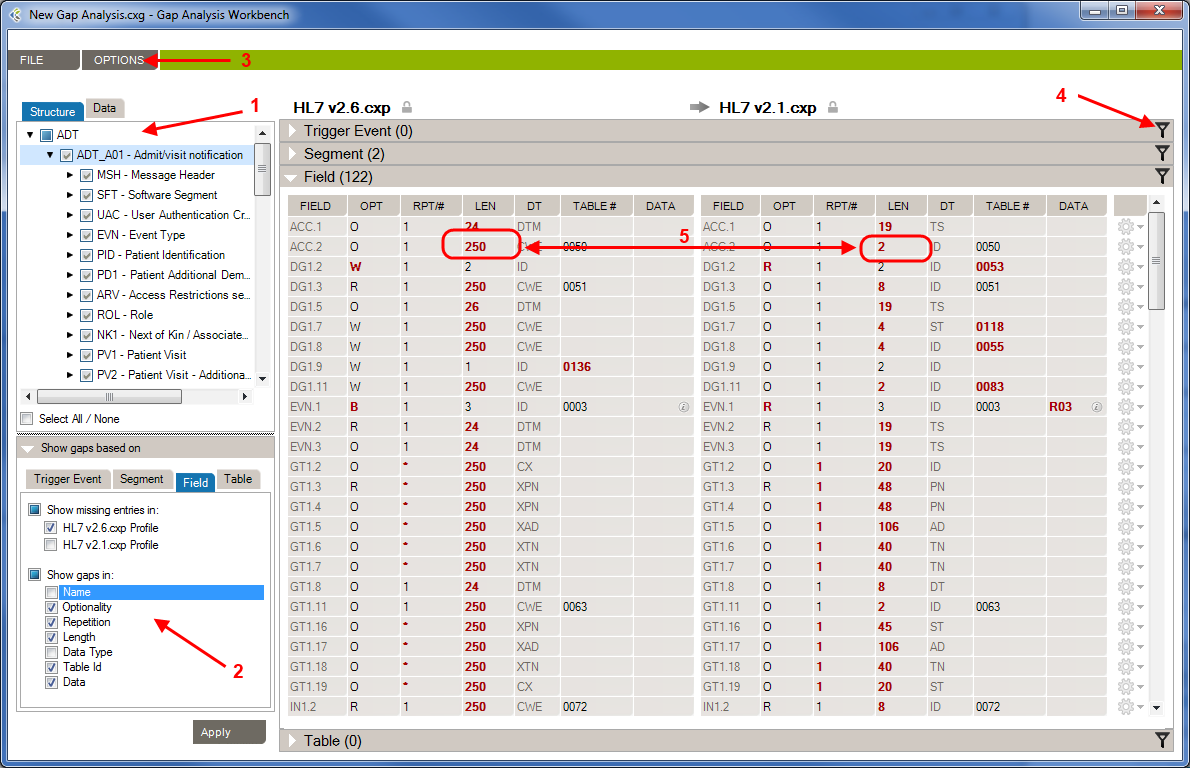
GapAnalysis_GapAnalysisWorkbench_v3


1- Structure/Data Element: In this section, you’ll choose which element from your profiles will be compared.

2- Attributes: In this section, you’ll choose which attributes, from the previously selected elements, will be compared.

3 – Options: In this menu, you’ll be able to set options to improve the accuracy of the Gap Analysis comparison process.

4- Differences Filters: Differences Filters are used to show differences that match some specific criteria. In other words, discard the differences that aren’t relevant to your analysis.

5 – Gap Analysis Results: In this section, you will see all differences between the selected elements of your profiles, based on your Gap Analysis filter (Attribute, Options, Differences Filters).

Using Gap Analysis Results

Gaps Serve As a To-Do List

Gap Analysis in Conformance helps you focus on identifying and scoping differences upfront, instead spending time downstream on the validation of an overly generic interface. The gaps you find are actually a to-do list of items you need to handle when configuring the interface.  Each to-do list item will need to be handled in one of several ways:

  • You can manage a gap within your integration engine using filtering, mapping, and/or transformation logic
  • You can adjust the sending system so it sends information compliant with the receiving application or the integration engine
  • You can ignore a gap if it doesn’t impact the system’s capability to handle needed information
  • You can see the definition of each element in both Profiles by right-clicking on a gap and then Go To Definition… (this option is not available when comparing with a log file)
  • You can ignore the case when comparing element values, example: (JOHN SMITH) will be consider equal to (John Smith). Use the OPTIONS menu to change this setting

The to-do list aspect of Gap Analysis serves as starting point for your project task list documentation.  Create a document automatically using the Export as Excel document functionality.

View Examples of Gap Occurrences

If a profile is created through reverse-engineering, you can view where the gaps in Optionality (for Segments and Fields) or Length (for Fields) comes from by right-clicking on a cell and selecting View Examples… This will display all the messages where the gap occurred for these profiles.

Refine Gap Analysis Criteria

Refine Gap Analysis Criteria: Which Gaps Matter?

By default, when you first see the Gap Analysis Workbench, nothing is selected.  When you run a Gap Analysis, you select the data elements that matter to your interface.

The Gap Analysis Workbench is split in 2 sections:
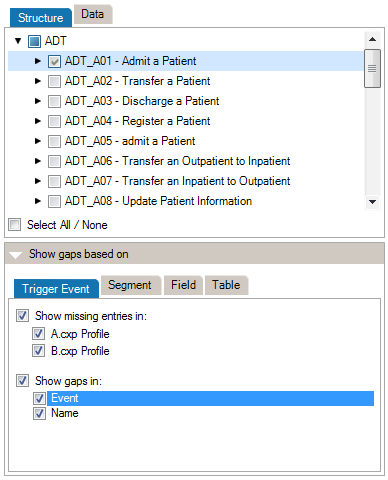
  • The left section contains the criteria (or the list of data element included in the comparison)
  • The right section contains the actual gaps

Criteria Section

Conformance_GapAnalysis_CriteriaSection_v3

At the top of the Criteria Section, you’ll see the list of the messages, segments, fields, and data tables that are contained in the 2 profiles (or profile and messages) you are comparing.  Select an element to include it in the Gap Analysis.

*(Steps prior to these examples)

**Choose HL7 v2.6 as the Reference and HL7 v2.1 as the Compared Profile.

Example #1: Get the List of Data Structure Differences in A01 Messages

  1. Navigate to the Criteria Section of the Gap Analysis Workbench
  2. Expand the ADT node
  3. Select the A01 trigger event
    • Click once (the checkbox is checked) to select the trigger event and all child nodes (segments, fields, components and subcomponents).
    • Shift-Click (the checkbox turns blue) to select the trigger event itself but not the child nodes (segments).
  4. Click Apply. The gap section on the right is then populated with gaps within the A01 data structure


Example #2: Get Data Content Differences in the Administrative Sex (0001) Tables

  1. In the Criteria Section, click the Data tab. This tab contains all the HL7 tables (code sets).
  2. Expand the “User Defined Tables” node
  3. Select 0001 – Administrative Sex table
  4. Click Apply. The table section is then populated with gaps across the 0001 – Administrative Sex data values


Example #3: Refine Field Comparisons

By default, comparisons within Gap Analysis are on all attributes.  Depending on your project and/or your context, you might need to focus on a subset of attributes and remove others.  You can refine the comparison algorithm to narrow your comparison as follows.

  1. In the Show Gaps Based On section on the bottom left, select the Field tab
  2. If you aren’t concerned about fields that are present in just one of the profiles, uncheck Show missing entries in checkbox corresponding to that profile.
  3. Uncheck any attribute you don’t need to consider for your interface
  4. Click Apply

The comparison is updated using the active attributes. Once in the Gap Analysis Workbench, you can refine the criteria used to evaluate gaps.

Each HL7 message element is described by a set of attributes.  This list maps attributes per each message element.

 Trigger Event
Segment
Field
Table
Event
   
Name
   
Sequence
 
  
Optionality 
 
Repetition 
 
Length  
 
Data Type
  
 
Table Id
  
 
Label   
Comments   


Refer to the Extra Content and Gap Analysis section for details around extra content and gap analysis.

Advanced Options

Gap Analysis Options

Several options are available in the Gap Analysis window.

Here is a list of basic options:

Hide Unused Columns:If enabled, this option will hide columns referring to non-computed attributes. Example: If you don’t want to compare the length of fields, the column LENGTH in the Field section will be hidden from your gap analysis results
Ignore Case:If enabled, this option will compare strings using a non-sensitive case algorithm.
Use Fuzzy Matching:If enabled, this option will match names which are similar to each other. Ex: “Admit a patient” and “Admit Patient” will be considered as equivalent.
Use Strict Usage Comparison:If enabled, this option will consider each segment’s/field’s optionality as different. Otherwise, segments/fields that are not “Required” will be considered as “Optional”.

 Here is a list of more complex options that allow you to maximize usage of Gap Analysis

Designate Sending Application

Sending vs. Receiving: Field Length Gaps

How you define a gap will depend in part on the capabilities of the sending and receiving systems.  For instance, if the maximum size of a field is 20 characters in the sending system but 50 in the receiving, you can safely ignore this gap. However, if the sending system sends 50-character fields to a receiving field with a maximum of 20 characters, you will need to be aware of the gap. You can address this issue by designating a sending application, as follows:

  1. In the Gap Analysis Workbench menu, select OPTIONS, Designate Sending Application…
  2. Select the system that is sending information
  3. Click OK

Extra Content Considerations

Gap Analysis and Extra Content

You can include Extra Content in the Gap Analysis process under the following conditions:

  • Compare 2 profiles, not a profile and a set of messages.  No Extra Content is collected during the analysis of HL7 messages.
  • Both profiles must use the same Extra Content template.

Once these two conditions are met, the Extra Content elements are managed the exact same way as the other elements. Gaps in the Extra Content elements will also be displayed.

Open a Gap Analysis Workbench Configuration

Gap Analysis File

To continue working on a saved Gap Analysis, you can load a previous Gap Analysis Workbench state. There are two ways to do this.

  1. From the Main Menu, select TOOLS
  2. Click on Gap Analysis, Open existing Gap Analysis… 

Alternatively:

  1. In Gap Analysis Workbench, select FILEOpen…
  2. Browse to the file location
  3. Select the file
  4. Click Open

Save the Gap Analysis Workbench Current State

Saving a Gap Analysis

You may want to save the current state of the gap analysis workbench to continue work later.  To do so:

  1. In FILE menu, select Save As…
  2. Choose a name for the file and a location
  3. Click Save

An .cxg file describing the current state of the gap analysis workbench is created. You can then reopen it:

  1. From the Documents view, click on the TOOLS menu, select Gap AnalysisOpen existing Gap Analysis…
  2. Select your .cxg click Open.

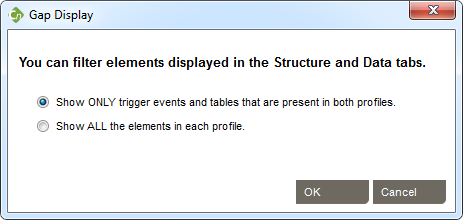
Show All Elements

Gap Display

To change this option:

  1. In the Gap Analysis Workbench, click on the OPTIONS menu item.
  2. Select Gap Display…

Conformance_GapAnalysis_GapDisplay

Choose Show ONLY… if you want to view the intersection set events and tables that are common to both profiles. Choose Show ALL… to show the union set.

Differences Filters

Differences Filters are used to show differences that match some specific criteria. In other words, to discard the differences which doesn’t match these criteria.

This can be used, for instance, to show only differences where the Field is Required in the Receiving Application but Optional (or Missing) in the Sending Application.

Add Filters

  1. Click the [empty] filter buttonFilterEmpty within the section for which you want to filter differences. A filter dialog will be shown.
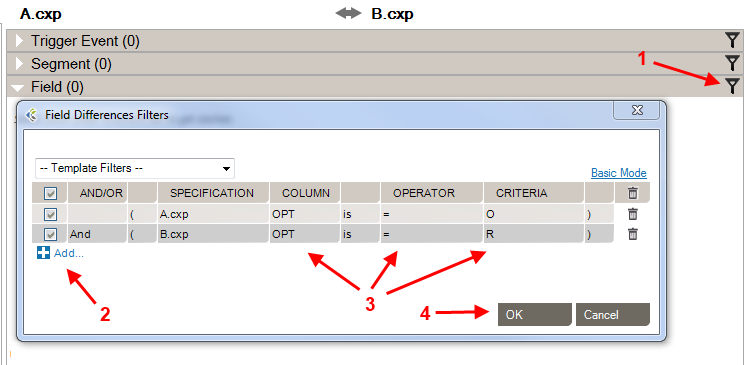
  2. Click the Add… button to add a new filter.
  3. Edit filter settings.
  4. Click the OK button when you’re done editing your filters. The filters will be applied, showing only differences which match your criteria.

 Conformance_GapAnalysis_DifferencesFilters_v3

 If a section contains active filters, the filter button will be shown as a full filter FilterFull

Filter Settings Basic Settings 

Source: Select the side from which you want to perform a filter.
Column: Select the column from which you want to get the value to be compared.
Is/Is Not: Include/Exclude differences that match the filter.
Operator: Select the operator that you want the criteria and the column’s value to match.
Criteria: Enter the criteria that you want to compare with the column’s value.


 Advanced Settings

Checkbox: Activate or deactivate filter (toggle on or off).
And/Or: 

AND: applies both these filters.

OR: applies either of these filters.

Parentheses: Used for nested filters.


Operators

=Covers values with an exact match to this data (this is like putting quotation marks around a search engine query)
>Greater than. Covers filtering on numeric values.
>=Greater than or equal to. Covers filtering on numeric values.
<Less than. Covers filtering on numeric values.
<=Less than or equal to. Covers filtering on numeric values.
containingCovers messages that include this value. 
presentLooks for the presence of a particular column.
emptyLooks for an unpopulated column.
matching regex

Use .NET regular expression syntax to build filters. For advanced users with programming backgrounds. Learn more about regular expressions here: 

inBuilds a filter on multiple data values rather than just one value.
= Other Specification ValueExact match to the other profile’s column value.
> Other Specification ValueGreater than the other profile’s column value. Covers filtering on numeric values.
>= Other Specification ValueGreater than or equal to the other profile’s column value. Covers filtering on numeric values.
< Other Specification ValueLess than the other profile’s column value. Covers filtering on numeric values.
<= Other Specification ValueLess than or equal to the other profile’s column value. Covers filtering on numeric values.

Basic/Advanced Mode

While editing your filters, you can switch between Basic and Advanced Mode. Advanced Mode shows advanced settings for your filters. These settings help in the construction of more complex filters using AND/OR operators and parentheses for nesting. Otherwise, each filter will be applied one after the other.

If your filters contain advanced settings and you switch back to the Basic Mode, these settings will be lost.

Differences Filter Template

Differences Filters Template are re-usable filters that can be applied to many Gap Analysis. A built-in can be selected from the drop-down list at the top-left of the filters dialog.

Hide a Difference from the Gap Analysis Result section

You can hide a difference (Gap Analysis Result row) automatically. To do so,  right-click the row you want to hide, then click “Hide [row key] difference”. This adds a new difference filter entry and hide the selected row.

Export Gaps as Excel Document

Gap Analysis in Excel

Gaps serve as a to-do list of items you need to handle when configuring the interface. The list of gaps serves as a starting point for project task list documentation.  To export gaps as a Excel document:

    1. In the Gap Analysis Workbench, select FILEExport as Excel Document…

Microsoft Excel (or the program associated with .xlsx documents) will automatically start.

Message Validation

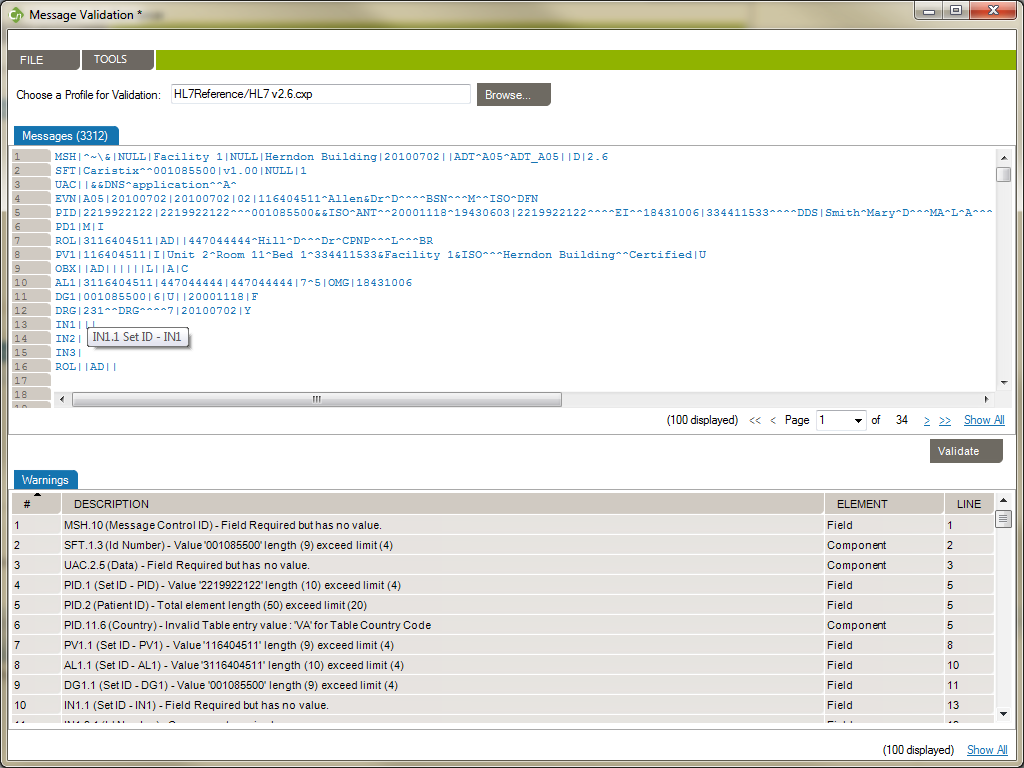
The Message Validation tool lets you compare an HL7 log against a profile in order to flag conformance gaps. This is useful when you need to troubleshoot data flow in a live interface that has been documented in Caristix Conformance.
  1. From the Main Menu, click Tools, HL7 Message Validation… A new Message Validation window appears.
  2. [Optional]You can choose the profile from which your messages will be validated. Otherwise, the default profile will be used.
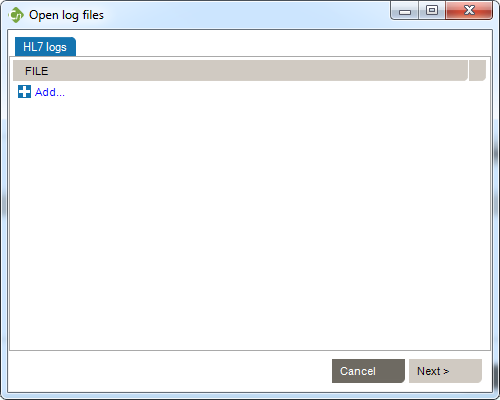
  3. Click File, Open messages. A new window appears.

    Conformance_HL7MessageValidation_OpenMessages

  4. Click Add… and navigate to the log file you want to add. Click Open in the file folder pane.
  5. In the Open log files window, click the Next button. The messages load in the Message Validation window.

    Conformance_HL7MessageValidation

  6. The Warnings pane displays conformance gaps flagged by the application.

From the Message Validation tool, you can right-click any messages and open the Message Editor tool, or view the Message Definition.

Using Extra Content

What is Extra Content?

Extra Content enables you build profiles that include more than the official HL7 content.

Basic profiles, without Extra Content, enable you to define message-related structure and content through trigger events, segments, fields, tables, etc. In turn, each of those elements are described through attributes such as Sequence, Name, Optionality, etc. software include set of attributes describing profiles and profile entities. Extra Content lets you add new elements and new attributes.

For instance, you may want to add a change history table to a profile, in order to track changes over time. Or you might want to add an extra column to store source descriptions for code set values. Both of these can be added using Extra Content. This content will be displayed as part of the profile, exactly the same way standard HL7-related elements and attributes are displayed.

What is an Extra Content Template?

An Extra Content Template is a set of extra elements and attributes that you bundle together.

The Extra Content template itself doesn’t contain any data. Instead it defines the containers (or placeholders) for your data. An Extra Content Template represents the structure of the content you add to a profile. You can set up a Template and use it across one or more profiles. Once a profile is associated with an Extra Content Template, you can enrich the profile definition by populating the Extra Content areas.

How Does an Extra Content Template Work?

Please refer to the following sections for more information:

Manage Extra Content Templates

Manage Extra Content Templates through the Extra Content Library. To access the Extra Content Library:

  • Go to the Document Library screen
  • Click on TOOLS menu
  • Select Manage Extra Content Template…

From the Extra Content Library (Manage Extra Content Templates window),  you can:

Create Extra Content Template

To create a new Extra Content Template, open the “Manage Extra Content Template” window.

  • Click New
  • Name the template
  • Click OK

Build your templates by adding Extra Content to profile sections as follows:

Extra Content for Profile

Add text, images, and grids to the Profile description area.

Profile Section

  • SEQ: Set the section’s order in the profile’s definition tab.
  • GROUP: You can regroup multiple sections in a tab-page control. Type or select a name that already exists to assign the section to a group.
  • DISPLAY ON REPORTS: If checked, the section will be part of the Word Document.
  • SECTION NAME: The name of the section.
  • TYPE: The type of the section. See types below.


Section Types

Add a New Text Area

  • In the upper-right tab panel, select Profile Section.
  • Click Add… A new row is added.
  • Modify the sorting sequence if needed.
  • Modify the grouping identifier if needed. Sections with the same grouping identifier will be presented together with each section being a tab.
  • Indicate if the section should appear in Word Document Report.
  • Give it a name by clicking in the name cell and typing in a short phrase name. This name is going to be displayed in profile description area as the name of this new text area.
  • Select Text as type.
  • Click OK.

Once you go back to the profile, you can enter text in the Profile description area.

Add a New Image

  • In the upper-right tab panel, select Profile Section.
  • Click Add… A new row is added.
  • Modify the sorting sequence if needed.
  • Modify the grouping identifier if needed. Sections with the same grouping identifier will be presented together, each section being a tab.
  • Indicate if the section should appear in the Word Document Report.
  • Give the new image a name by clicking in the name cell and typing in a short phrase name. This name is going to be displayed in profile description area as the name of this new image area.
  • Select Image as type.
  • Click OK.

Once you go back to the profile, you can add an image. To do so, click the Browse… button and select the image you want to include.

Add a New Grid

  • In the upper-right tab panel, select Profile Section.
  • Click Add… A new row is added.
  • Modify the sorting sequence if needed.
  • Indicate if the section should appear in the Word Document Report.
  • Give the new grid a name by clicking in the name cell and typing in a short phrase name. This name is going to be displayed in profile description area as the name of this new grid.
  • Select Grid as type.
  • A new table Column appears below.  This table is used to configure the grid columns.
  • Click Add… to add a column to the grid.
  • Modify the sorting sequence if needed.
  • Modify the grouping identifier if needed. Sections with the same grouping identifier will be presented together with each section being a tab.
  • Give the new column a name by clicking in the name cell and typing in a short phrase name.
  • Select the new column type.
    • String: column contains regular text
    • Checkbox: column contains checkboxes (check as needed in the profile description area)
    • Date:  column contains dates.  Includes a date picker.
    • List:  column contains picklist of values. These are the only valid values for this column.
    • Table:  Similar to List column.  However, the list of valid values comes from a table defined within the profile.
  • For some column types, you need to provide additional information such as a list of valid values or a profile table name.  Provide them as requested.
  • Repeat as needed for each column in the new grid.
  • Click OK.

Once you go back to the profile, you can add data to your new grid.  To do so, click the Add… button to create new grid rows.

Extra Content for Profile Elements

You can add Extra Content embedded next to the HL7-defined profile elements. This is a quick way to display needed profile data such additional descriptions, items to validate, business and mapping rules, etc.

Add a New Text Column

  • In the upper-right tab panel, select Field (or Segment and Segment Group or Table, depending on the element you want to modify). You’ll see the attributes/columns that are already present. Grayed-out columns are standard and cannot be modified.
  • Click Add… A new row is added
  • Modify the sorting sequence if needed
  • Modify the grouping identifier if needed. Sections with the same grouping identifier will be presented together, each section being a tab
  • Indicate if the column should appear in the export to Word Document
  • Give it a name by clicking in the column name cell and typing in a short phrase name. This name is going to be displayed as the column header.
  •  Select the column type: String
  • Click OK

You are now ready to populate the new column with text:

  • Expand the selected profile
  • Select a segment so fields are listed (choose a different profile element as needed)
  • The new column is now added to the field grid.  You can enter text.

Add a New List Column or Picklist

List columns are useful when you’re able to define valid values for the column — in other words, a picklist.

  • In the upper-right tab panel, select Table (or Segment and Segment Group or Field depending on the element you want to modify). You’ll see the attributes/columns that are already present. Grayed-out columns are standard and cannot be modified.
  • Click Add… A new row is added
  • Modify the sorting sequence if needed
  • Modify the grouping identifier if needed. Sections with the same grouping identifier will be presented together, each section being a tab
  • Indicate if the column should appear in the export to Word Document
  • Give it a name by clicking in the column name cell and typing in a short phrase name. This name is going to be displayed as column header.
  • Select the column type: List
  • A new table Values appears below.  Populate this table with your picklist values as follows:
    • Click Add… A new value row is added
    • Give the new value a label.
    • Enter the value in the VALUE cell
    • Repeat as needed
  • Click OK

Next, populate the profile:

  • Expand the selected profile in the Document Library
  • Select a field with an associated table

The new column is now added to the table content.  You can pick values from the picklist to assign values to the cell.

Delete Extra Content Template

To delete an Extra Content Template, open the “Manage Extra Content Template” window.

  • Select the template to be deleted
  • Click Delete
  • A warning message appears; click OK
  • Click OK again.

Note: Extra Content Templates are linked to the data within profiles. If you delete an Extra Content Template, all associated data within your profiles will be deleted as well.

Modify Extra Content Template

You can modify templates at any time so you can continue to enrich your profiles, as follows:

Note: If you delete an Extra Content Template element, this component will be deleted in every profile associated with this template.  Learn more about deleting Extra Content Templates.

Rename Extra Content Template

To rename an Extra Content Template, open the “Manage Extra Content Template” window.

  • Select the template to be renamed
  • Click Rename…
  • A new dialog box appears, enter the new name
  • Click OK

Copy Extra Content Template

To copy/duplicate an Extra Content Template, open the “Manage Extra Content Template” window.

  • Select the template to be copied
  • Click Copy…
  • A new dialog box appears, enter the name of the new template
  • Click OK

Copying an Extra Content Template can be quite useful when you want to modify an existing template without impacting all associated profiles.  Create a new but similar template, and then migrate profiles to the new template one by one.

Copying is also a way to “backup” a template before modifying it.

Assign Extra Content To Profile

Link an Extra Content Template to a profile as follows :

  • In the Document Library tree, select the profile
  • Right-click on it and select Assign Extra Content Template…
  • Select the Extra Content Template you want to assign to this profile
  • Click OK

You can now add Extra Content to your profile based on the newly assigned template.

Unlink Extra Content Template From Profile

Unlink an Extra Content Template from a profile as follows:

  • In the Document pane, select the profile
  • Right-click on it and select Assign Extra Content Template…
  • Select None if you want to remove any extra content
  • Click OK

Import Profile Containing Extra Content

Conformance automatically manages Extra Content Templates when you import profiles. If the template is not already available, it will be imported along with the profile.

Extra Content and Gap Analysis

Extra Content can be included in the Gap Analysis process.

Ensure that both profiles are using the same Extra Content Template. Extra content will automatically appear in the list of attributes available for Gap Analysis. Learn about Gap Analysis attributes.

Application Vocabulary

  • Data filters: used during reverse engineering process to remove unneeded data elements and values from HL7 log under query.
  • HL7 Reference: within Library, read-only profiles based on the HL7 standard.
  • Library: list of document available in Conformance.
  • Reverse engineering: process to generate profile from HL7 message log

Using Reports

Caristix Conformance lets you generate reports from the information contained in profiles. You can share these reports within your team or with customers.

Profile Reports: reports based directly on profiles contained in the Library. When you create a report, you can select the trigger events, segments, data types, and tables to include. You can include as little or as much information as you need to communicate. You can also synch changes in Word reports with the original profile in Conformance.

Gap Analysis Reports: Excel reports based on gap analysis.

Gap Analysis Reports

You can generate Excel spreadsheets containing lists of gaps on trigger events, segments, fields, data types, and data.

  1. When you are in the Gap Analysis Workbench, click File, Export as Excel Document...
  2. Microsoft Excel opens, displaying the requested report.
  3. Scroll to navigate within the report.
  4. Gap analysis reports, which are .xlsx files, can be opened directly using Microsoft Excel 2007 or later.

Profile Reports

Generate profile reports of an interface specification:
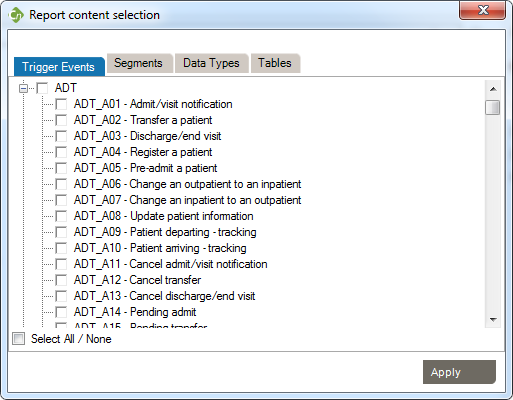
  1. Under the Document view, right-click a profile and select Export Profile, To Word Document… A new screen opens.
    Conformance_ExportToWord
  2. Select the trigger events, segments, data types, and tables you want to include in your report. Click Apply.
  3. Then browse to the destination to save the .docx document and enter a File name. Click Save.
  4. Microsoft Word opens, and you’ll be asked to update fields; click Yes. The report is displayed.
  5. Scroll to navigate within the report.
  6. Click the hyperlinks within the document to specific sections within the reports for segments, data types and tables.
  7. You can open the document directly using Microsoft Word 2007 or later.

Note: You can also synch your profile.  This feature allows a user to update the Word document directly and synchronize the profile library with the upload document content.

Synchronization

When you publish a profile report to Word, you may need to edit descriptions in Word, then save those edits to the corresponding profile. This is done using the Synchronize function.

  1. In Microsoft Word, edit the report. You can edit text descriptions and information in tables. Do not edit headings or titles.
  2. Save the document in Word.
  3. Close the document.
  4. Navigate to Caristix Conformance. Click TOOLS, Synchronize HL7 Profile… .
  5. Select the Word document you just edited and click Open. This will save changes you made in tables and description field in the Word document back to the original profile. (Note that the .docx document shall not be opened in Microsoft Word in order to synchronize it)

Options

Options in Conformance

From the Main Menu, click Tools, then Options in the drop-down menu that appears.

A new Options window opens.

Check for updates upon startup.

  • Every time you start Conformance, the software will check for available updates. You can manually check for updates by going to  HelpCheck for Updates

Show tips

  • This will display information boxes that provide guidance on Conformance features. To hide a tip permanently, click the “X” button.

Tooltip_HideTip_v3

Use the “Reset hidden tips” link to restore all hidden tips.

Show Did You Know

  • Every time you start Conformance, the software will show a ‘Did you know’ article.

Always ask to delete confirmation

  • If checked, each time you perform a delete operation, you will be asked to confirm your action.

Always ask for confirmation when change might affect other elements

  • If checked, each time you edit a property in a profile that may affect other elements, you will be asked to confirm your action.