Pinpoint

Introducing CaristixTM Pinpoint Software

Caristix Pinpoint is designed to help interface analysts, engineers, and technical support team members to quickly find HL7 data needed for interfacing tasks and customer service. Pinpoint provides the following features and functionality:

System Requirements

Table des matières

Getting Started

Install and Register Caristix Pinpoint Software

  • Install Caristix Pinpoint by clicking on the installation file (.msi file) you received.
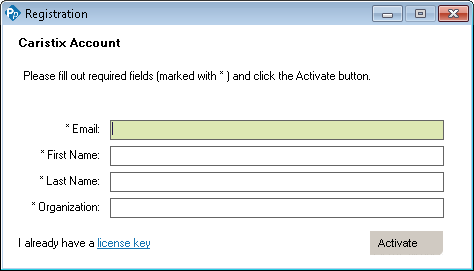
  • Launch the software, and fill out the EmailFirst NameLast Name and Organization fields in the registration form.
  • Click the Activate button.
  • RegistrationIf you have a trial version, you will need to purchase an annual license to continue using Pinpoint after the end of the trial period.
Managing Your Files

Open messages

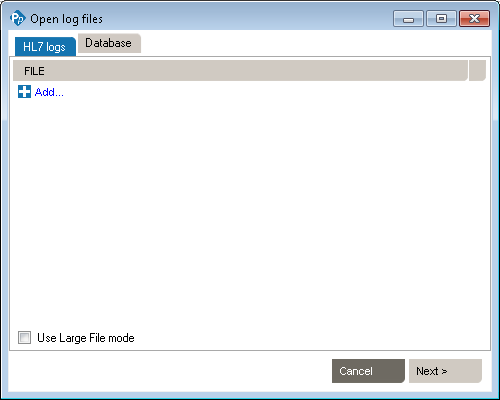
  1. Click FileOpenMessages… . The application opens a dialog box to add one or more log files.
    Pinpoint_OpenLogFiles
  2. Select messages from files
    1. Click the + sign, then navigate to select one or more files. (You can use the usual Windows command Ctrl + left-click to select multiple files.) Click Open to add the files.
    2. Optional: Check Use Large File mode  when loading files above 10MB in size. (This option is selected automatically if file size reaches 25 MB. It will also deactivate the Sort, Replace and Edit Message features.)
  3. Alternative: Select messages from a database or Connector
    1. Click on the Database tab and select a Data Source. Click on Sources… to configure a Data Source.
  4. Click Next in the Open Log Files dialog box.
 

Save a File

This function lets you save a log file or save filtered or sorted results. You would save results in order to document an issue or explain message flow to a colleague or customer.

  1. On the Main Menu, click FileSaveMessages…
  2. Enter a file name.
  3. Click Save.
  4. Your file is saved as a .hl7 file.

(The Save command is also available in the right-click dropdown menu.)

By default, Pinpoint saves the file to the My Documents folder.  To save the file to a different location, select another folder on your computer or network. You can also save by right-clicking within the Messages area. A dropdown menu appears. Select Save Messages.

Close Files

  1. On the Main Menu, click FileClose.
  2. If you haven’t saved your file, you will be prompted to save.

Managing Search and Filter Rules File

Search and Filter Rules FileDocumentPackageType_SearchAndFilterRules

You can save the rules you create for searches and filters as a file. A Search and Filter Rules File is used to persist Data Filters, Sort Queries and Data Distribution entries for reuse. 

Open a Search and Filter Rules File

  1. Click FileOpenSearch and Filter Rules… . The application opens a dialog box to select a Search and Filter Rules file (*.cxf).
  2. Select a Search and Filter Rules file and click Open.

* You can also open a Search and Filter Rules file by right-clicking anywhere in the Data Filter, Sort or Data Distribution section and click the “Open Search and Filter Rules…” menu. 

Save a Search and Filter Rules File

  1. Click FileSaveSearch and Filter Rules… .
  2. Enter a file name.
  3. Click Save.
  4. Your file is saved as a .cxf file.

* You can also save a Search and Filter Rules file by right-clicking anywhere in the Data Filter, Sort or Data Distribution section and click the “Save Search and Filter Rules…” menu. 

Recent Search and Filter Rules File

If you’ve already opened a Search and Filter Rules file, it will be added to the recent files for quick access. To open a recently opened file…

  1. Click FileRecent Search and Filter Rules[File name]

Message Structure

Viewing Messages in Pinpoint

Pinpoint software includes several features that provide detailed information about the messages and values contained in HL7 logs.

Message Structure

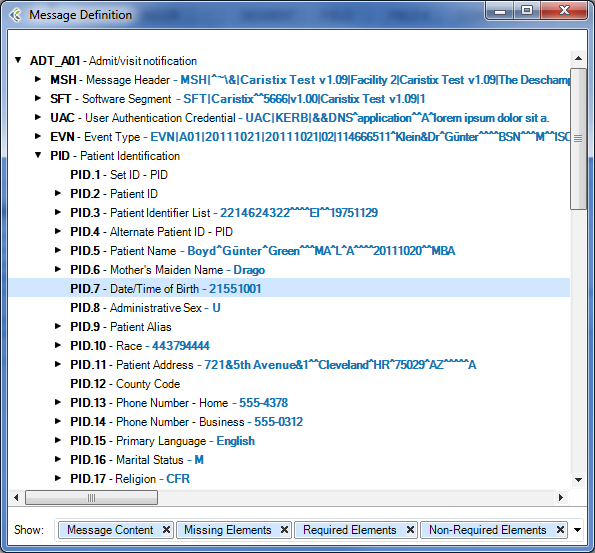
When you are analyzing a message log, you sometimes need to quickly capture an overview of a message or segment. Pinpoint provides a message definition feature.

In the Messages area, right-click anywhere in a segment and select Message Structure. A Message Structure dialog box appears, with details on the field position, field names, and values in each field.
Workgroup_Message_Definition

Available Actions

  • You can add Data FilterSort or Data Distribution by right-clicking a field.
  • You can save the message as HL7 v2.x, CSV or XML format.
  • You can filter-out elements from the message tree.
    • Message Content: If selected, the message values (blue) will be shown in the message tree.
    • Missing Elements: If selected, the missing segments/fields will be displayed (grayed out).
    • Required Elements: If selected, the required segment/field will be displayed.
    • Non-Required Elements: If selected, the non-required elements (such as optional, conditional, etc.) will be displayed.

Tooltips

When you are analyzing a message log, you sometimes need to know the position of a field. Pinpoint lets you determine the position (and the name of the field) without counting pipes.

Click anywhere in the Messages area, then hover over a field. A mouse-over tooltip appears, listing the field name and position.

Working with Logs, Trigger Events and Segments

Logs

  • Click the Logs tab. Then click checkboxes to select or unselect specific log files.

Pinpoint_Filter_Logs


Check “Use Large File mode”  when loading files above 10MB in size. (This option will deactivate the Sort, Replace and Edit Message features.)
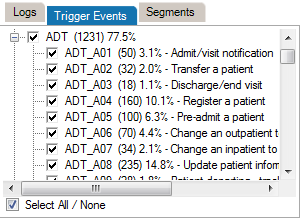
Trigger Events

  • Click the Trigger Events tab. Then click checkboxes to select or unselect specific trigger events.

Pinpoint_Filter_TriggerEvents

  • Selected messages appear automatically in the Messages area.

Segments

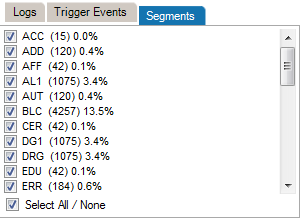
  • Click the Segments tab. Then click checkboxes to select or unselect specific segments.

Pinpoint_Filter_Segments

Working with Data Filters

Data Filters

Data filters let you set up queries to find messages containing specific data such as patient IDs, names, and order types codes. Queries can filter on specific message elements: segments, fields, components, and subcomponents.

  • Messages are composed of segments.
  • Segments contain fields.
  • As an option, fields can contain components.
  • As an option, components can contain subcomponents.

Pinpoint_Filter_Data

Select Message Data to Build Filters

This is the recommended method for building data filters. Once you’ve built a query, you can then modify the Filter Operators to change your filter criteria.
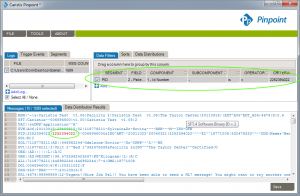
  • In the Messages area, look for the field containing the data you want to filter. It could be a patient name, a date, a location, or another string.
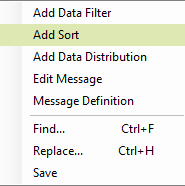
  • Right-click within the field. A menu appears.
  • Click Add Data Filter.
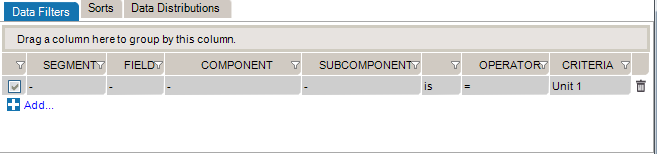
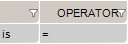
  • The filter is automatically created within the Data Filters tab, and the data you filtered on is highlighted within the Messages area. The default filter operator (“is” “=”) is applied.

    Pinpoint_Filter_Data2


Build Data Filters Directly

This is an alternate method for building data filters and is helpful when applying complex filter operators.
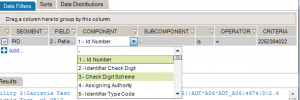
  • In the Data Filters area, click the Add button.
  • Click on each of the Segment, Field, Component, and/or the sub-component dropdown lists to configure the message structure you’re filtering for. (Click image to enlarge.)
  • Pinpoint_Filter_Data3Apply operators. Select “IS” if you want your results to INCLUDE the data you’ll be filtering on. Alternatively, select “IS NOT” if you want your results to EXCLUDE the data you’ll be filtering.
  • Continue applying operators. Select = , likepresent, or empty, depending on the query type. See Data Filter Operators for more detail.
  • In the Criteria field, type the data you’re filtering on. Press the Enter key. Results automatically appear in the Messages area.

Add Filters from the Message Definition Tree

You can also add filters from the Message Definition tree. To do so:
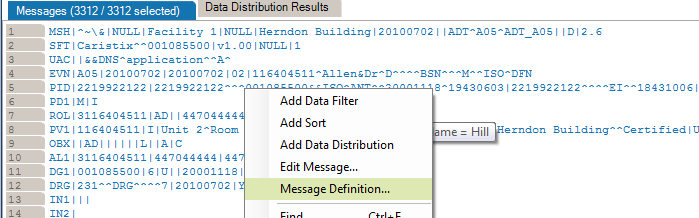
  • Right-click any messages in the Messages area, then click “Message Definition…“.

SearchAndFilter_ShowMessageDefinition_v3

  • Navigate to the field you want to add.
  • Right-click the field and select “Add Data Filter“. 

SearchAndFilter_MessageDefinition_AddFilter_v3

Case Sensitivity

Data filter queries can be made case-sensitive.  This is helpful when you need to identify data that might have been entered in all caps (JOHN SMITH) instead of title case (John Smith).

  • Click ToolsOptions, and go to the Settings tab.
  • Check or uncheck the Make data filters case-sensitive checkbox as needed.

Global Find

You can create filters that query the entire log, instead of a single segment or field. Simply omit the segment and field from the filter. The results in the Messages area cover all occurrences of the value you specified in the filter.
Pinpoint_Filter_Data4

Basic/Advanced Mode

While editing your filters, you can switch between Basic and Advanced Mode. Advanced Mode shows you advanced settings for your filters. These settings help you to construct more complex filters using AND/OR operators and parentheses for nesting. Otherwise, each filter will be applied one after the other.

If your filters contains advanced settings and you switch back to the Basic Mode, these settings will be lost.

Advanced Mode

Pinpoint_Filter_Data_AdvancedMode

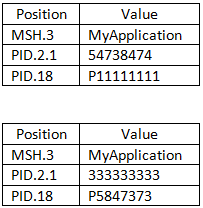
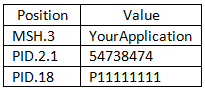
In this example, we want to create filters to get messages where (MSH.3 = MyApplication) and (PID.2.1 = 54738474) or (PID.18 = P5847373).

These filters will include the following messages:

 Pinpoint_Filter_Data_IncludedMessages

They will exclude these messages:

Pinpoint_Filter_Data_ExcludedMessages

Data Filter Operator

Data Filters in Pinpoint

Data filters let you select a subset of messages from the logs you load in Pinpoint. The operators let you build filter queries, ranging from simple to complex. The most basic operator set consists of the us of  “is” and “=”. 

Pinpoint_Filter_Operator

These are the default operators in the Add Data Filter command, available on the right-click dropdown menu in the Messages area.

The other data filter operators let you build sophisticated filters for analyzing the HL7 data in your log. (Learn how data filters work in the section on Working with Data Filters.)

Operators List

Operator

Action

isIncludes messages that contain this data
is notExcludes messages that contain this data
=Covers messages with an exact match to this data (this is like putting quotation marks around a search engine query)
<Less than. Covers filtering on numeric values.
<=Less than or equal to. Covers filtering on numeric values.
>Greater than. Covers filtering on numeric values.
>=Greater than or equal to. Covers filtering on numeric values.
likeCovers messages that include this data. Covers filtering on numeric values.
presentLooks for the presence of a particular message building block (such as a segment, field, component, or sub-component)
emptyLooks for an unpopulated message building block (such as a segment, field, component, or sub-component)
inBuilds a filter on multiple data values in a message element rather than just one value.
in tableLooks if the data is in a specific table of the referenced Profile.
matching regexUse .NET regular expression syntax to build filters. For advanced users with programming backgrounds. Learn more about regular expressions here:


Working with Sort Queries

Sorting HL7 Messages

Sort queries sort a log on a message element (segment, field, component, or subcomponent).

Sorting data is useful when you want to group messages by criteria such as patient name, date, or location.

Pinpoint_Order1

This sort on MSH 6 reorders messages by the name of the receiving facility, in this case a patient care location.

Select Message Data to Build Sort Queries

This is the recommended method for building sorts. Once you’ve built a query this way, you can modify the Filter Operators to change your filter criteria.

  1. In the Messages area, look for the field containing the data on which you are sorting. It could be a patient name, a date, a location, or another string.
  2. Right-click within the field. A menu appears.
  3. Click Add Sort.
    Pinpoint_Order2
  4. The sort query is automatically created within the Sort tab, and the reordered data is displayed within the Messages area.


Build Sort Queries Directly

This is an alternate method for building sort queries.

  1. In the Sorts tab, click the + Add button.
  2. Click on each of the SegmentFieldComponent, and/or Subcomponent dropdown lists to select the element on which you are sorting. (Click image below to enlarge.)
    Pinpoint_Order1
  3. Apply the Order operator, selecting “ascending” or “descending” as needed.


Add Sort Queries from the Message Definition Tree

You can also add sort queries from the Message Definition tree. To do so:
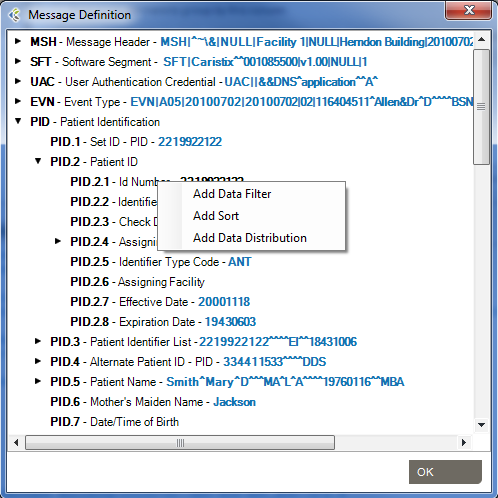
  • Right-click any messages in the Messages area, then click “Message Definition…“.

SearchAndFilter_ShowMessageDefinition_v3

  • Navigate to the field you want to add.
  • Right-click the field and select “Add Sort“. 

SearchAndFilter_MessageDefinition_AddFilter_v3


Data Distribution

Understanding Data and Content in HL7 Messages

The Data Distribution feature displays the data values in a field. For instance, it helps you quickly figure out what codes are used in a specific field or how often a specific code is used.
Data Distribution can also help you analyze how one field can impact other fields in terms of data and content. With Data Distribution, for example, it’s possible to get the list of lab result codes for each lab request codes within a set of sample messages.

All charts and tables can be copied and pasted to Word and Excel.

Task #1: Get Data Distribution of a Field

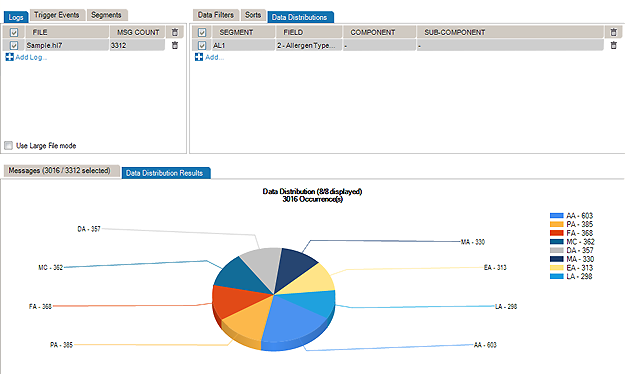
  • In the Messages section, right-click on the field you want to analyze further (in this example, we chose AL1.2 Allergen Type Code ). A menu appears.
  • Select Add Data Distribution.
  • The selected field is added to the Data Distributions tab.
  • A pie chart appears in the Data Distribution Results tab.

The pie chart displays the values that populate the field, as well as how often those values occur in the field.
Task #2: Create a report based on Data Distribution Fields

  • In the Messages section, right-click on the field you want to add (in this example, we chose MSH.4 Sending Facility). A menu appears.
  • Select Add Data Distribution.
  • The selected field is added to the Data Distributions tab.
  • Drag the MSH.4 – Sending Facility to the group zone.

The report displays which Allergen Type Code is sent, grouped by Sending Facilities.
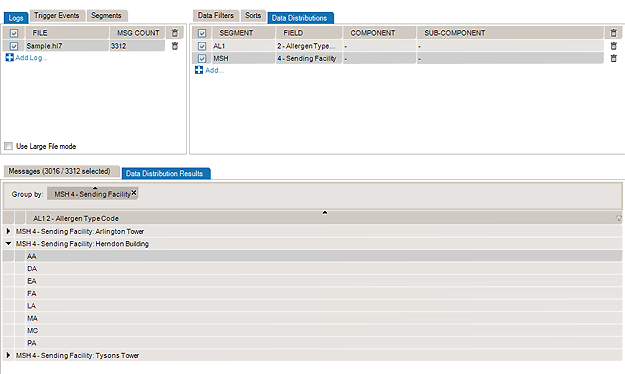
  • You can save this report by right-clicking the Data Distribution Result grid and selecting Save Report.

Task #3: Analyze the Impact of One Field on Others

  • In the Data Distribution Results tab, click on Data Distribution Viewthen Show All (by default, only the top 10 most frequently used values are listed).

Add Data Distribution Fields from the Message Definition Tree

You can also add data distribution fields from the Message Definition tree:

  • Right-click any messages in the Messages area, then click “Message Definition…“.

SearchAndFilter_ShowMessageDefinition_v3

  • Navigate to the field you want to add.
  • Right-click the field and select “Add Data Distribution“.

SearchAndFilter_MessageDefinition_AddFilter_v3

Add a Data Filter from the Data Distribution Table View

From the Data Distribution table view, you can add a Data Filter in order to find messages containing specific data:

  1. Add a Data Distribution field.
  2. Go to the Data Distribution tab and switch to the “Table View“.
  3. Right-click any value you want to search for, and click Add Data Filter.
  4. A new Data Filter will be added.

Message Prefixes

Handling Non-Standard Delimiters

Some interfacing technologies output non-standard message logs. In a raw state, they may be impossible to parse against an HL7-compliant standard. By adding a message prefix representing the extraneous data, you can load these logs in Pinpoint.

To add a message prefix:

  1. In the Main Menu, go to ToolsOptions. Open the Delimiters tab.
  2. Select the Use message beginning delimiter checkbox.
  3. Enter the string that precedes the HL7 message (beginning of message delimiter).
  4. If this string is expected at the beginning of a new line, check the Beginning of line checkbox.
  5. By checking the Use custom regex checkbox, Pinpoint will treat this string as a regular expression instead of a static string.

You can also use message and segment ending delimiters.

Learn more about regular expressions here:
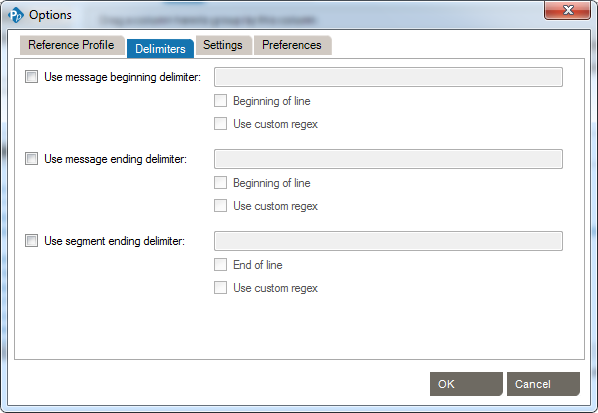
Pinpoint_Options_Delimiters

Reference Profile

Using Profiles with Pinpoint

Pinpoint works by parsing messages against a reference profile (or specification). The default setting is to parse against the HL7 version specified in the Version ID field of the MSH segment. However, you can also set the reference profile manually, as follows:
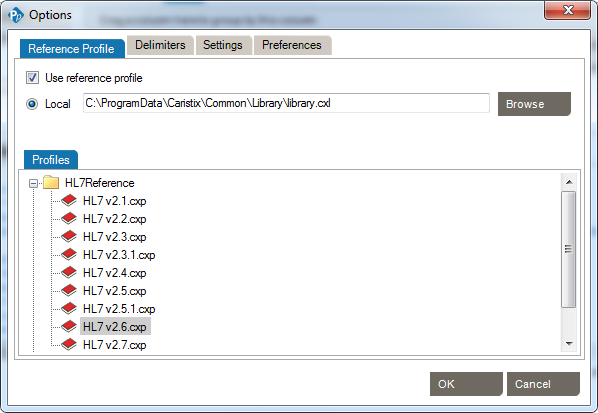
  1. In the main menu, select ToolsOptions.
  2. Open the Reference Profile tab.
    Pinpoint_Options_ReferenceProfile
  3. Make sure the Use Reference Profile checkbox is checked.
  4. In the Profiles tab, select a profile. Click OK. This will change the reference profile used to parse logs loaded into Pinpoint.


The default profile library is in %AllUsersProfile%\Application Data\Caristix\Common\Library\library.cxl. If you want to load an alternate profile library, click the Browse button.

Options

Reference Profile

These setting allow the use of HL7 reference profiles to parse logs. Open the Reference Profile tab.

  • Click the checkbox for Use Reference Profile.
  • Under the Profiles tab, click and highlight the HL7 reference file to be used from the list and click OK. This will change the reference file used in Pinpoint.
  • To load an alternate library, click Browse to navigate to the location of the file. Choose the location and file name and click Open. The file path will be referenced when returning to the Reference Profile tab.
  • Click OK to save the settings.

Delimiters

These settings allow the addition of specific delimiters to the log file to assist with manageability and readability. They include:

  • Use message beginning delimiter:
    • Open the Preferences tab.
    • Click the checkbox to select this category.
    • Type the delimiter to be used in the text box.
    • Click the checkbox to choose the location for the delimiter.
      • Beginning of file or Use custom regex.
  • Use message ending delimiter.
    • Click the checkbox to select this category.
    • Enter the delimiter to be used in the text box.
    • Click the checkbox to choose the location for the delimiter.
      • Beginning of file or Use custom regex.
  • Use segment ending delimiter.
    • Click the checkbox to select this category.
    • Type the delimiter to be used in the text box.
    • Click the checkbox to choose the location for the delimiter.
      • End of line or Use custom regex.

Click OK to save the delimiters.

Settings

Make data filters case-sensitive

You can make your data filter queries case-sensitive.  This is helpful when you need to identify data that might have been entered in all caps (JOHN SMITH) instead of title case (John Smith).

Add metadata to result file

This option will generate extra metadata information when you save the resulting messages. This metadata contains the filters, sort and file sources information.

Automatically apply changes

By default, Pinpoint will automatically apply changes that you make on filters. If you uncheck this option, changes to filters will only be applied when clicking on the Apply Changes button.

Preferences

Check for updates upon startup.

  • Every time you start Pinpoint, the software will check for available updates. You can manually check for updates by going to  HelpCheck for Updates

Show tips

  • This will display information boxes that provide guidance on Pinpoint features. If you want to hide a tip permanently,  click the close button. Restore all hidden tips with the “Reset hidden tips” link.

Show Did You Know

  • Every time you start Pinpoint, the software will show a ‘Did you know’ article.

Display trigger events / segments count

  • This will display the count of each element in the Trigger Events and Segments tab.

Display trigger events / segments percentage

  • This will display the percentage of each element in the Trigger Events and Segments tab.

Find and Replace

Find and Replace

You can find and replace values in your messages. The Use filters option lets you find and replace within a field.

Find

  1. Click on TOOLS -> Find
  2. Enter a value, example: App-32
  3. Option: select Use Filters to limit the search to a specific field
  4. Option:  Match case, if this option is checked, App-32 will be different than apP-32
  5. Option: Search up, if this option is checked, the search will find the previous occurrence of the value relative to the current cursor position
  6. Option: Use Regex, use .NET regular expression syntax to build filters. For advanced users with programming backgrounds. Learn more about regular expressions here:
  7. Click Find Next to reach the next occurrence of the specified value relative to the current cursor position

Replace

You can also use the Replace tab and specify a replacement value
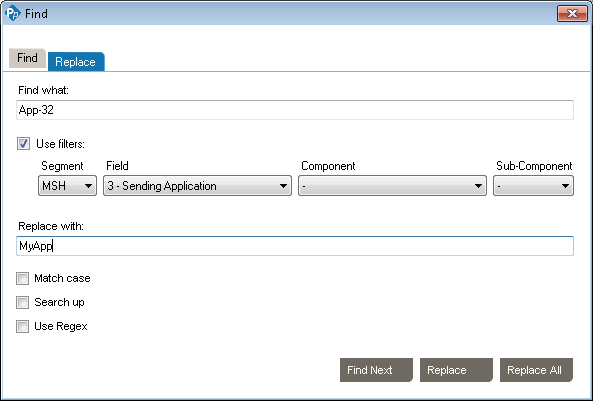
  • Click Replace to replace currently highlighted occurrence
  • Click Replace All to replace all occurrences of that value

Pinpoint_FindAndReplace